
MacPhobic
Inspiring
October 25, 2017
Answered

Update Failed - AAU - Mac

  • October 25, 2017
  • 3 replies
  • 6678 views

Hi Group,

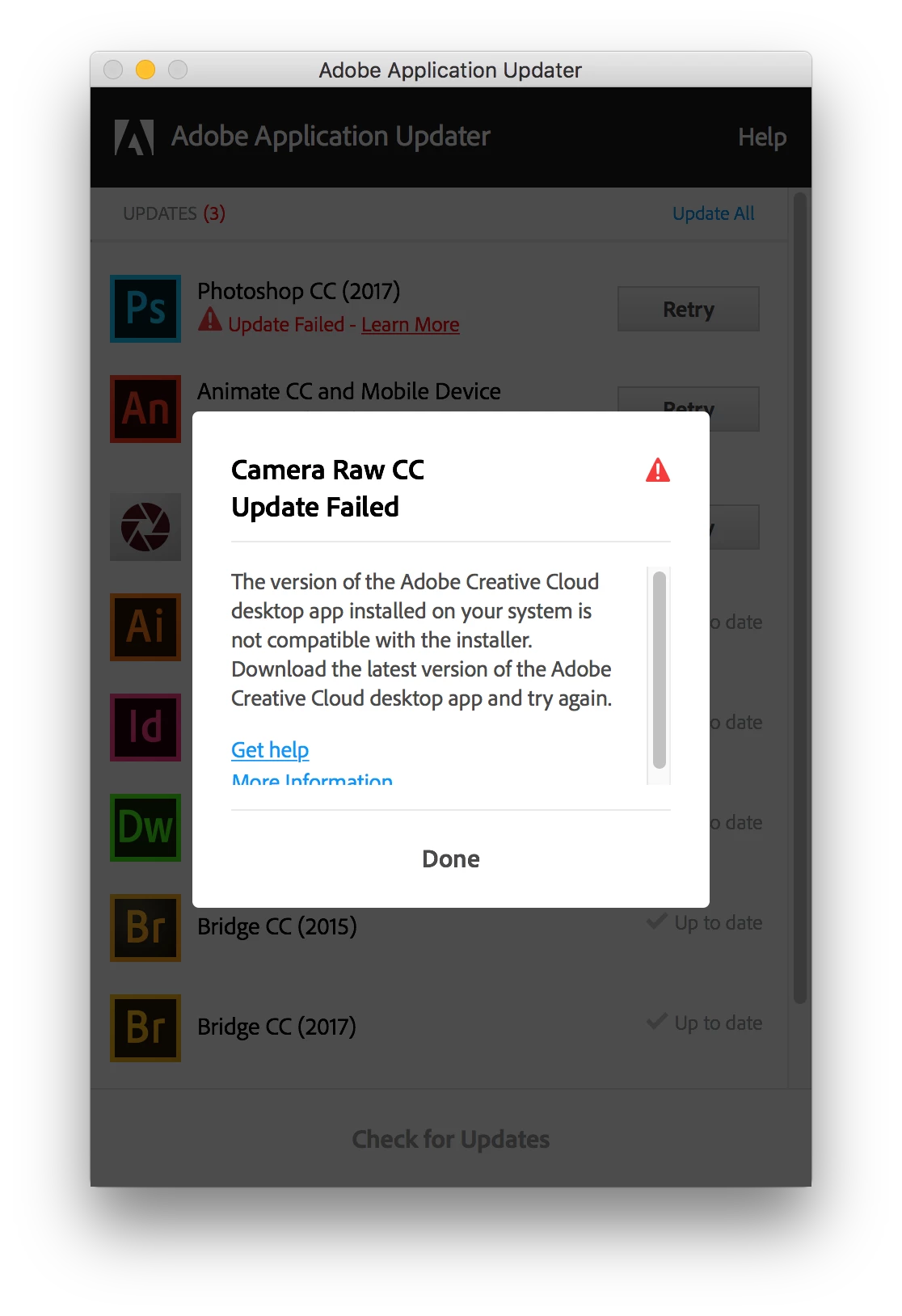
We are trying to apply a list of updates to our Creative Cloud Enterprise installs for CC 2017 and of the 7 or 8 updates available, 3 of them fail with a error of:

"The version of the Adobe Creative Cloud desktop app installed on your system is not compatible with the installer. Download the latest version of the Adobe Creative Cloud desktop app and try again." Photoshop, Animate and Camera Raw CC are the ones so far on this list that won't install.

Unfortunately, we do not use the ACC desktop app because we are enterprise. We use the check for updates option under the Help menu of the application(s).

Screenshot provided. Any thoughts on how to fix? 
    This topic has been closed for replies.
    Correct answer rpandita

    Hi harpercollins ,

    Step 1: Download and install creative cloud desktop application.

                 Download Creative Cloud desktop app

    Step 2: now try to update the applications.

    ~Rohit

    3 replies

    dragosm13061690
    Participant
    June 27, 2018

    I have the same problem.  but after when I download the app and click on Update now it opens what you can see below.

    What can I do?

    rpandita
    rpanditaCorrect answer
    Inspiring
    October 26, 2017

    Hi harpercollins ,

    Step 1: Download and install creative cloud desktop application.

                 Download Creative Cloud desktop app

    Step 2: now try to update the applications.

    ~Rohit

    MacPhobic
    MacPhobicAuthor
    Inspiring
    October 27, 2017

    Hi Rohit rpandita​ thanks for the response! And sorry for the delay. So this worked. Thank you! But one thing... how do we remove the ACC menu extra from showing up now every time a user logs in? We don't want or need that option available. We did not see it in startup items. Is there some where else we can remove it from?

    MacPhobic
    MacPhobicAuthor
    Inspiring
    October 30, 2017

    Never mind! I think we found it. Just remove this .plist file from the Launch Agents folder located in the main Library folder of your system. Put it back if you need it for later use:

    com.adobe.AdobeCreativeCloud.plist

    MacPhobic
    MacPhobicAuthor
    Inspiring
    October 25, 2017

    And if you click on the More Information link at the bottom, you get this:

    Exit Code: 188

    -------------------------------------- Summary --------------------------------------

    - 2 fatal error(s), 0 error(s), 0 warnings(s)

    FATAL: Sanity check for installation failed, Current version of HD Client 3.9.5.353 does not support this build with minimum supported version 4.3.0.1

    FATAL: Error occured in install product workflow with error code 188 error message

    -------------------------------------------------------------------------------------