Pamela4g
Participating Frequently
January 7, 2018
Answered

Text Shadow

  • January 7, 2018
  • 3 replies
  • 1678 views

How do I create a text shadow in AI 2018? You think this would be pretty simple even for a 5 yr old, but not me! lol

    This topic has been closed for replies.
    Correct answer Bill Silbert

    Are you trying to recreate that using Illustrator's 3D effect? If you are and you're not really familiar with the 3D feature it can be a bit daunting. In the screen shot below I've outlined some rudimentary steps to working with it:
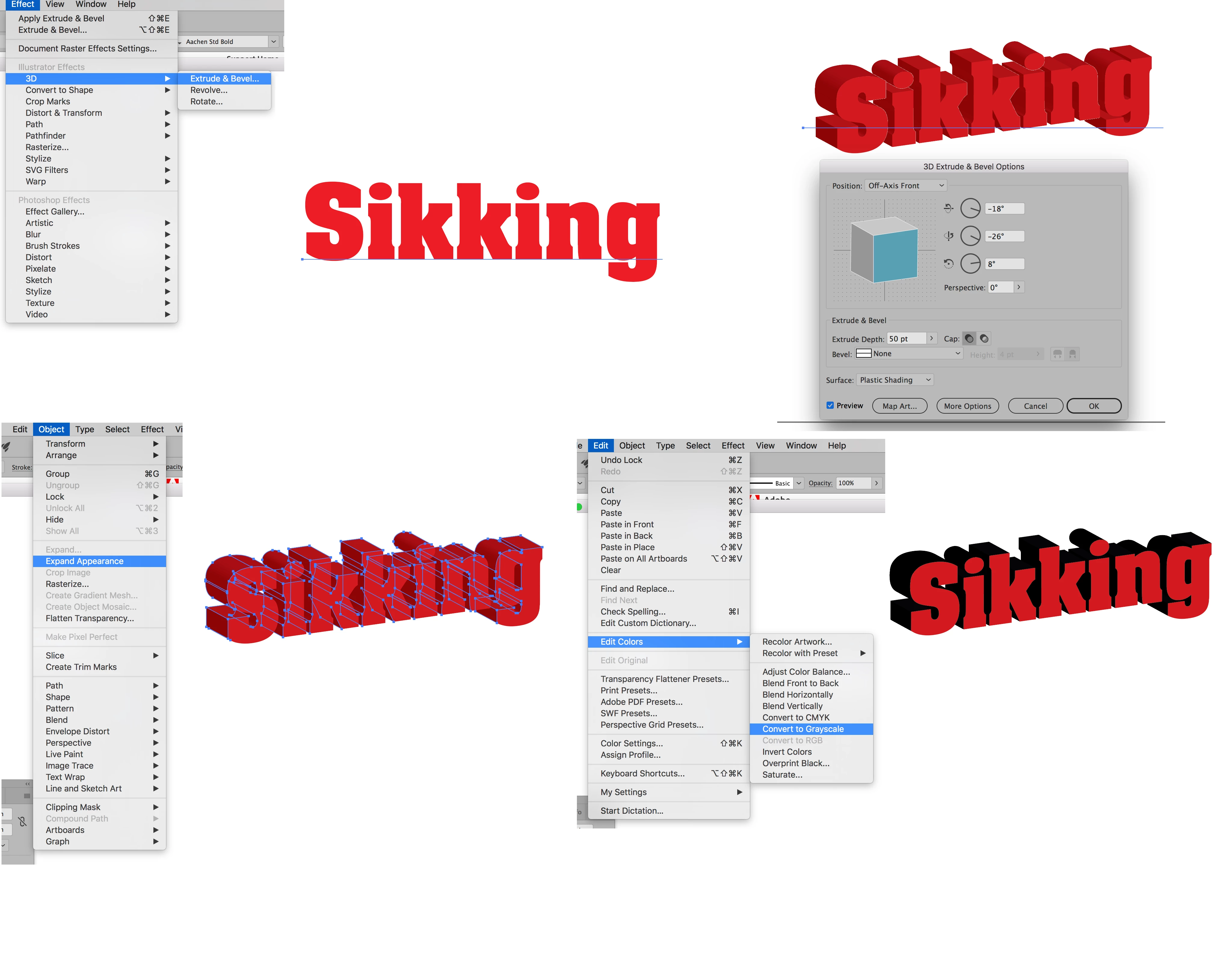
    In the first picture I've chosen Extrude & Bevel from the Effect Menu 3D options. Note in the second picture the default dialog window that appears and how the (still live) text is transformed. Since the logo that you are trying to recreate will require quite a bit of customization I've expanded the transformed text into live Illustrator art using Expand Appearance under the Object Menu. Then having separately selected and locked (Command (Mac)/Control (PC)-2) the front text I used the "Convert to Grayscale" option on the dimensionalized part of the text under the Edit Colors found under the Edit Menu. Hopefully, this all should give you a jumping off point.

    3 replies

    Pamela4g
    Pamela4gAuthor
    Participating Frequently
    January 8, 2018

    sorry, all so new to this. Like this. Bill Silbert

    Bill Silbert
    Community Expert
    Bill SilbertCommunity ExpertCorrect answer
    Community Expert
    January 8, 2018

    Are you trying to recreate that using Illustrator's 3D effect? If you are and you're not really familiar with the 3D feature it can be a bit daunting. In the screen shot below I've outlined some rudimentary steps to working with it:

    In the first picture I've chosen Extrude & Bevel from the Effect Menu 3D options. Note in the second picture the default dialog window that appears and how the (still live) text is transformed. Since the logo that you are trying to recreate will require quite a bit of customization I've expanded the transformed text into live Illustrator art using Expand Appearance under the Object Menu. Then having separately selected and locked (Command (Mac)/Control (PC)-2) the front text I used the "Convert to Grayscale" option on the dimensionalized part of the text under the Edit Colors found under the Edit Menu. Hopefully, this all should give you a jumping off point.

    Pamela4g
    Pamela4gAuthor
    Participating Frequently
    January 8, 2018

    Thats EXACTLY what I want to do. However, when I go to the 3d, it tells me there's an error and it can't be performed. Bill Silbert

    Bill Silbert
    Community Expert
    Community Expert
    January 7, 2018

    You must make sure that the text is selected with one of the selection tools—not the text tool—before applying the Drop Shadow Effect found under Effect Menu>Stylize.

    pixxxelschubser
    Community Expert
    Community Expert
    January 7, 2018

    Hi Pamela4g​,

    Effect -> Stylize -> Drop Shadow … does not works for you?

    Hope I understand you right.

    Pamela4g
    Pamela4gAuthor
    Participating Frequently
    January 8, 2018

    I'm sorry, Yes that works, however I worded that wrong. I think its more of a 3d effect i'm looking for, and it don't work.