

mike23551318
Known Participant
July 7, 2019
Answered

HOW TO LOAD & SAVE BRUSHES IN CUSTOM GROUPING IN PHOTOSHOP ELEMENTS 15

  • July 7, 2019
  • 3 replies
  • 1261 views

Hello,

I've watched several tutorials on youtube on saving custom brushes in Photoshop Elements, in a customized grouping/pallet. But, each time I load a new brush, it keeps bumping out the previous custom brushes I've just loaded and saved. It's very frustrating. I'm trying to create a customized Master Pallet of brushes for my work. But I'm not sure what I'm doing wrong.

This YouTube video shows exactly what I'm trying to do. Including labeling each category:  Easily group Photoshop brushes into "folders" - YouTube

Could someone help me with directions on how to properly Load and Save my custom brushes in one Master Grouping/Pallet?

Best,

-Mark
    This topic has been closed for replies.
    Correct answer 99jon

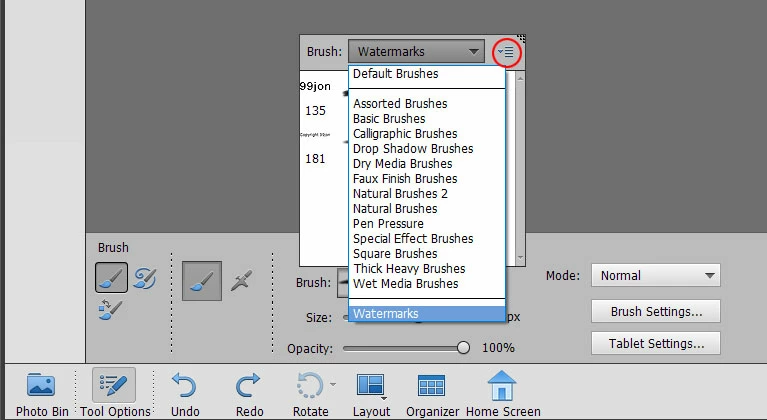
    Use the pull-down menu under brush options (see image below) and choose preset manager.

    You can select brushes using Ctrl+Click and group into a set. After saving the set use add.

    I have a couple of defined brushes saved in a watermark set  which appears in the brush menu.

    3 replies

    99jon
    Legend
    July 8, 2019

    There is really no need to create a special folder unless you want a back-up of custom brushes. When you add a set they get automatically installed in the system location so won’t affect the built-in default brushes.

    C:\Users\99jon\AppData\Roaming\Adobe\Photoshop Elements\17.0\Presets\Brushes

    hatstead
    Inspiring
    July 8, 2019

    markh23551318  wrote

    Could someone help me with directions on how to properly Load and Save my custom brushes in one Master Grouping/Pallet?

    Suggest that you create a unique folder to contain the new custom brushes. The point is not to disturb the brush folders installed by default in PSE. If you screw up, it is difficult to get them back

    I have followed the instructions delineated below, and as I encounter a free brush, add to same.

    https://www.essential-photoshop-elements.com/install-brushes-in-photoshop-elements.html

    99jon
    99jonCorrect answer
    Legend
    July 8, 2019

    Use the pull-down menu under brush options (see image below) and choose preset manager.

    You can select brushes using Ctrl+Click and group into a set. After saving the set use add.

    I have a couple of defined brushes saved in a watermark set  which appears in the brush menu.

    mike23551318
    Known Participant
    July 8, 2019

    Thank you so much. I'll give this a try. I was previously attempting to save brushes through Preset Manager, but I noticed every time I added a new one, the previous brushes I had just saved would get bumped out, or I'd see a different set of brushes.

    Also, does it matter how I label each individual brush, meaning, do they all need to be labeled identically in the same category, for grouping?

    -Mark

    99jon
    Legend
    July 8, 2019

    Hi Mark

    No they don’t need to be named identically within the same set. It helps if you keep each name short as they show up better when viewing brush preset thumbnails.