Sanpanza
Known Participant
December 11, 2017
Answered

Concentric ring ripple on image comp

  • December 11, 2017
  • 3 replies
  • 4690 views

Need to put together a comp for a client that includes a concentric ring ripple effect. I cannot look amateurish. Can anybody guide me to a tutorial on how to add this effect? I not only need to create the distortion pattern but need to include some reflectivity AND control for both 2D distortion and reflectivity. Once I get this down then I will mask accordingly.

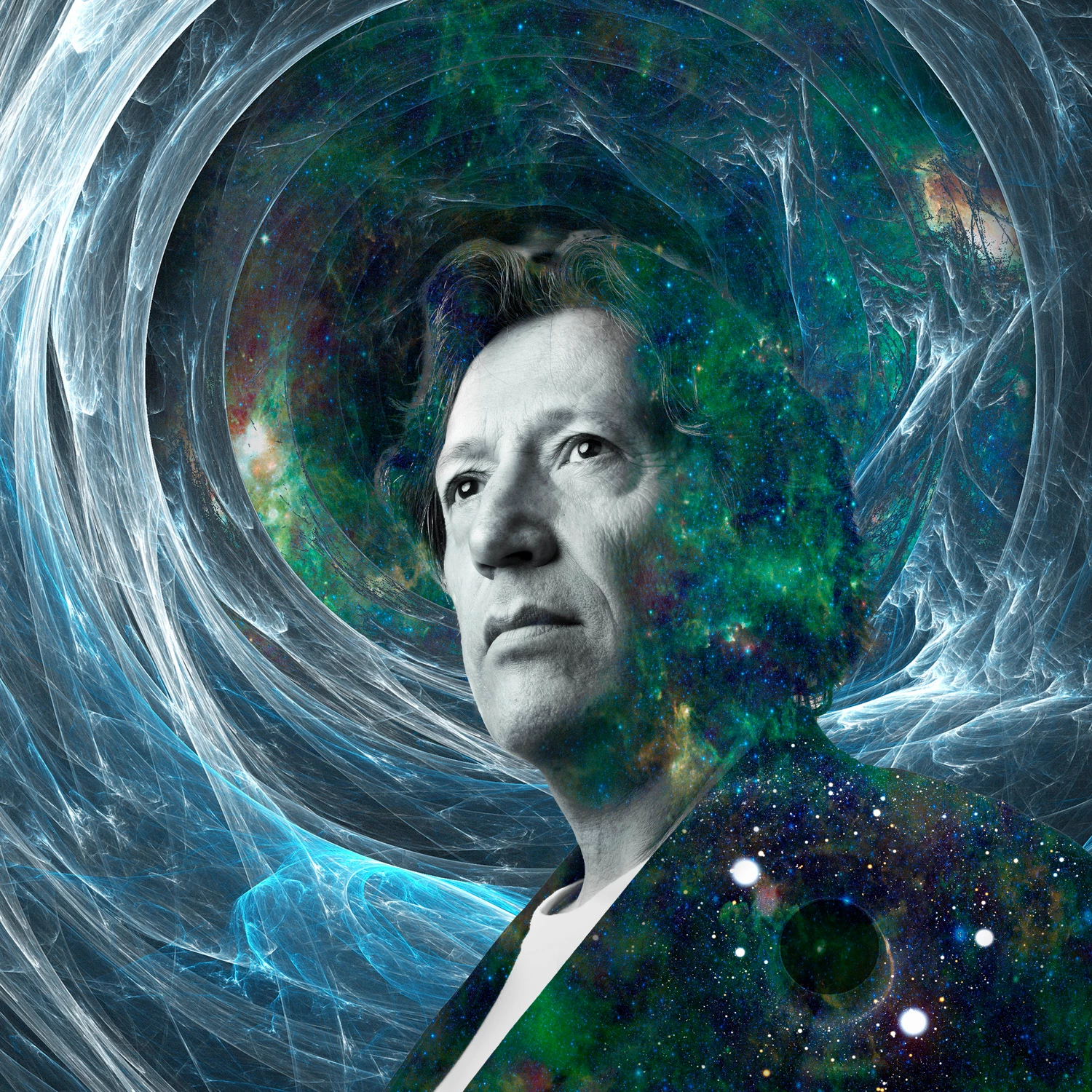
The image below is a rough cut of the image I am working on for this client. Most of the tutorials I have reviewed seem to be incomplete or amateurish. Any help would be deeply appreciated!

    This topic has been closed for replies.
    Correct answer sharp_hands16B8

    If I wasn't using a photo to composite for this effect, I would build it with alpha channels, etc. See descriptions below.

    Create an alpha channel with concentric circles that are white on a black background
    Blue that alpha channel so that the white to black blends making a more "rounded" surface.

    Create a new layer, fill it with 50% gray.

    Now use Render > LIghting Effects and under Texture choose the alpha channel you've made earlier. Adjust settings for height and other properties. It will look a little gritty, you can smooth that later.
    This will give you some ripples against the surface.
    Now, use Plastic Wrap from the Filter Gallery and this will add smoothing and "wet" looking highlights to your ripples..

    Now that you have this on a gray layer with ripple shadows and highlights being moved above and below middle gray, your blend modes will give you more flexibility for compositing. Use the middle grays as an option for blending in reflections from your composite image.

    Continue layering in additional plastic wrap filters, throw some diffusion in for texture under Stylize > Diffuse and experiment from there for the layering of ripples/highlights that you want.

    Blurring really helps when smoothing how the lighting renders some of these effects.

    Alpha channel with concentric white circles, increasing in size
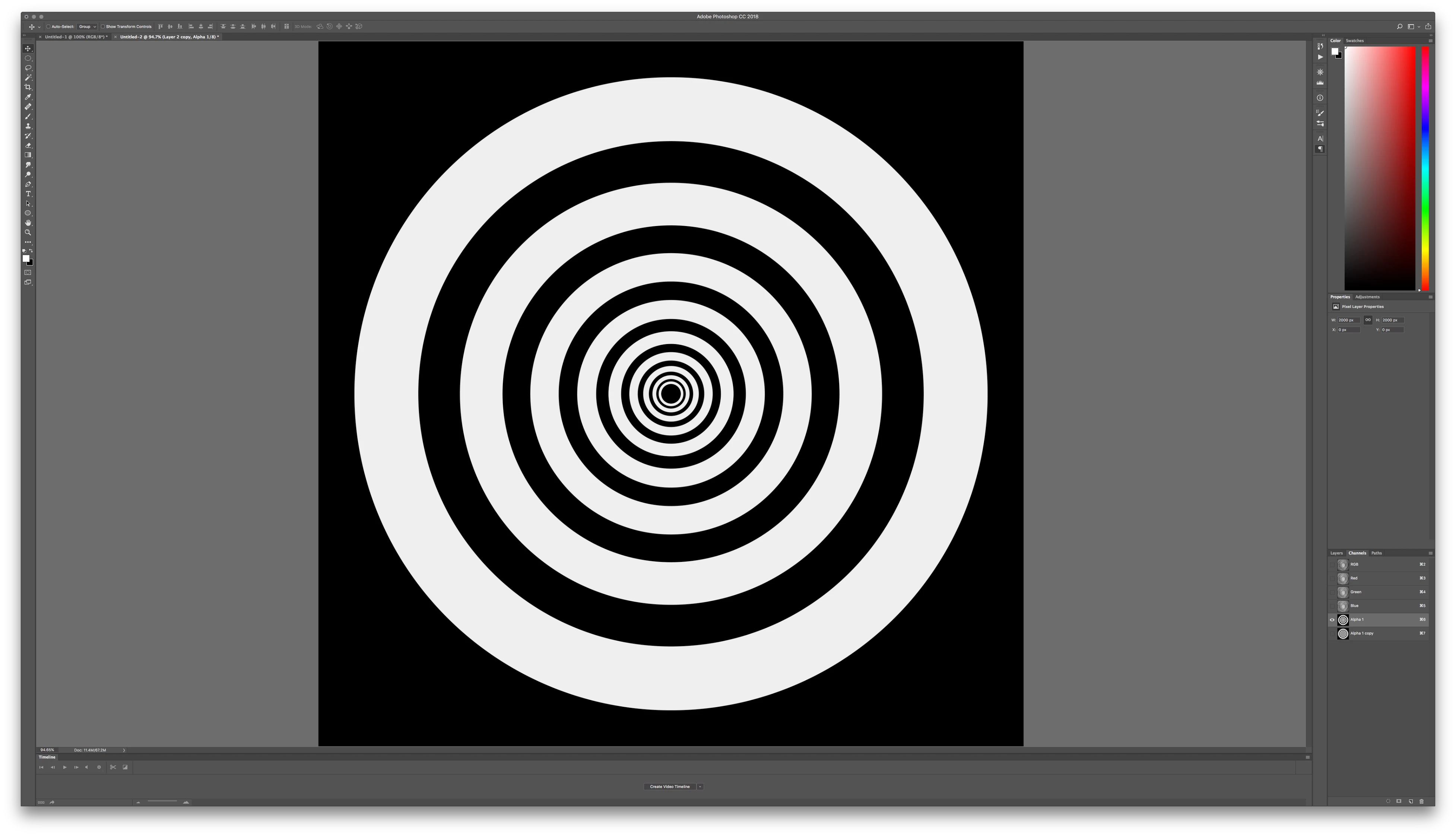
    Blurred so that Render LIghting Effects will round out the form
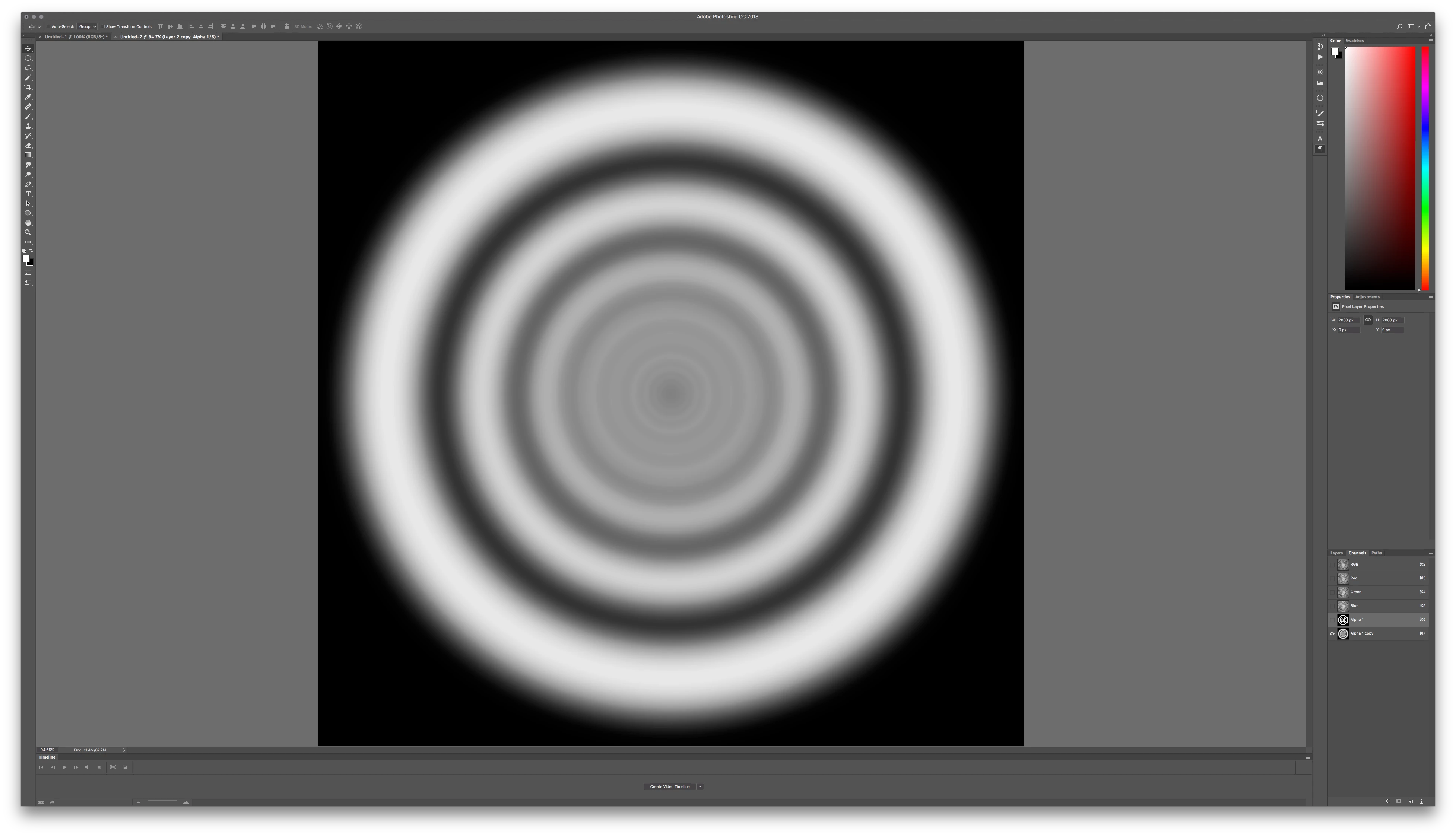
    New Gray Layer we will build the ripple into
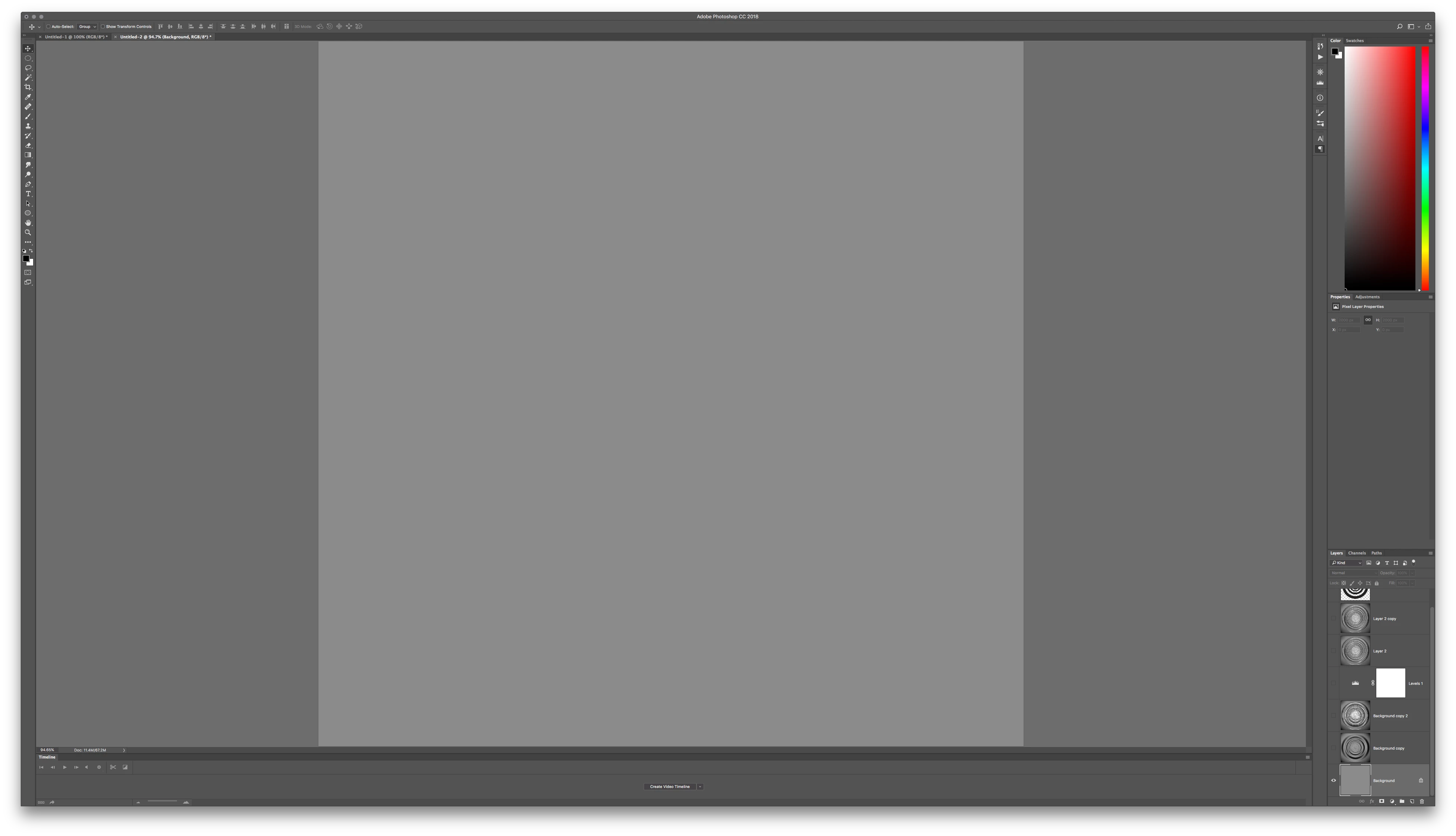
    Using Render LIghting Effects on the Gray Layer, choose your Alpha Channel from the Texture Pull down menu option in the filter
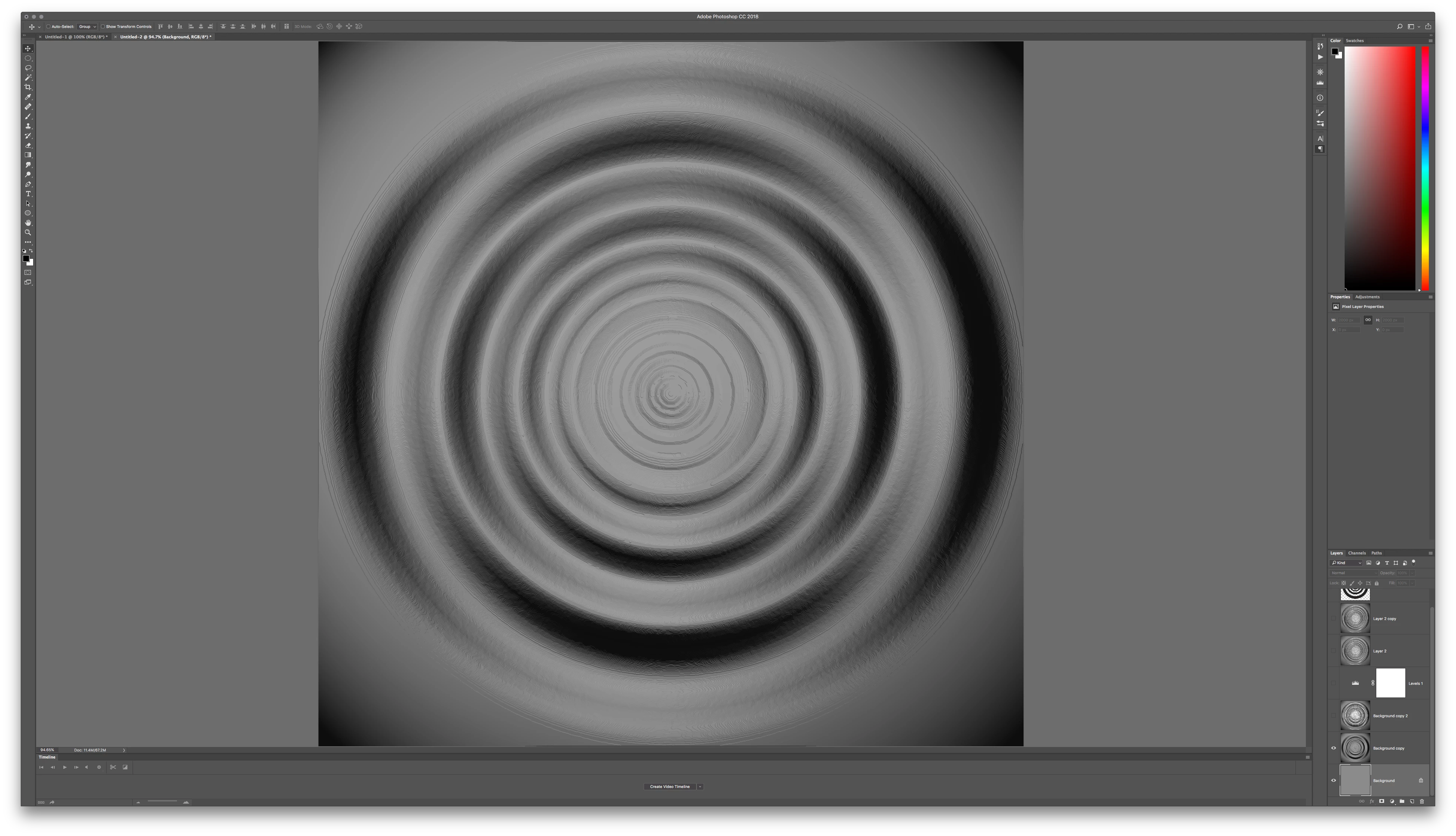
    Under Filter Gallery, choose Plastic Wrap. Use lots of smoothing and play with highlights for volume
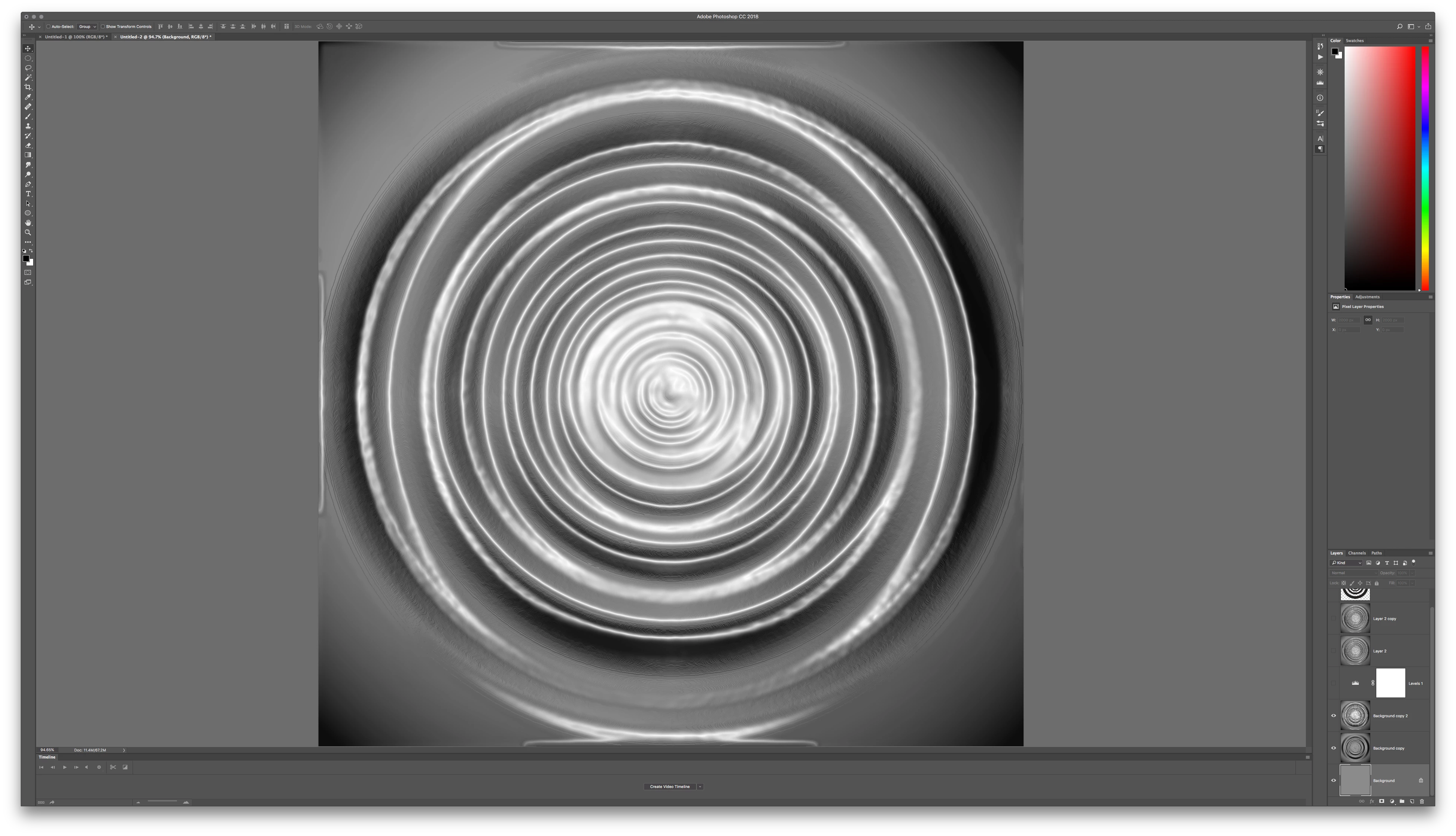
    Now under Filter Distort, use Twirl to spin it in a way that details blend together. This only works if you have your circles dead center at the start.
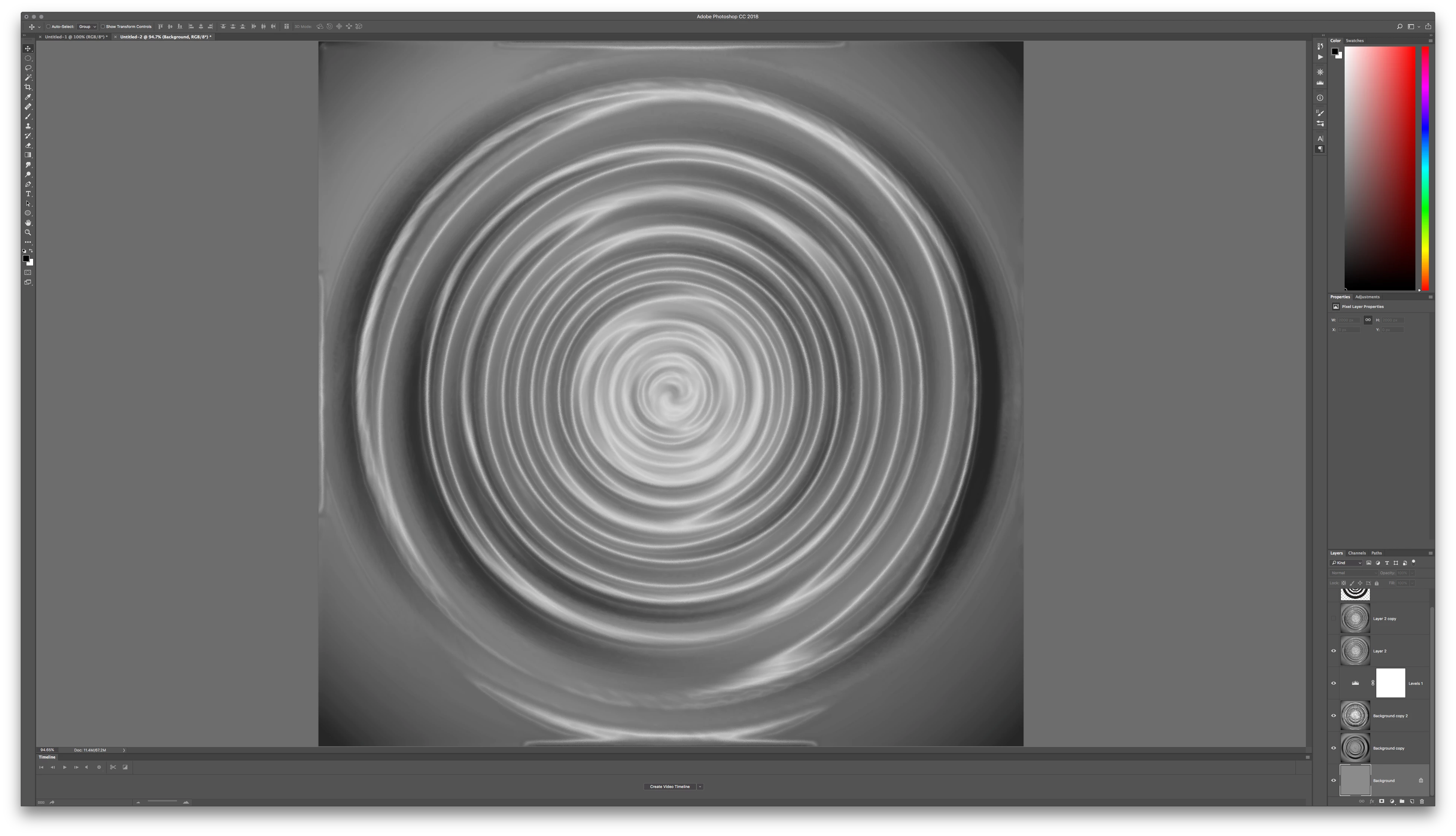
    I added a little oil paint texture for some natural looking surface distortion and then added a small amount of plastic wrap highlights again to finish it out.
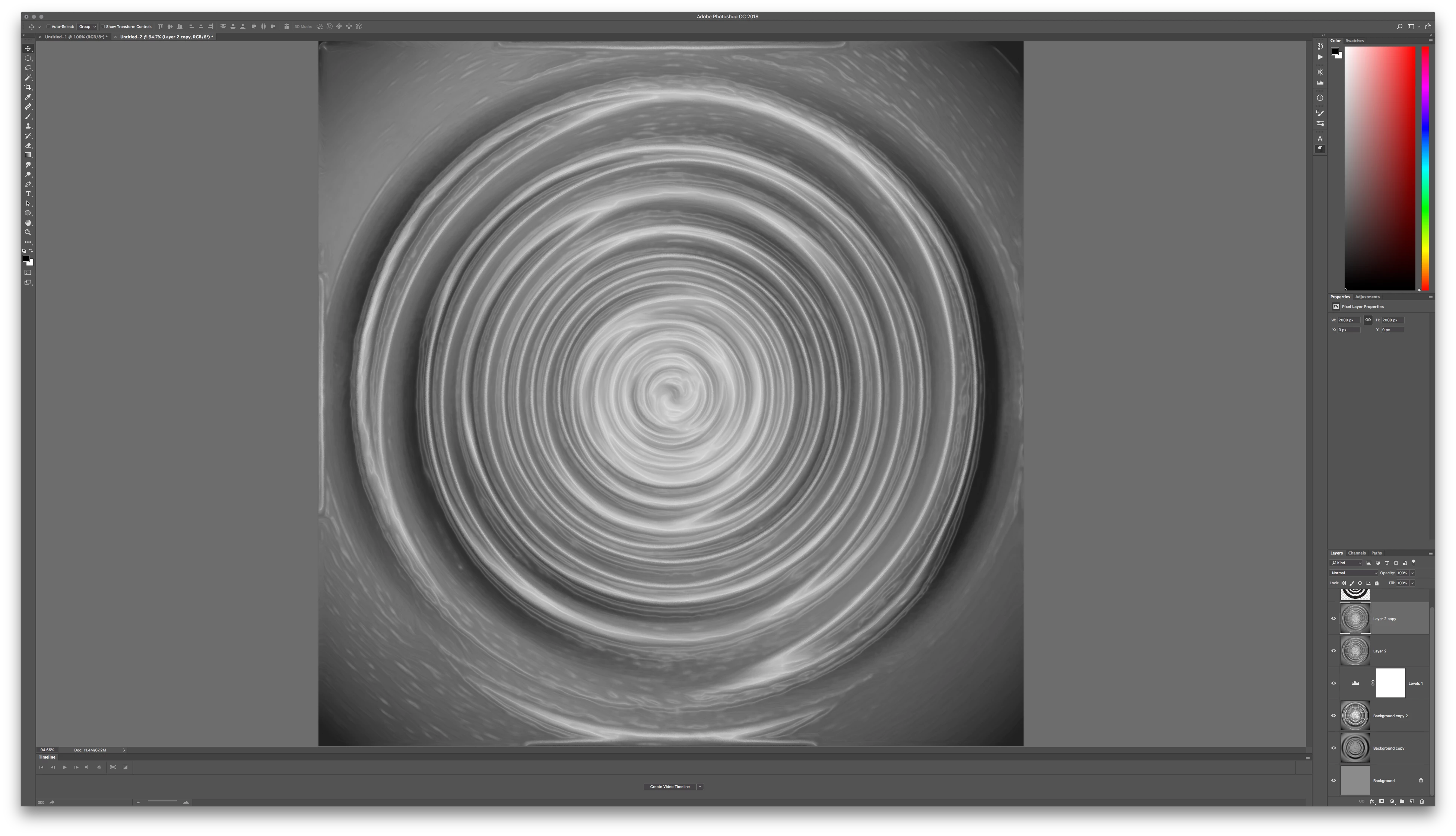
    Being solid gray, this could now be easily blended into other images using various blend modes like overlay, screen, etc...


    3 replies

    sharp_hands16B8
    Community Expert
    sharp_hands16B8Community ExpertCorrect answer
    Community Expert
    December 11, 2017

    If I wasn't using a photo to composite for this effect, I would build it with alpha channels, etc. See descriptions below.

    Create an alpha channel with concentric circles that are white on a black background
    Blue that alpha channel so that the white to black blends making a more "rounded" surface.

    Create a new layer, fill it with 50% gray.

    Now use Render > LIghting Effects and under Texture choose the alpha channel you've made earlier. Adjust settings for height and other properties. It will look a little gritty, you can smooth that later.
    This will give you some ripples against the surface.
    Now, use Plastic Wrap from the Filter Gallery and this will add smoothing and "wet" looking highlights to your ripples..

    Now that you have this on a gray layer with ripple shadows and highlights being moved above and below middle gray, your blend modes will give you more flexibility for compositing. Use the middle grays as an option for blending in reflections from your composite image.

    Continue layering in additional plastic wrap filters, throw some diffusion in for texture under Stylize > Diffuse and experiment from there for the layering of ripples/highlights that you want.

    Blurring really helps when smoothing how the lighting renders some of these effects.

    Alpha channel with concentric white circles, increasing in size

    Blurred so that Render LIghting Effects will round out the form

    New Gray Layer we will build the ripple into

    Using Render LIghting Effects on the Gray Layer, choose your Alpha Channel from the Texture Pull down menu option in the filter

    Under Filter Gallery, choose Plastic Wrap. Use lots of smoothing and play with highlights for volume

    Now under Filter Distort, use Twirl to spin it in a way that details blend together. This only works if you have your circles dead center at the start.

    I added a little oil paint texture for some natural looking surface distortion and then added a small amount of plastic wrap highlights again to finish it out.

    Being solid gray, this could now be easily blended into other images using various blend modes like overlay, screen, etc...

    Trevor.Dennis
    Community Expert
    Community Expert
    December 11, 2017

    A quick and easy approach

    Copy the portrait layer, and use Twirl to create the concentric rings.

    Desaturate and blur the result.

    Duplicate it to a new document, and save as a PSD file

    Select the original portrait and Distort > Displace using the psd file you just saved as the map.

    Set the original twirl layer to Multiply, and reduce the opacity to show some shadow.

    Copy that layer and set to Screen and reduce the opacity some more

    I used the default Displace values above of 10,10

    This 5,5

    Stroke a few paths with Simulate pressure turned on to create strong highlights

    Martin_Bns
    Inspiring
    December 11, 2017

    Hi Sanpanza,

    I work with creative compositings producing compositings and creative images all the time.
    The most important part in this project is to understand that there is no tutorial to do this. What is important is to cheat the eye of the viewer and create a nice composition.

    In this kind of projects is a great idea to start using some images of what you need. Look for images with the ripple effect and use them in order to create your composition. There is no reason to do the ripple effect by hand because the time and the effort you put in is not better than using a photo.

    The reflectivity is often achieved by duplicating the layer of the subject you want to reflect and move it around and play with the opacity until you like the result.


    The depth of field, the use of different tones of colors in order to control the sense of depth in the image is far more important than a perfect mathematic ripple effect in order to convince the eye that what it sees is real.

    I hope that this can help in order to set the right mindset for this image.

    All my best,
    Martin

    Sanpanza
    SanpanzaAuthor
    Known Participant
    December 11, 2017

    Hi Martin,

    Thank you for your reply. I am not sure how I would implement the ripple overlay you are talking about because it would not actually "bend" the lines to create a 2D concentric wave pattern. At least not in the way I imagine you are talking about but perhaps I don't understand you response.

    Mylenium
    Legend
    December 11, 2017

    What reflectivity? I see none. The rest is just a matter of using the Polar Coordinates filter to good effect and tweaking opacities and colors, but before that you need to do much better work on the cutouts. And by all means lose the green. This is one hell of an ugly color composition.

    Mylenium

    c.pfaffenbichler
    Community Expert
    Community Expert
    December 11, 2017

    That might come across as a bit harsh.

    But the advice on the Polar Coordinates Filter is excellent, the open question might be on which image it should be applied.

    In the posted image the basis might have been smoke or paint-swirls in water, artificial or photographed. (edited)

    Sanpanza
    SanpanzaAuthor
    Known Participant
    December 11, 2017

    Hi Mr. Pfaffenbichler,

    The current elements are a fractal model of the back hole in the background with infra-red image of a constalation.

    Not sure my question was onderstood. This "rough cut" comp for the client has several layers to it. Just need to get the concentric wave pattern down before I implement subtly.

    I used the zig-zag filer and it gave me accurate surface relieve for the conentric ripple pattern but there was no corresponding reflectivity.  Link in this image attached:

    Any thoughts on the matter would be helpful.