Participant
October 19, 2017
Answered

Photoshop CC 2018 - line spacing tool failoure

  • October 19, 2017
  • 65 replies
  • 48760 views

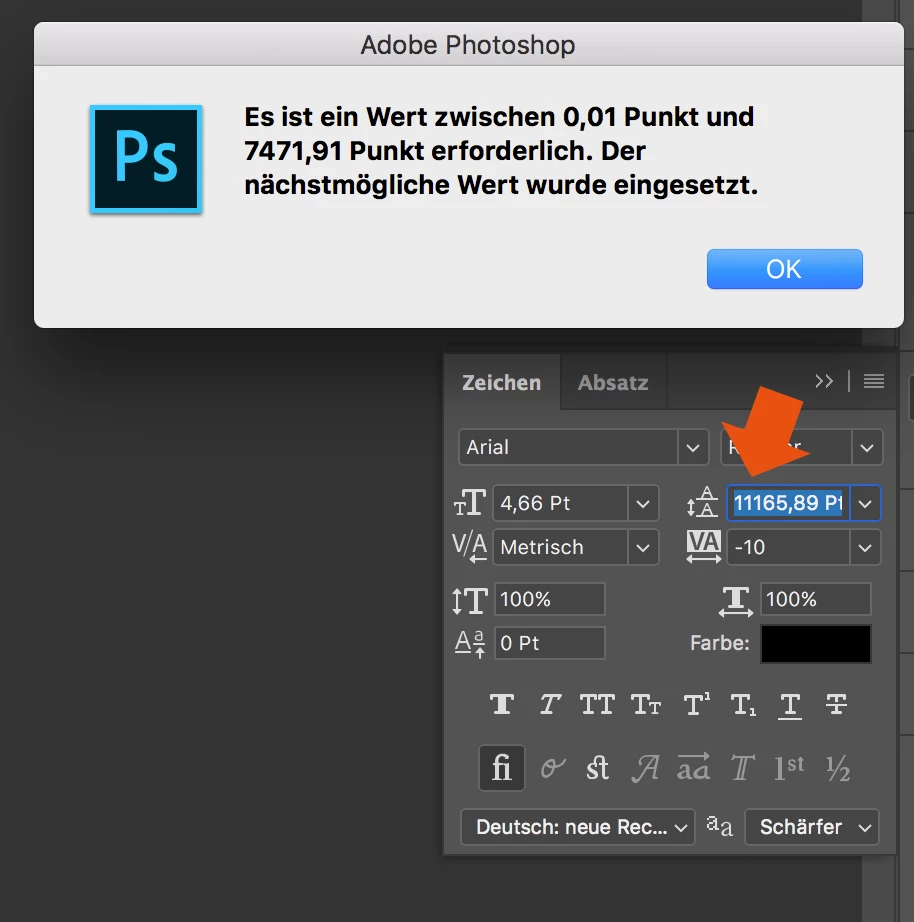
Since the Update of Photoshop CC 2017 to Photoshop CC 2018, the line spacing tool is not working anymore.

When I try to enter a number, it randomly changes it to another one. Also if I try to change the number via draging over the tool-symbol it first works and then jumps to a number over 8000...

How to fix this? Thank you in advance!
This topic has been closed for replies.
Correct answer davescm

Hi

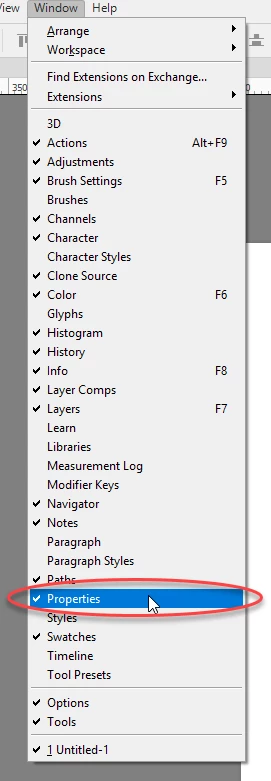
Yes it only affects text that has been transformed. The workaround appears to be type the value into properties and the correct value will appear in the character panel

I am not sure what they call the properties panel in German but I have circled it in the menu which may help you find it. It is the same panel used for Live Shape properties

Dave

65 replies

Picons
Participating Frequently
October 26, 2017

What is going on Adobe? Such a bug. I can't work until you fix this.... Should we go back to 2017 version?

Known Participant
October 26, 2017

I agree, this is rather crazy!

How can an upgrade be released with such a basic and easy to spot flaw?

(Sorry, just venting rhetorically. But… argh.)

Participant
October 25, 2017

I have the same problem with interligne ! I can't work ! it's french version, can you help me for fix the problem?

Ivor_J
Inspiring
October 25, 2017

Davescm, you've been very helpful with this problem. I just discovered it today, with text in a text box that was transformed (resized via expanding the text box by grabbing the handles) in a file that was created in Photoshop CC 2017. What worked for me was copying the text and pasting it into a new text box using Photoshop CC 2018. Now any leading changes made in the properties panel sticks (rather than jumps to an arbitrary point size), and is also the same in the Character panel.

System El Capitan.@

rogerc81
Participating Frequently
October 25, 2017

It sucks because the new pen tool is amazing. Much quicker and accurate, but I won't update my work computer until the character panel/ line height is fixed. It literally haults work flow because I work with a lot of text lockups.

r2cOnline
Participant
October 25, 2017

That's true. It slowed me down quite a bit today. Hopefully a hotfix will be released soon enough.

Participant
October 24, 2017

having the same issue on MacOS high sierra. trying to adjust in properties it seem to put what it wants. i can type in a value, as soon as i hit enter it changes to something else.

davescm
Community Expert
Community Expert
October 24, 2017

Hi

See post #26 for the workaround

You type the value into the Properties panel. It will change but that value will then show correctly in the Character panel and be applied to the image

Dave

r2cOnline
Participant
October 25, 2017

No worries - Adobe have picked this up

Dave


Just to add fuel to this fire. I'm getting the exact same problem so we need a fix to this pretty quickly. By the way davescm, the vignette style lighting in the background of your photo makes it seem like you have a Doc Brown style haircut at a glance.

davescm
Community Expert
Community Expert
October 19, 2017

This looks like a bug affecting only text that has been previously transformed.

If I enter the leading value in the Properties panel - the number I have entered (50 in the example below) is over-ridden in the properties panel but then does appear correctly in the Character panel.

I would welcome you findings - does entering in the properties panel (and looking for correct value in the Character panel) work as a workaround so we can report the issue?

Dave

Participant
October 19, 2017

I could not find out where to find that "properties" window (using the german version and switching to english is sadly not supportet by adobe products) but I now tried a "new" text, and here everything works perfectly. So it does only affect text I previously transformed i guess.

davescm
Community Expert
davescmCommunity ExpertCorrect answer
Community Expert
October 19, 2017

Hi

Yes it only affects text that has been transformed. The workaround appears to be type the value into properties and the correct value will appear in the character panel

I am not sure what they call the properties panel in German but I have circled it in the menu which may help you find it. It is the same panel used for Live Shape properties

Dave