jamshidbeky29744174
Participant
March 10, 2019
Answered

Adobe Premiere Pro CC 2019 not automatically switching to headphones

  • March 10, 2019
  • 4 replies
  • 6720 views

Hi,

Since a few days, my Premiere Pro CC is not switching to plugged-in headphones when audio is played. I tried to fix it with audio hardware preferences. However, when I change the default output to headphones, speakers stop working even when headphones are plugged out and the vice versa. I tried installing an older update to see if my current version had bugs, but it didn't work. Is anyone else having the same issue?

[Discussion moved from Adobe Creative Cloud to Premiere Pro CC - Mod]
This topic has been closed for replies.
Correct answer gerikp

I'm using MacOS (Mojave) and this is how I solved it.

1. Open Audio Midi Setup app (found in utilities folder)

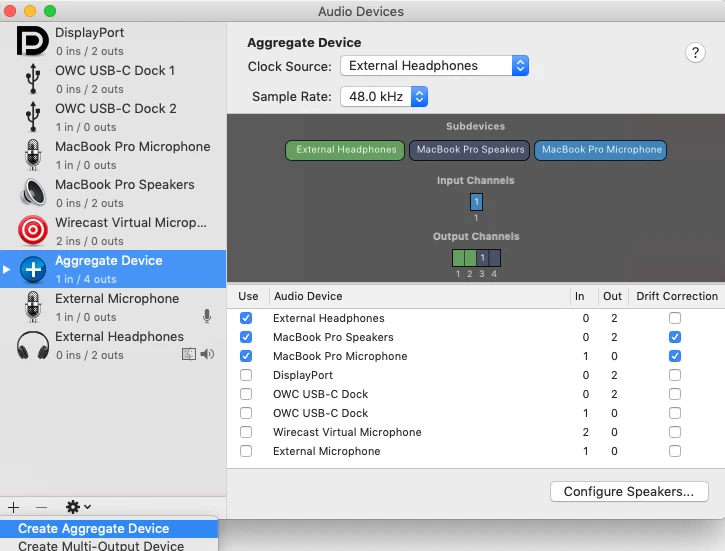
2. Hit the + button on the lower left hand of the app window and choose "Create Aggregate Device"

3. Plugin your headphones and with the Aggregate Device Selected on the left-hand side make sure your speakers, microphone, and headphones are all selected with checkmarks. I also made sure that in the GUI window I drug my External Headphones to be the first in line. (Colored rectangles are draggable).

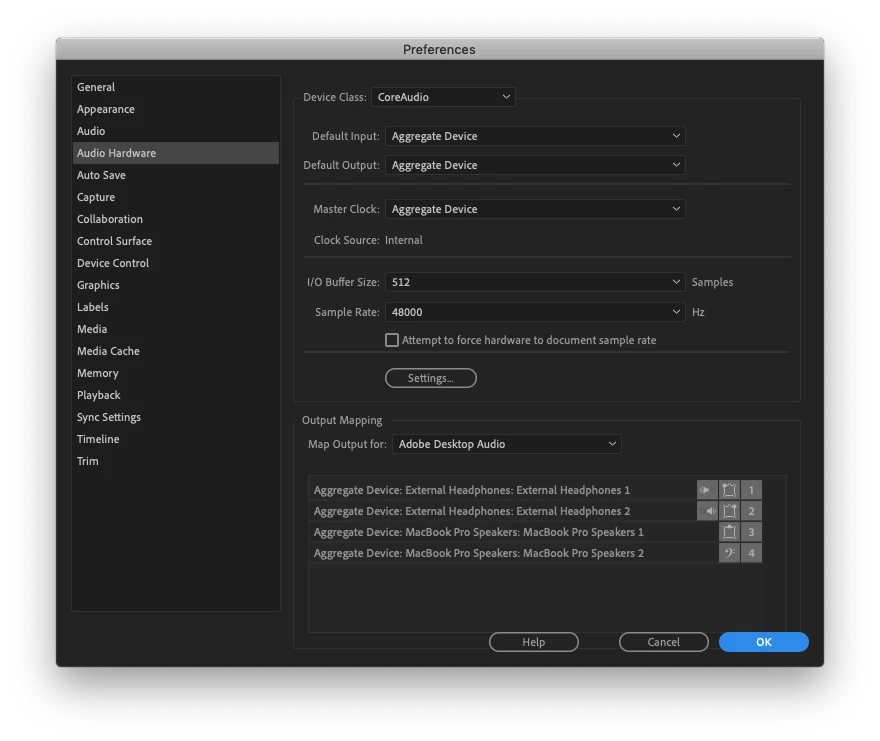
3. Closeout of the Audio Midi app and open up Premiere Pro. Go to Preferences, Audio Hardware, and in the "Default Output" choose "Aggregate Device"

After I did this whenever I plug in my headphones they take priority and audio from Premiere Pro plays through them.

4 replies

Legend
August 11, 2019

Plug your speakers into the analog or digital audio output from the motherboard or sound card.

Plug your headphones into the headphone jack on the speakers.

This works every time.

gerikp
Community Expert
gerikpCommunity ExpertCorrect answer
Community Expert
August 9, 2019

I'm using MacOS (Mojave) and this is how I solved it.

1. Open Audio Midi Setup app (found in utilities folder)

2. Hit the + button on the lower left hand of the app window and choose "Create Aggregate Device"

3. Plugin your headphones and with the Aggregate Device Selected on the left-hand side make sure your speakers, microphone, and headphones are all selected with checkmarks. I also made sure that in the GUI window I drug my External Headphones to be the first in line. (Colored rectangles are draggable).

3. Closeout of the Audio Midi app and open up Premiere Pro. Go to Preferences, Audio Hardware, and in the "Default Output" choose "Aggregate Device"

After I did this whenever I plug in my headphones they take priority and audio from Premiere Pro plays through them.

Participant
October 13, 2019
You save my life! Thank you so much!
Participant
April 8, 2019

I had the same issue and have been trying absolutely everything with no success until I found a thread that recommended downloading an AISO driver. Once installed you go to your Premiere Audio Hardware setting and change if from MME to AISO. And it worked! Below is the link to the driver I used. I hope that helps.

ASIO4ALL - Universal ASIO Driver For WDM Audio

Participant
December 1, 2020

Hmmm...I'm totally tempted, but a bit hesitant...thanks so much for this, Christine! I appreciate it!

Abambo
Community Expert
Community Expert
March 10, 2019

jamshidbeky29744174  wrote

I tried installing an older update to see if my current version had bugs, but it didn't work. Is anyone else having the same issue?

What didn’t work? Installation? Or did you have the same sound problem?

Looks for me like a sound problem independant from Pr.

Do you have Aition installed? If yes, could you try if Audition has the same problem?

ABAMBO | Hard- and Software Engineer | Photographer