
drewr40572560
Participant
February 28, 2018
Answered

All clips move over when speed is changed. It's causing timeline to be out of sync with video. Please help.

  • February 28, 2018
  • 2 replies
  • 1807 views

So today just randomly out of nowhere my timeline now has decided that whenever I change the speed and duration of a clip it will move all the clips ahead of it to counter the new speed. Which then make all the rest of the clip out of sync. I am currently editing a music video for my job, but this is really taking a toll on my work. It wasn't doing this about an hour ago, and I'm fairly sure I haven't hit any keys to cause this. Maybe I'm just being totally stupid and have caused such an easy fix but I cannot find anything on this matter online. If anyone could please, please help me I will be your best friend forever. Well, maybe not forever, but I'll be very happy. Please and Thank you. ~ Drew
Correct answer Vishu_Aggarwal

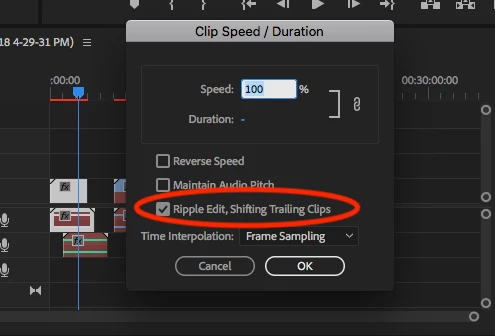
I think you have checked/Enabled - Ripple Edit, Shifting Trailing Clips in Clip Speed / Duration window. Uncheck the option so that  Trailing Clips does not shift as the duration changes.

screenshot for reference -

2 replies

Legend
February 28, 2018

it will move all the clips ahead of it

The above Ripple setting will change the behavior of trailing clips (to the right), but I can't think of anything in PP that would shift the clips ahead (to the left) of the one you're adjusting.  Premiere Pro just isn't designed to work like that.

Vishu_Aggarwal
Vishu_AggarwalCorrect answer
Participating Frequently
February 28, 2018

I think you have checked/Enabled - Ripple Edit, Shifting Trailing Clips in Clip Speed / Duration window. Uncheck the option so that  Trailing Clips does not shift as the duration changes.

screenshot for reference -

Vishu AggarwalAdobe Certified Instructor, Professional and Expert
Participant
March 21, 2025

Thanks, it worked. I almost gave up! lol