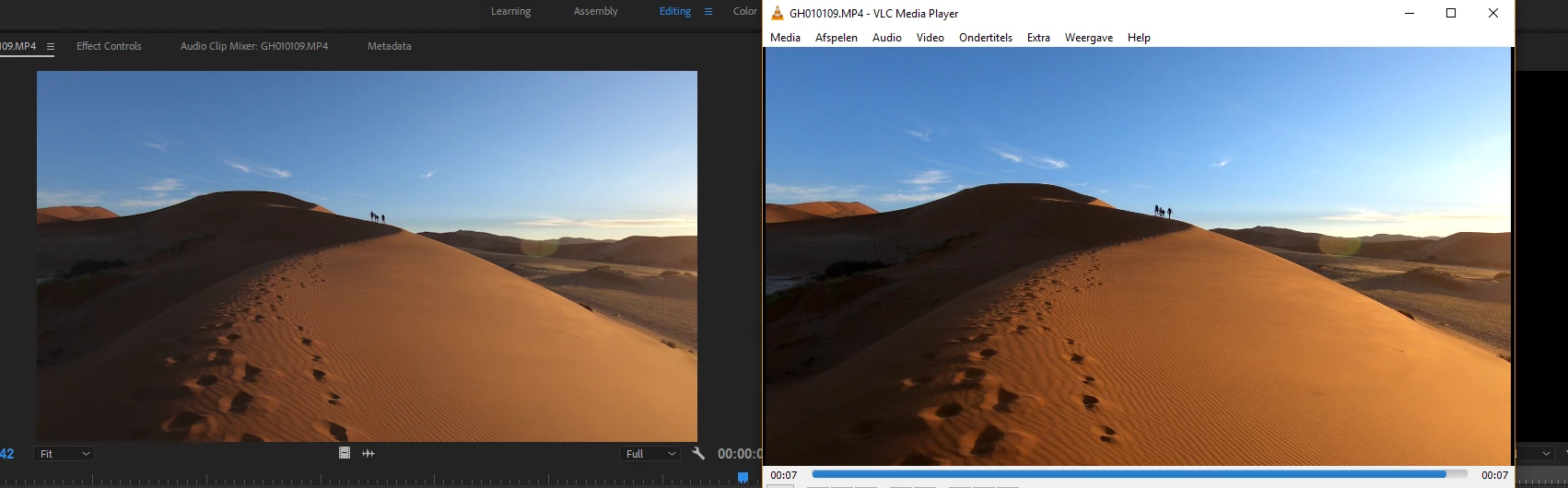
And so I did, the colors looked more or less the same as VLC, but indeed not 100% the same.
So if I follow your statement, my video should look different in Premiere Pro, but when exporting and watching it again with VLC, it should give me the same image as the RAW vlc video?
I wrote the following in a different thread. The whole color management situation in computers is so screwed up from what people think it is. If you don't take the steps to setup your computer, OS, video card, and monitor, you won't have any confidence or success in understanding what the blazes is going on ...
Neil
----------------
Getting Color Displayed Correctly
You are still operating from some incorrect assumptions. As noted in my posts above, you have to unlearn some of the ways you think this imaging system works, in order to get setup so it works properly for you.
The "system" is a mashup of parts. A basic computing system has first the computer hardware ... then the operating system (OS) and the way that is designed to work with a monitor to display images on screen ... then the video card, typically ... and a monitor.
Each is a separate entity with its own 'concerns'. The computer hardware just exists to compute & pass along the data of that computation, totally has no concern with that data. Doesn't see video data any differently than say a text or spreadsheet.
The OS has more interest in the display, but primarily these days that interest is to 'enhance the viewing experience' as the primary goal. Accuracy of display to any standard is not even a concern, the OS is designed to enhance your experience. Because the vast majority of users are known to have lousy quality screens with no management ... they want to help you get past being the dummy they expect you to be.
So there is normally little concern in the OS, as it installs, with showing any media to any sort of real pro-end standards.
Next, that video card ... most cards assume gaming if you're displaying video ... and have all sorts of 'enhancements' to that experience. So, you have a really dark scene in the game, the card automatically brightens the lighter parts so you can see better who's lurking in those shadows.
For Nvidia cards, you need to go into the Nvidia controls and turn that sort of crap off. You also need to set the card's settings so the card controls the monitor via the ICC profiles you calibrated into use for your OS. Proper video display settings for Rec709/sRGB video work.
Now ... that monitor. Like GPU cards, the monitors all assume video is gaming ... or watching some movie. Again, as shipped, monitors are normally set so that they totally disregard color flags and profiles of the media itself and instead "enhance the viewing experience" ... with juiced color settings, that gaming dark-scene thing mentioned above, all sorts of things like that.
You need to go into your monitor settings and turn all that crap off there also. Turn the monitor into a "dumb" piece of hardware that just shows what it's told to show.
NOW ... you can calibrate that monitor with a puck/software system, set the OS to use that resulting ICC profile for that monitor, and have a decent chance of working away. If you haven't done this, well ... there's no way you have any control of what is seen in anything anywhere. And your OS, your card, and your monitor, are all working against seeing any proper or standards met.
Now, we get to showing proper stuff on that screen.
Different types of media can have different 'tags' in them for how they ... hope? ... to be 'seen' and displayed by the system displaying them. Not all media is always 'tagged' for the appropriate color space/profile/details of how it should be seen. As in say a png of bars & tones that doesn't have a 'tag' for correct profile/standard. Each app will see that file differently as the app is designed to see untagged things. PrPro in this case assumes video sRGB, AfterEffects assumes graphics sRGB, and those two standards for sRGB are slightly different. Hence ... a non-tagged png or other file will appear slightly different between PrPro & Ae based on each app's default assumptions for untagged files.
Prpro and Ae both apply tags to their exports. If 1) the entire system the export is played back on is set as above, and 2) the app used actually pays attention to the tags, then and only then will that export be seen very close to the way it showed within the app that created it. No matter whether it was created in PrPro, Ae, Resolve, Vegas, whatever.
But even then, only in apps that pay attention to media tags.
Even if the system is set correctly, if the app pays no attention to flags, then ... that image/video will probably be off in some way from within the app that created it. As has been so often stated, QuickTime player pays no attention to tags, is one of the worst viewers possible to check for 'accuracy'. Same with Chrome and Safari in browsers.
PrPro or any other media creating program can only control color appearance within the program.
Your system has to be set to show properly tagged video media to that pro standard, and you have to use apps that actually pay serious attention to tagged media, to see nearly the exact thing outside the app in another viewer or program.
I hope that helps.
Neil


 AdChoices