Myk_ZetAu
Participant
December 29, 2017
Answered

Remove "Click here to see this page link in full context" link in Robohelp 2107

  • December 29, 2017
  • 2 replies
  • 2032 views

Newbie TW here. I'm currently working on a HTML5 Online Help project where two main help systems share the same context sensitive help topics. The problem is I can only link the CSH topics to one main help. Removing the "Click here to see this page in full context" link located on the top right portion of the CSH window solves this problem. I would like to ask the experts here for help in locating which file to modify in order to remove the link. I'm using Robohelp 2017, btw.

Thanks in advance for your help.
This topic has been closed for replies.
Correct answer Captiv8r

Hi there

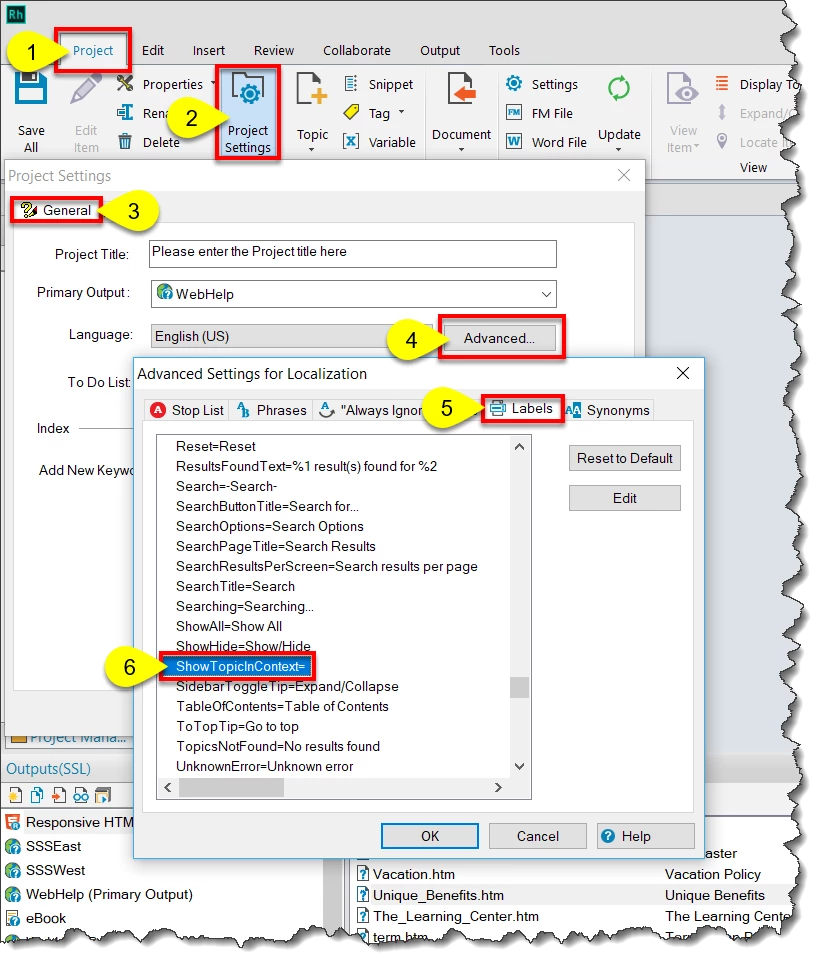
You can change this text by clicking the Project tab > Project Settings button > General tab > Advanced... button > Labels tab > Scroll to the [ResponsiveHelp] section and locate the  ShowTopicInContext= line. You are able to edit that line to contain what you want.

What I did was to open the Windows Character Map application (Windows key+R and type charmap into the field and press Enter).

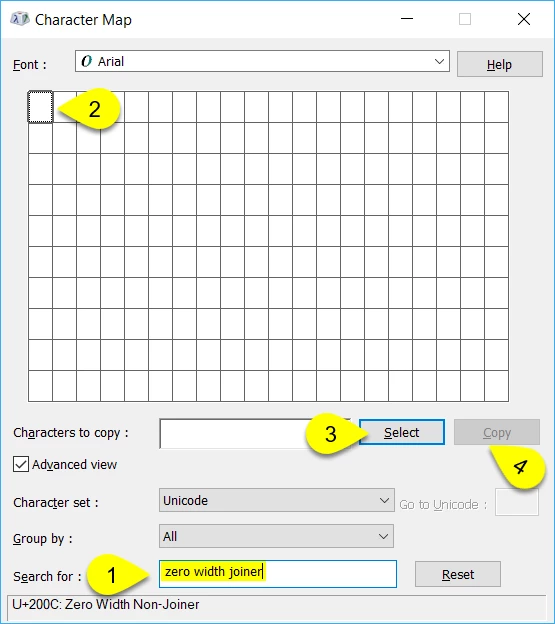
In Character Map, type "zero width joiner" into the Search for: field and click the Search button. Then click the Select button followed by the Copy button. Then paste that character into the area to the immediate right o the ShowTopicInContext= bit.

When you generate the output, the text should not appear. But the area is still clickable to reveal the TOC and navigational elements.

Cheers... Rick

2 replies

ChadPink
Inspiring
September 4, 2018

I have the opposite issue. I want the Show link to display in the topic area. How do I do that?

I don't see the ShowTopicInContext option. Using RH2017.

Captiv8r
Legend
September 4, 2018

Perhaps it appears in an update? Are you certain you have applied all updates?

Captiv8r
Captiv8rCorrect answer
Legend
December 29, 2017

Hi there

You can change this text by clicking the Project tab > Project Settings button > General tab > Advanced... button > Labels tab > Scroll to the [ResponsiveHelp] section and locate the  ShowTopicInContext= line. You are able to edit that line to contain what you want.

What I did was to open the Windows Character Map application (Windows key+R and type charmap into the field and press Enter).

In Character Map, type "zero width joiner" into the Search for: field and click the Search button. Then click the Select button followed by the Copy button. Then paste that character into the area to the immediate right o the ShowTopicInContext= bit.

When you generate the output, the text should not appear. But the area is still clickable to reveal the TOC and navigational elements.

Cheers... Rick

Myk_ZetAu
Myk_ZetAuAuthor
Participant
December 29, 2017

This works perfectly. Thanks Rick.