

EnragedYak
Inspiring
March 9, 2022
Answered

Acrobat scanning many black pages

  • March 9, 2022
  • 1 reply
  • 6653 views

This is an issue that popped up recently.  It didn't seem to be tied to a Windows patch or Acrobat patch.


Windows 10 (Enterprise LTSC 2021 / 21H2) & Acrobat 2020.  Scanner is a Canon PIXMA MX512, attached via network (not USB).  The scanner driver provides a TWAIN driver for network scanning.


The issue is:  When I try to scan to PDF via Acrobat, I get a zillion black pages of output.  This happens even if scanning a single page.  I haven't tried leaving Acrobat open long enough to see how many black pages I eventually get, but I've seen it go up to 150 or more before I kill it from Task Manager.  It seems to start kicking out black pages like this before the scanning progress bar even indicates that it is done with the first page.
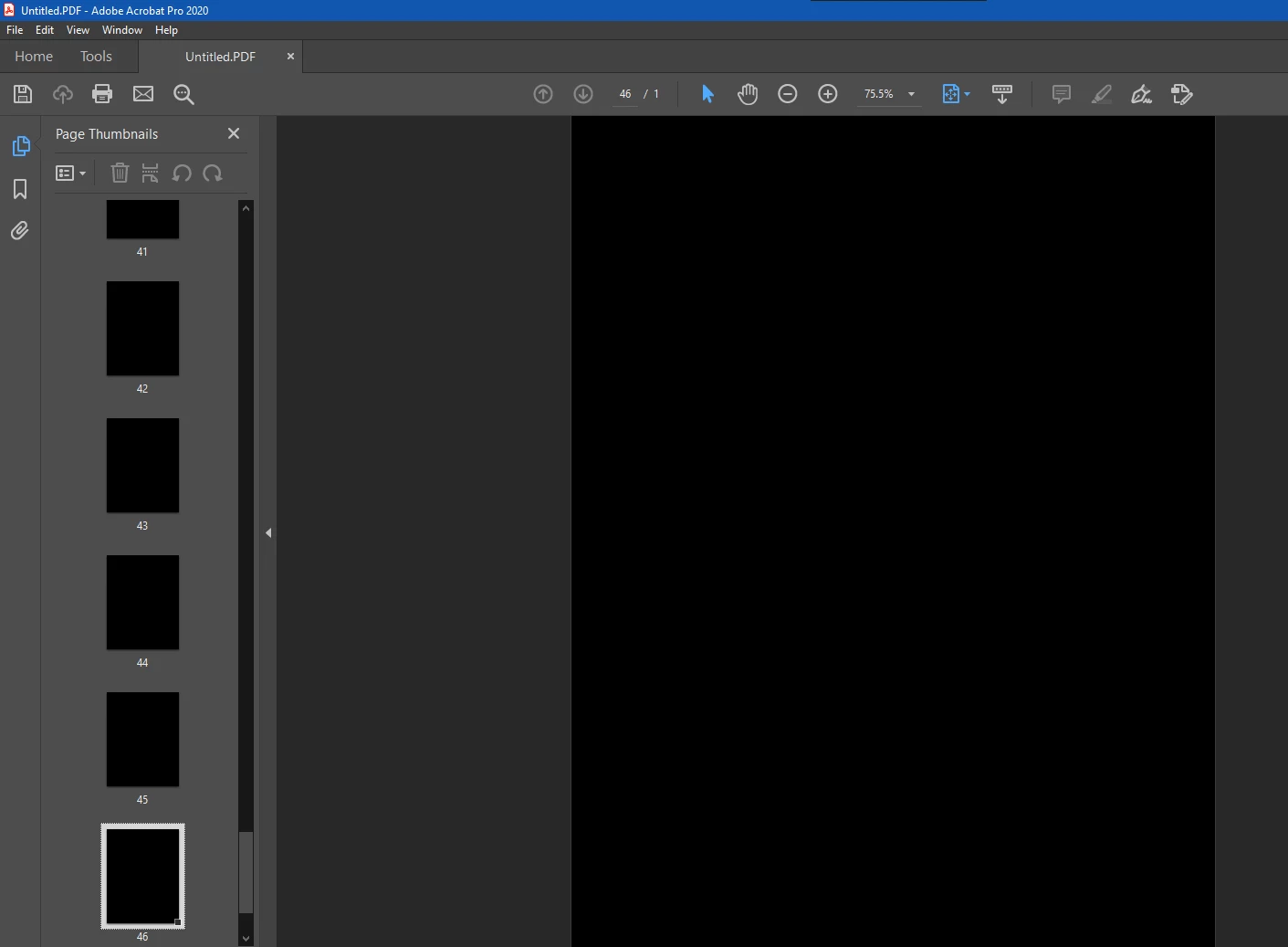
 

Patch level doesn't seem to matter.  Before blaming the scanner driver/software, I will note that the issue only occurs with Acrobat.  Other software that scans via TWAIN works fine (including Photoshop 32-bit).


Things I tried that failed to fix it:

  • Using "scanner native interface" option from Acrobat.  (The Canon TWAIN interface shows, but it still kicks out black pages.)
  • Uninstalling/reinstalling Acrobat.
  • Switching to latest version of Acrobat DC (installed trial version to check).
  • Uninstalling/reinstalling Canon scanner drivers (many times).
  • Removing TWAIN .dll files and then reinstalling scanner driver to put them back (as suggested by Acrobat documentation)


Things I tried that did fix it:

  • Installed Acrobat and the Canon software on a second PC on my network.  This setup works fine.  Right now I'm using the second PC to scan but it's a bit annoying to have to shuffle the files around between PCs.  I'd like to have it working on my primary.


Any ideas at all?  How can I fix this on my primary PC or reset Acrobat into working?  I don't want to do a whole fresh Windows install just to fix this.


Thanks,

Aaron

This topic has been closed for replies.
Correct answer kentfry17190588
Thanks, but where are 'scanner options'. There are none in Windows 11 and none in Acrobat, only 'scanner settings' and the options suggested don't exist.

Kent Fry

Sent from Outlook for Android<>

I replaced the Microsoft drivers with the Canon drivers and now scanning works. I guess Acrobat doesn't work with the Microsoft drivers.

1 reply

Amal.
Community Manager
Community Manager
March 10, 2022

Hi Aaron


Hope you are doing well and sorry to hear that.


As described you are getting the black pages when trying to scan the document to PDF, also Acrobat DC is working fine on the secondary PC and the issue is specific to the primary PC.


Would you mind sharing the version of the OS of the primary PC?  Please check for any missing/pending OS updates and try updating it and check.


Also try to reset the Acrobat preferences as described here https://community.adobe.com/t5/acrobat-discussions/how-to-reset-acrobat-preference-settings-to-default/td-p/4792082


You may also try to create a new test user profile with full admin rights in Win or enable the root account in Mac and try using the application there and check.


Regards

Amal

Participant
November 22, 2023

This issue is not limited to one PC - I've been having the issue as well, and will try deleting the named folders (or equivalent for my scanner) to see it if works.


Amal.
Community Manager
Community Manager
July 1, 2024

I now have the same problem.  My Xerox Documate 152 scanner was working fine in Acrobat (latest version installed from CS) until I hit something somewhere -- either on the scanner on in my laptop -- that caused the scanner's light to stay on.  At that point, scanning with Acrobat started producing all-black pages.  I found the place in my Windows 10 were I could turn the scanner's light off.  Tried that, turned off scanner, turned it back on, light works normally now, but pages in Acrobat are still all black.  They scan fine in other software. 


Hi there


Would you mind collecting the Adobe CC logs (https://helpx.adobe.com/creative-cloud/kb/cc-log-collector.html) and the Procmon logs (Win Only) (https://www.adobe.com/devnet-docs/acrobatetk/tools/Labs/acromonitor.html) and share them via any cloud storage. Just upload the log file to the cloud and generate the link and share that link with us for further investigation.

Regards
Amal