
Participant
September 6, 2012
Answered

document could not be saved error

  • September 6, 2012
  • 30 replies
  • 301098 views

Whenever I go back to a PDF that I created or downloaded, and add comments or highlights, and then try to save it, I get an error message saying "The document could not be saved.  The file may be read only . . ."  But the file is NOT read-only and there are NO security settings.  What gives?
This topic has been closed for replies.
Correct answer johnnieborgie

This has definitely worked for me.

It might not be Adobe's fault after all.

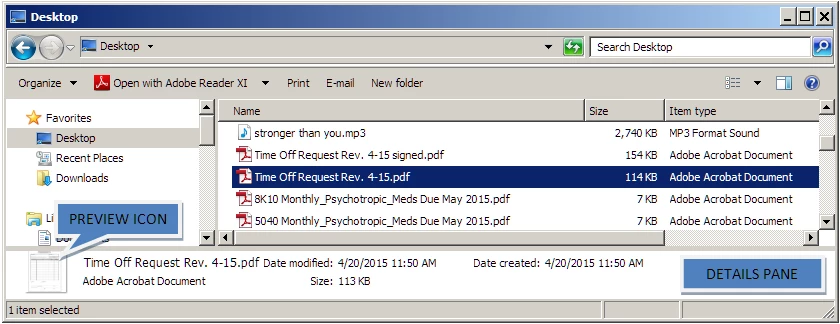
Even when the File Preview disabled, Windows Explorer (Win 7+) has something called the Details Pane that may still be up, it's that blank space that gives you details about the current selected file; its right on top of the status bar.

For some odd reason, Windows creates a preview thumbnail in the details pane for some files: picture files, PDF files, XLS files, PPT files to name a few.

To disable the Details Pane on Windows Explorer, click on Organize > Layout > and click on the Details Pane to make it go away.

30 replies

alcompco
Participating Frequently
December 23, 2015

Hello All:

After further contacts with Adobe engineering team the following is the response we have received:

I have further checked this with my resources and as per them The fix needs to be implemented from Microsoft’s end. The corresponding Microsoft case opened by Adobe in the past is 115060112799116

Here are some excerpts of the conversation that might help you.

To generate a preview using custom preview handlers, Microsoft provides various interfaces to implement like

(1) IInitializeWithStream

(2) IInitializeWithItem

(3) IInitializeWithFile

Also, Microsoft strongly recommends to implement IInitializeWithStream interface for preview handlers because of its security purpose. For details, please see the following link

http://msdn.microsoft.com/en-us/library/cc144143.aspx#flow

Adobe's preview handler also implements "IInitializeWithStream" interface and its functions as per Microsoft's strongly preferred mechanism. Whenever IInitilaizeWithStream is implemented, the explorer.exe will open the file and closes the file itself. The custom handlers only receive IStream of the file in the function "IInitializeWithStream::Initialize", which the custom handles need to implement. At the time of unloading (de-select the file or delete the file) "IPreviewHandler::Unload" will be called where all the allocated resources (resources solely related to preview handlers owned allocated resources, nothing related to close file) needs to be cleared. This interface is designed in such a way that, the handlers will never get the file handle to open and close it.  These operations will be done by explorer.exe. So, If machine A previews a file, explorer.exe does a CREATE_FILE call to open the file and provides the stream to custom preview handler. The preview handler reads the stream and generates the preview. Now for machine B, same operations have been performed. Now, if on machine A, someone deletes this file, the status of the file becomes DELETE_PENDING, as there is another machine which is previewing this file and file handle is still opened by explorer.exe on that machine. For the file, server knows the file will be deleted once the file handle is released. Till then it keeps on showing the file visually but actually the file cannot not be opened and other operations on that file (like save etc.) are also not permitted. Once the file handle is released, the file should be deleted. Since we are only dealing with streams, but the file does not get deleted when the handle on the other machine is released, we have logged a bug against Microsoft.

Working with the reproduction of the issue and researching the code in conjunction with our developer support group we discovered that this behavior is by design.  Although there are other interfaces which would allow additional flexibility in controlling how Windows Explorer opens the PDF files, they come with additional overhead and security concerns, thus we do not wish to pursue use of those interfaces at this time.

  Thanks & Regards

Participant
January 10, 2016

I don't see how this is a Microsoft issue, when the exact same behavior happens in Mac OS X 10.11.2 (and occurred in 10.10 as well).

Mac OS X, 10.11.2. Running on a MacBook Air (mid-2013) with 8 GB RAM and 256 GB SSD. Adobe Acrobat Pro XI (11.0.13). Opened a PDF file from a scanned image, and added four additional pages from scanned images. Saved to the Desktop of the local SSD (not a network or external drive). Created a new form from the existing, open document. Prompted to save, and get the error message "The file may be read-only, or another user may have it open. Please save the document with a different name or in a different folder" even if changing the name of the file.

Inspiring
December 1, 2015

Sadly, there is still NO fix to this annoying issue. I'm using Adobe XI and "Enable Protected Mode at Startup" is not an option. Also using windows 10. Most screen shots on this thread are from old versions of Windows OS. Has anyone managed to get this issue resolved on either Windows 8 or 10, using Acrobat XI?????

This issue is ONLY with PDF docs; it doesn't happen with other file types (i.e. Word, Excel, etc).

Also, when saving PDFs to our server there's no issue, thus it's ONLY occurring while in Windows. The only workaround is to constantly give the file a new name and then go back and delete unused files. Not very efficient!

kaim41829450
Participant
December 22, 2015

And the same holds true for Acrobat 11.0.13 on Mac OS XD 10.11.2 - the only way it worked for me is saving the file in a different directory.

Participant
January 21, 2016

Reporting in for Acrobat Pro 10.1.16 on OS X 10.11.2, same issue appears when signing a file and saving as a new file. The only solution for me was to save to a different directory than the original file. Not upgrading to Acrobat 11.x DC until this defect is fixed here, as it exhibits the same defect when I ran a trial.

niceshots
Participant
November 19, 2015

"Newer versions -  In Adobe, go to Edit -> Preferences -> Security (Enhanced), uncheck Enable Protected Mode at Startup."

This worked for me.

Adobe Acrobat X Standard

Participant
November 16, 2016

How do I put an adobe reader download for a website like this one http://www.philelectricalcontractors.com/?

Participating Frequently
November 1, 2015

Mac user. NEVER had this happen before. THIS IS WHY I PAY FOR THE PRO SOFTWARE! Nothing in this forum offers a solution that works. Why is it happening out of the blue. One minute I am able to save a file, & literally 10 seconds later a file created exactly the same will not work. Now NONE work. This is unacceptable. This is expensive software & no help?

eloisem42046948
Participant
August 30, 2016

I'm a Mac user too: OS X 11.6 Macbook Air 2013, Adobe Acrobat Pro 9.5.5 and the only work around I've found is also to save the form in a different directory. I nearly went insane trying to figure out why I would suddenly get the 'read only message'. I've spent nearly 2 hours looking for workarounds, ticking and unticking checkboxes left, right and centre. It really shouldn't be so hard. I don't want

to distribute this form to clients because I'm worried that they'll have the same problem (in fact I was alerted to an issue when a client complained they couldn't save the filled in copy). It's a ridiculous bug - why have a form if you can't actually use it?

July 31, 2015

CORRECT ANSWER = Outstanding find !

Now...can you get rid of the hundreds of useless responses (like use acrobat instead of reader)?  I have looked for this solution many times over the past year.

And

these help forum answers need a box that says "DO NOT INCLUDE IN SEARCH" so that responses like mine, to offer you great thanks, do not pop up in searches.

Participant
September 1, 2015

The solution for me was quite simple.

My document was shared.

So go to Windows File Explorer ->Share-> End Sharing and the document can be saved.

Participant
September 3, 2015

I had to register just to thank you

alcompco
Participating Frequently
June 30, 2015

Hello All:

I am not sure how to begin as it has been almost a year that I posted my message about not being able to save a PDF file when the Windows Explorer containing the file is open and reading all the posts of all of the frustrated people who posted after me just tells me how oblivious Adobe engineers are to this problem over so many versions of this software. Through my contacts with high up support individuals at Adobe they either do not know what they have to do to fix this issue, or they do not care, or they are full of themselves that they do not feel they need to fix this issue. ADOBE PEOPLE WAKE UP AND FIX THIS ISSUE!! ALL THESE LOYAL INDIVIDUALS ARE WASTING THEIR TIME IN BITS AND PIECES BY ENTERTAINING ALL OF THESE RIDICULOUS SOLUTIONS TO NO AVAIL. None of these should be needed to be done to save a file that has slightly been changed!! This is really so unsettling and disgusting to me.

johnnieborgieCorrect answer
Participant
May 15, 2015

This has definitely worked for me.

It might not be Adobe's fault after all.

Even when the File Preview disabled, Windows Explorer (Win 7+) has something called the Details Pane that may still be up, it's that blank space that gives you details about the current selected file; its right on top of the status bar.

For some odd reason, Windows creates a preview thumbnail in the details pane for some files: picture files, PDF files, XLS files, PPT files to name a few.

To disable the Details Pane on Windows Explorer, click on Organize > Layout > and click on the Details Pane to make it go away.

alcompco
Participating Frequently
November 18, 2015

Listen all; I have done every trick that has been written in these posts and none of them has worked at all! This is just wasting everybody's time. There is a real bug in Adobe Acrobat's program and their management is ignoring it. We have been this issue across many versions of Adobe from Acrobat 9-XI. It is absolutely frustrating to be ignored. 

deetouring72
Participant
April 17, 2015

In open PDF, go to:  Edit/Preferences, then new window will pop up:  click on "Internet" under Categories.  My "Display in Read Mode by default" was checked off which seemed to be the issue for me.  If checked, uncheck and click "OK", then close the PDF. When you re-open, you should be able to edit and save without the error message.

FY:  I am using Adobe Acrobat XI Standard, screenshot below:

Participant
April 17, 2015

When opening files from Outlook, then modifying them and saving, this error message persists. I've tried every solution in this thread to no avail. The only thing that has worked, which is still a bit ridiculous, is going directly to "Save As" instead of "Save" when saving the file.

Participating Frequently
April 15, 2015

I sincerely hope this line of inquiry remains as NOT ANSWERED, as this has been going on for years!!! I am a heavy user of Acrobat and Distiller, and the only way this is going to get fixed is via a patch from Adobe. Microsoft doesn't care as it's not THEIR product.

The ONLY way I've found so far to fix it is to open any folder, then click on Tools... then click on Folder Options... then click the View tab. Scroll all the way to the bottom and UNCHECK 'Show preview handlers in preview pane'. Then click Apply to Folders above, then click on Apply.

This seems to work most of the time now, hope it helps someone else.

Participant
March 31, 2015

***See Apr 7, 2015 update below ***

Original post Mar 31, 2015 9:46 AM:

Using Adobe Acrobat XI Pro v11.0.10 on Windows 8.1.  All had been working fine until this morning.  Attempting to save a PDF document that I was viewing in my browser I got an "Adobe Acrobat" pop-up dialog with the following message: "The file may be read-only, or another user may have it open. Please save the document with a different name or in a different folder."  I tried to save to several places on my computer, each time receiving the same pop-up warning.

What fixed the problem for me was the following:

(1) Completely uninstalled Adobe Acrobat XI Pro.

(2) Re-booted.

(3) In Norton 360, ran Tasks/Run Registry Cleanup.

(4) Re-installed Adobe Acrobat XI Pro.

(5) Applied updates (Adobe Acrobat XI Pro/Help/Check for Updates...)

The foregoing might have worked okay without steps (2) & (3), I don't know.  That's just how I did it.  Everything seems to be working okay now.

----------------------------------------------------

Update Apr 7, 2015:

The problem returned.  Adobe Acrobat XI Pro v11.0.10 no longer saves PDF files loaded in IE browser.  The steps that I outlined above did NOT work this time.  So, I have become yet another frustrated Acrobat user.  I have over 100 apps installed on my computer, most of which save files.  Adobe Acrobat Pro has the unique distinction of being the only app on my machine with a broken file-save function.