
Participating Frequently
December 13, 2017
Answered

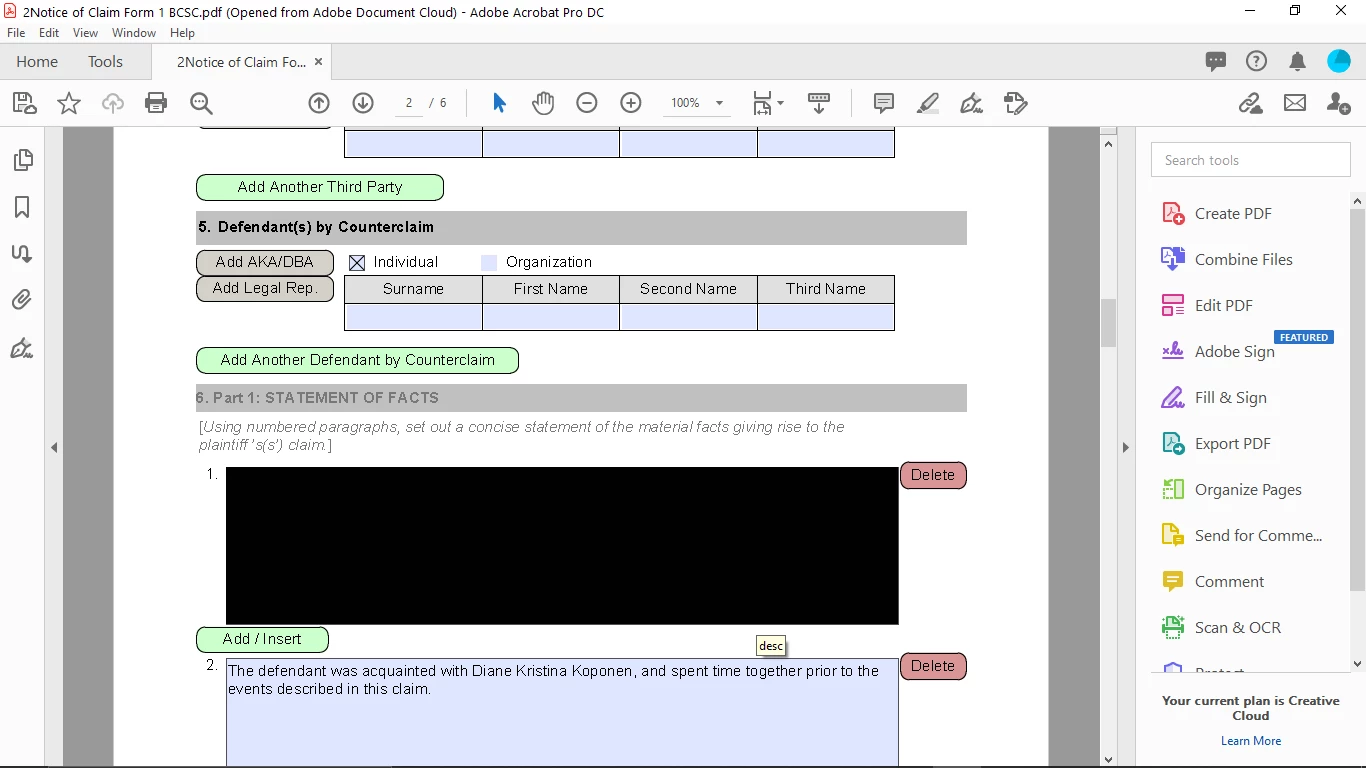
Fillable form. Active field is filled with black. Can't see what you are typing.

  • December 13, 2017
  • 10 replies
  • 40742 views

When choosing the option "Replace Document Colors" Acrobat always fills in the active (blinking cursor) text field with black. The user cannot see what they are typing, and they do not want to change their text to white just to be able to see. Users here like to change their background to yellow. This has worked fine in Acrobat Pro 9, 10, and 11. But since upgrading to Acrobat Pro DC 17, the users can no longer change their background color because it blacks out their textfields as they are typing. After deselecting a text field, it no longer is filled with black. Only when editing a field does it turn black and unreadable.

Anyone having similar issues?

Thanks
Correct answer Newmechanic

Yes, had the same issue and got the answer here. In preferences, unchecked the replace document colours inaccessibility and problem solved.

10 replies

Participant
October 26, 2023

On MacOS Acrobat, they completely fail to pass the color from the color picket to the acrobat object.
For choosing a fill color for a comment object (rectangle) > on the comment tool bar, click the fill color and change it prior to placing the rectangle. 


Participating Frequently
April 18, 2023

I had charcoal fields all of a sudden in my form fields (Acrobat X Pro) which made it difficult to read, plus hard on the eyes.  I could not get any of the solutions here to work for me, but I finally ended up in Preferences>Forms and clicked on Fields Highlight Color which took me to the color picker where I selected Other Color.

This took me to the Color palette. I went to an old computer, opened an Acrobat file which had the Original Acrobat Blue field color and did the same steps as above.  I got the settings from that computer and entered them on my current computer.  It worked.  My old faithful Original Acrobat Blue field highlights are back!  Before I left the Color palette, I clicked Add to Custom Colors, so those settings are saved.

Participant
March 10, 2022

Hi, I just want to share another solution. When I first came across this post, none of the answers resolved the issue for me but I found another workaround that could be helpful: From Acrobat 'Prepare Form' tab on the Left select your text field, click more tool, click 'show field properties', then under Appearance you can easily customize the fill colour or select transparency of your text box.
Hope this is helpful. 

Participant
September 3, 2021

Hello, 

I was having the same issues, but could'nt find the same settings from the below screenshots, but I did change the colour of the button on Roll Over Off, under appearance in the checkbox settings. Now it's working fine. Prints without any issues. 


NewmechanicCorrect answer
Participant
July 4, 2020

Yes, had the same issue and got the answer here. In preferences, unchecked the replace document colours inaccessibility and problem solved.

brockm64617221
Participant
March 7, 2022

Same issue.  Was going nuts.  Your solution worked.  Thanks!  

Participant
April 4, 2020

wow, thank you so much for figuring that out!

Participant
February 15, 2019

SOLUTION: go to Properties > Appearance > Fill Color - make fill color white.

@taylorr99346932

Participating Frequently
May 9, 2019

There is still not a solution to this problem. Surprised not a single Adobe rep has commented on this, as I know this is a problem for many organizations. Most likely because they only care about AEM Forms, which do not have this problem.

Legend
May 9, 2019

It looks as if there is a confusion about these forums.

These forums are "user-to-user", where users more experienced in a topic help users with less experience in that topic. There are people from Adobe following the forums, but they very rarely comment. Therefore, these forums are not a channel to pass things to Adobe, or to get in touch with Adobe representatives.

Participant
March 16, 2018

I have just figured it out! Yeah! Because that was really bothering me. If you go to edit...preferences...accessibility...uncheck the box for "replace document colors". I feel as though a weight has been lifted from my shoulders.  So happy.

Participating Frequently
May 15, 2018

How does this correct your issue? If I uncheck the box for "replace document colors" then my page background goes back to white, defeating the purpose of this post.

Replace document colors has to be checked in order to avoid the white and black contrast. Users here want their background yellow and their text black. Unchecking replace document colors just resets adobe back to default settings which have always worked from the beginning.

Legend
May 9, 2019

As far as I understand it, the replace document colors functionality works for the document, but not for Annotations (such as form fields). So, what you can try is to change the fill color of the field to transparent, and/or to yellow, and see what happens now.

You might also deactivate the Hover color in the Forms tab of the Acrobat Preferences.

Participant
March 16, 2018

I have had that same issue. It sounds like there still hasn't been any resolution. My workaround has been typing on a Word doc and then cutting and pasting into those boxes. It's a pain, but it's better than crossing your fingers, hoping that you don't have a misspelling or typo and have to go back to fix it without being able to see what you're doing. And I using Adobe Acrobat Pro DC

Legend
December 16, 2017

Are you able to provide a screenshot of the Accessibility preference settings you are applying that cause this issue?

Also let us know what Operating System (and version) you are on. E.g. Mac OS High Sierra, Windows 10.

I'm unable to simulate it (Mac OS High Sierra) with a test text field I created in Acrobat Pro DC form (Continuous Release |  Version 2018.009.20050):

  1. I can see the field highlight colour in the form (Preferences > Forms has settings to adjust these colours).
  2. I can see the yellow text on black background as I type.

I tested with the following settings:

Participating Frequently
January 23, 2018

Windows 7. Adobe Acrobat Pro 17. 2017 Release (classic) | Version 2017.011.30070. Checking for updates says no updates available.

Screenshot of preferences. I also noticed you did the opposite of what I was saying. The background is set to bright yellow, and the text is black. It is easier on the eyes for our employees and is why they choose to change the background from the harsh white and black contrast. Setting the background to yellow forces the text fields to turn black, thus the user cannot see what they are typing.

This is what the user sees when they click on a text field and enter information.

As you can see. My text is not legible and I do not know what I am typing.