
Inspiring
August 6, 2020
Question

How to reset Acrobat 2017 Pro - without having to re-install it?

  • August 6, 2020
  • 1 reply
  • 3428 views

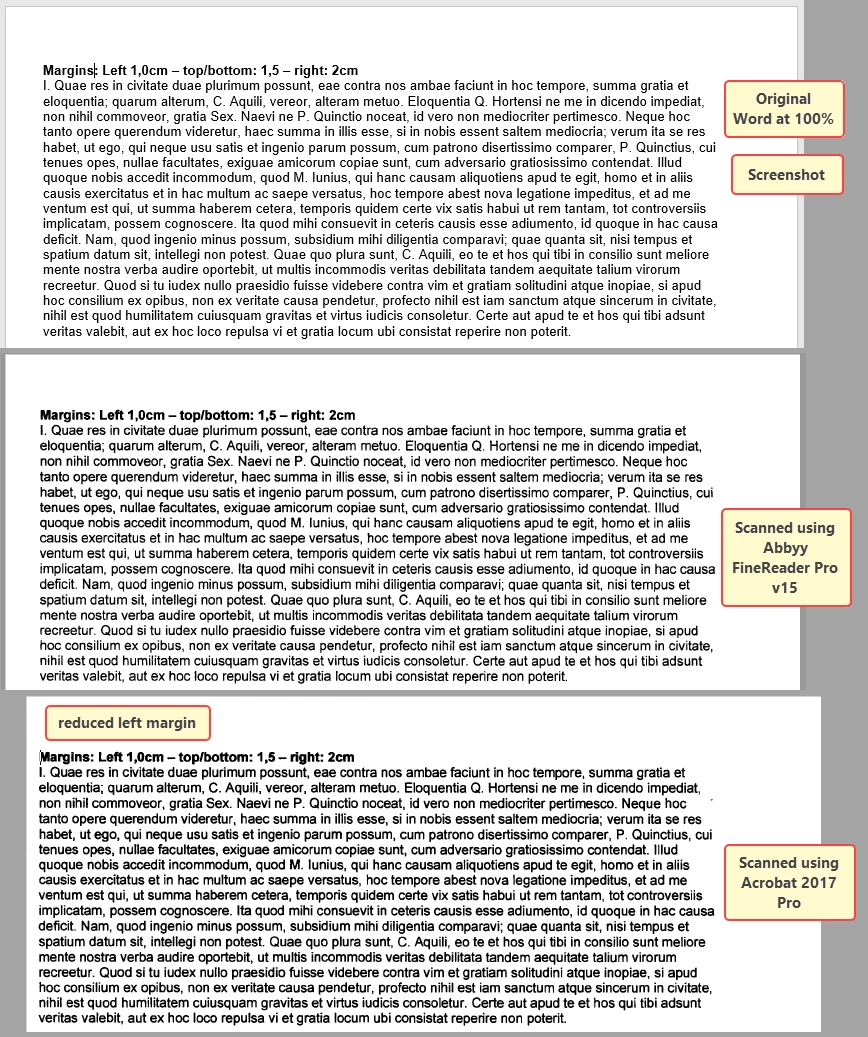
When creating scans from my scanner, the output font looks blurry. That used to be perfect in the past.

Also the text has shifted about 8mm to the left, leaving close to no marging (about 2mm or so)


I have tried endlessly to get this OK again, but all attempts remained in vain.

Wonder whether there is a way to reset all settings of Acrobat to default, so I can try from scratch.


Or anyone out there having tips to get high resolution scans. I don't care about the size.


Attached find screenshots.

Note when scanning using Acrobat and using Automatic Document Feeder (ADF), the left margin is okay. Acrobat reduces the left margin in case of a manual scan, i.e. document manually put on the glasplate.


Thanks.
 

This topic has been closed for replies.

1 reply

ls_rbls
Community Expert
Community Expert
August 6, 2020

I would say to try first  clicking on HELP-->>"Repair Installtion".  And after that force a manual update of the last version update again.


Is this happening in MS Windows 10?  I would try forcing an update on windows and also checking with the manufacturer of your scanning device if there are any firmware updates, not just the drivers.


Sometimes MS Windows (and I think this true in macOS too), if you let the operating system do its own unattended update for hardware drivers will render funky results or behaviors of some your peripherals and the applications that interact with them.


To manually reset your Acrobat to default preferences settings use this gguidance:


https://community.adobe.com/t5/acrobat/how-to-reset-acrobat-preference-settings-to-default/td-p/4792082?page=1

adwul62Author
Inspiring
August 7, 2020

Many thanks for the reply. I did all the above. No improvement.
I did the manual thing (your link), no improvement.

There was a firmware update for my Epson printer, no difference, regretfully.
I uninstalled/re-installed the drivers (printer/scanner), no improvement.
I then unstalled/re-installed Acrobat entirely (incl registry settings and all possible leftovers), no improvement.

Finally, I could the left margin back by setting the papersize to "Letter" - when launching Epson scan software, by default it is set to that size: 215.9 x 279.4mm (A4 is longer format, 210x297mm)
OTOH it looks like it is scanning the entire A4 page nonetheless.

So, the left margin in 'restored', so to say.

The blurry font isn't. 
I wonder whether it has something to do with how things are being displayed, i.e. Acrobat monitor settings.

I have  a 27"HP Dreamcolor monitor, maybe there is some setting within Acrobat to adjust it ..?

Beats me..


Top is Acrobat, in the middle a screenshot when Epson scans it to a jpg file and at the bottom Abby FineReader.


ls_rbls
Community Expert
Community Expert
August 10, 2020

Since the font is changing after scanning with Acrobat, the solution might be to turn off the Recognize Text (OCR) option when scanning, so you are just getting an image of the document (which is probably what is happening using the other scanning methods you have tried). Also, I've noticed that after a change is made to the Acrobat page display preferences, you might need to close and reopen the PDF to see the changed preference. I did not read every part of this post and the related links, so I apologize if I'm repeating something already suggested.


Thank you Luke!


Hopefully this is the solution.