


Known Participant
September 27, 2017
해결됨

Mulitiple Signatures and a Topaz Signature Pad

  • September 27, 2017
  • 1 답변
  • 3528 조회

I have a form that has multiple signature fields.  When the first member signs the signature pad and populates the field as expected.  When the second or third click into the field to sign, it brings up my digital signature for them to use.  It will not allow them to use the signature pad to sign.  So, what am I doing wrong?  Am I missing a different signature button in DC a property that I need to set to allow multiple signatures?   I have used the Adobe 9 and didn't have any trouble with it but I seem to have loads of it with DC.  Please help.  Thank you.
이 주제는 답변이 닫혔습니다.
최고의 답변: Tariq Ahmad

Hi Mcctfcu,

Sorry for the delay in response.

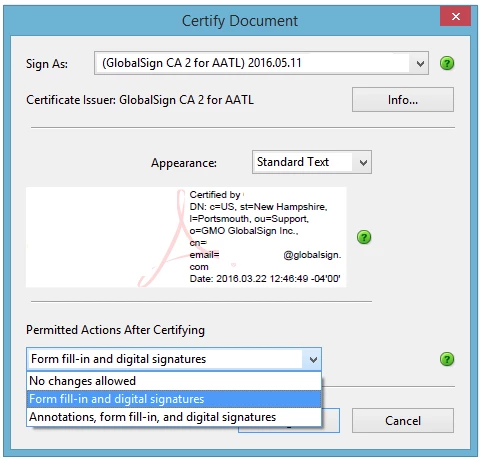
The Certify Document window will appear.

  • If you have multiple certificates, choose your signing certificate from the
    Sign As: drop-down menu.
  • Customize the signature appearance to your liking.
  • Under Permitted Actions After Certifying make sure either Form fill-in and digital signatures or Annotations, form fill-in, and digital signatures are selected so that additional signatures can be placed.

  • Click Sign.
  • Save the PDF & enter the password for your Certificate/USB Token.

The next steps will vary depending on the number of signatures and whether or not one person is applying multiple signatures or multiple people are applying one signature each.

If the next signature is to be placed by another individual, forward the certified document to them to complete the next signature field. If you are placing additional signatures with the same cert, right-click the next signature field and again choose Certify with Visible Signature.

-Tariq Dar

1 답변

Community Manager
November 2, 2017

Hi Mcctfcu,

Sorry for the delay in response.

The Certify Document window will appear.

  • If you have multiple certificates, choose your signing certificate from the
    Sign As: drop-down menu.
  • Customize the signature appearance to your liking.
  • Under Permitted Actions After Certifying make sure either Form fill-in and digital signatures or Annotations, form fill-in, and digital signatures are selected so that additional signatures can be placed.

  • Click Sign.
  • Save the PDF & enter the password for your Certificate/USB Token.

The next steps will vary depending on the number of signatures and whether or not one person is applying multiple signatures or multiple people are applying one signature each.

If the next signature is to be placed by another individual, forward the certified document to them to complete the next signature field. If you are placing additional signatures with the same cert, right-click the next signature field and again choose Certify with Visible Signature.

-Tariq Dar

Participating Frequently
November 6, 2017

My situation is a little different

I have a compliance document that requires eleven signatures.  I've set up signature fields for each signer, but the "Participant Role:" field pull-down only allows up to six signatures.  I tried putting "Signer" from the pulldown in the block, but the first signatory informs me that the document wants him to sign "nearly half" of the signature blocks (presumably the ones simply marked "Signer").

Is there a way to manually increase the number of signatures beyond six?  This seems like an arbitrary limitation and it seriously impacting the delivery of this document needed for audit.

Community Manager
November 7, 2017

Hi Mcctfcu,

Sorry, I am not sure what you saying.

What do you mean by " "Participant Role:" field pull-down only allows up to six signatures"?

Not sure about this "the document wants him to sign "nearly half" of the signature blocks"?

If you talking about the size of a signature field you may draw it on the file/form either using Prepare form time or while signing a form using option "sign with certificates"

Also, not sure "Is there a way to manually increase the number of signatures beyond six?"

-Tariq Dar