

Participant
February 14, 2018
해결됨

зачок / иконка отображается неправильно
  • February 14, 2018
  • 1 답변
  • 8088 조회

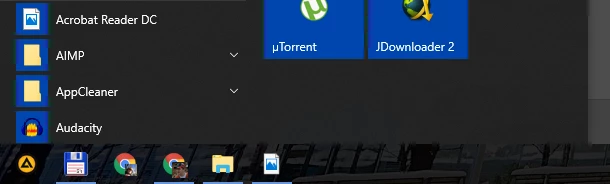
сразу после установки значки Acrobat Reader DC выглядят так

Windows 10 x64 лицензия

переустанавливал несколько раз - не помогло

кэш значков удалял - не помогло

이 주제는 답변이 닫혔습니다.
최고의 답변: Павел Ерофеев

Hi,

Sorry for the delay in response to your query.

If you are still experiencing the same problem, and have not been able to remove the application using cleaner tool and neither through control panel. Then you must create the Hidden admin account and check the same in that.

Because there is seems to be a problem with the user account itself, as its neither installed the application correctly nor letting to remove it properly.

How to enable the hidden admin, you may check-

Enable Built-in Administrator Account in Windows

1-    First you’ll need to open a command prompt in administrator mode by right-clicking and choosing “Run as administrator” (or use the Ctrl+Shift+Enter shortcut from the search box).

Note that this works the same in all versions of Windows. Just search for cmd and then right-click on the command prompt icon in the Start menu or Start screen.
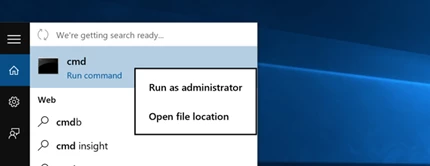
If you are in Windows 8.x or 10 you can right-click on the Start button and choose to open a command prompt that way.
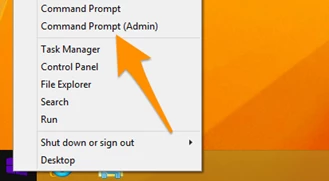
2- Now type the following command:-
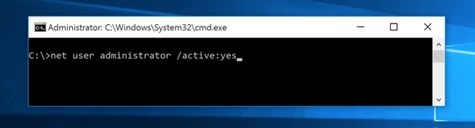
3- You should see a message that the command completed successfully. Log out, and you’ll now see the Administrator account as a choice. (Note that this screenshot is from Vista, but this works on Windows 7 and Windows 8 and Windows 10)
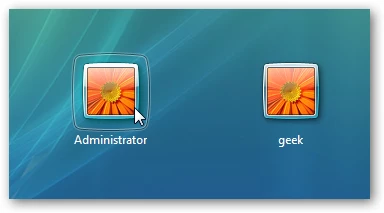
       

You’ll note that there’s no password for this account, so if you want to leave it enabled you should change the password.

Disable Built-in Administrator Account

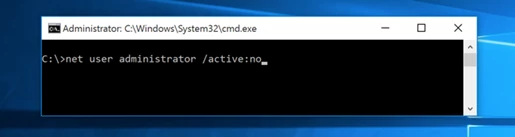
Make sure you are logged on as your regular user account, and then open an administrator mode command prompt as above. Type the following command:

net user administrator /active:no
Regards,

Akanchha


извините за долгое отсутствие

ничего не помогло(

видимо проблема в системе

видимо буду переустанавливать систему в ближайшем будущем)

спасибо за помощь

1 답변

AkanchhaS8194121
Legend
February 14, 2018

Hi павеле,

The way icon displays in the screenshot, there is a possibility that the application didn't even install correctly.

Use this link to run the cleaner tool- Download Adobe Reader and Acrobat Cleaner Tool - Adobe Labs

and install the application again through- Adobe Acrobat Reader DC Install for all versions

Let us know if it doesn't make any difference.

Regards,

Akanchha

Participant
February 15, 2018

не помогло

Clean Tool зависает при удалении Acrobat Reader

удалил с помощью Bulk Crap Uninstaller, нашел все остатки и удалил вручную

переустановил Reader - тоже самое, что и ранее на скриншоте

AkanchhaS8194121
Legend
March 12, 2018

nothing changed


Hi,

Sorry for the delay in response to your query.

If you are still experiencing the same problem, and have not been able to remove the application using cleaner tool and neither through control panel. Then you must create the Hidden admin account and check the same in that.

Because there is seems to be a problem with the user account itself, as its neither installed the application correctly nor letting to remove it properly.

How to enable the hidden admin, you may check-

Enable Built-in Administrator Account in Windows

1-    First you’ll need to open a command prompt in administrator mode by right-clicking and choosing “Run as administrator” (or use the Ctrl+Shift+Enter shortcut from the search box).

Note that this works the same in all versions of Windows. Just search for cmd and then right-click on the command prompt icon in the Start menu or Start screen.

If you are in Windows 8.x or 10 you can right-click on the Start button and choose to open a command prompt that way.

2- Now type the following command:-

3- You should see a message that the command completed successfully. Log out, and you’ll now see the Administrator account as a choice. (Note that this screenshot is from Vista, but this works on Windows 7 and Windows 8 and Windows 10)


You’ll note that there’s no password for this account, so if you want to leave it enabled you should change the password.

Disable Built-in Administrator Account

Make sure you are logged on as your regular user account, and then open an administrator mode command prompt as above. Type the following command:

net user administrator /active:no

Regards,

Akanchha