Exit
  • Global community
    • Language:
      • Deutsch
      • English
      • Español
      • Français
      • Português
  • 日本語コミュニティ
  • 한국 커뮤니티
0

Automatic single page, 100% and continous scrolling

New Here ,
Mar 02, 2017 Mar 02, 2017

Dear Community,

I try to configure my Adobe Reader to open every new document with the same settings: I want to have single pages and want continuous scrolling to be turned on. I don't want to have the standard setting that jumps to the next page when I scroll down to the bottom of the first one. I want to be able to see the second half of the first page and the first part of the second page, no jumping.

I tried to adjust the settings (Ctrl + K, Page Layout (5th option)), but it doesn't use my settings. When I close the reader and open a new document, it has single page with "jumping" again, even though I configured single page with smooth scrolling to be standard. The settings are saved correctly, but Adobe Reader seems to ignore them. What do I need to do to tell Adobe Reader to use the settings I specified for every single document I open?

Thank you very much in advance.

1.2K
Translate
Report
Community guidelines
Be kind and respectful, give credit to the original source of content, and search for duplicates before posting. Learn more
community guidelines

correct answers 1 Correct answer

Community Expert , Mar 02, 2017 Mar 02, 2017

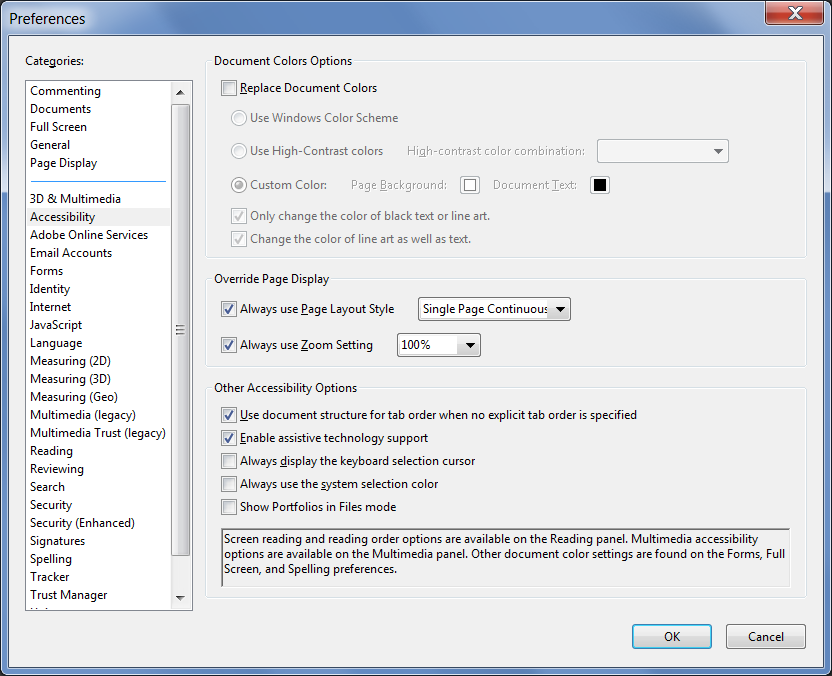
If a document has an Initial View setting it will override those preferences you've defined. However, I believe you can override those settings by going to Edit - Preferences - Accessibility and setting it there. It should look something like this:

Translate
Community Expert ,
Mar 02, 2017 Mar 02, 2017

If a document has an Initial View setting it will override those preferences you've defined. However, I believe you can override those settings by going to Edit - Preferences - Accessibility and setting it there. It should look something like this:

Translate
Report
Community guidelines
Be kind and respectful, give credit to the original source of content, and search for duplicates before posting. Learn more
community guidelines
New Here ,
Mar 02, 2017 Mar 02, 2017
LATEST

Oh thank you so much!
That was exactly my problem - my setting was always overridden of the setting specified in Accessability. Now I changed it, and it works beautifully. I just had no clue that this was the reason why it didn't work.

And was good you posted the picture, so I could find the correct setting in my localized version of Adobe Reader. Now I'll close the issue and mark it as solved

Translate
Report
Community guidelines
Be kind and respectful, give credit to the original source of content, and search for duplicates before posting. Learn more
community guidelines