
Participant
May 24, 2023
Question

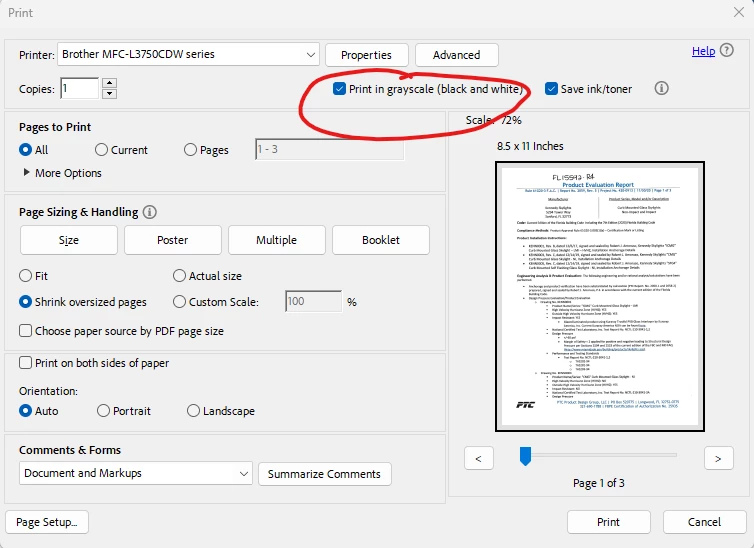
Print in Grayscale box doesn't work

  • May 24, 2023
  • 3 replies
  • 8962 views

Everything was working fine when I was using the free Adobe reader.  We intalled Adobe Acrobat Pro yesterday and now the "Print in Grayscale" box doesn't work.  I have to go into my printer settings and change it to mono.  It doesn't even work when auto color is selected.  I really shouldn't have to go deep into printer settings every time I need to change from color to grayscale.  This problem only occurs in Adobe.   Is there a way to fix this or work around?
3 replies

Participant
June 24, 2024

I had the same issue and just checked my Colour Management in Adobes Preferences, changed the working space "Grayscale" to Black & White, allowing grayscale. See attached.


Participant
July 4, 2024

When I tried this I got an error that Adobe could not print. 

Amal.
Legend
July 24, 2025

I am experiencing the same issue on Windows 10 with Adobe Acrobat version 2025.001.205531. Although I select the 'Print in Grayscale' option, documents still print in colour. Additionally, the Colour Management profile appears to be missing in Settings, and when I choose the Monitor RGB - sRGB IEC61966-21 profile, the problem persists.

Could you please advise whether this is a known issue with Adobe Acrobat, and if so, whether a fix is available or anticipated? Thank you very much for your assistance.


Hi there 


Hope you are doing well and thanks for reaching out. We are sorry for the trouble you are experiencing. 


Please try few things listed below and see if that works:


1. Please update the Acrobat application to the latest version 25.01.20577, go to Help > check for updates and reboot the computer once. 


2. Check Printer Settings Directly: Sometimes Acrobat’s grayscale option doesn’t override the printer driver settings. Try setting grayscale directly from the printer’s own preferences (via Control Panel > Devices and Printers > [Your Printer] > Printing Preferences).


3. Update or Reinstall Printer Drivers: Outdated or corrupt drivers can override app-level settings. Make sure your printer driver is up to date. You may also try to remove the printer driver, reboot the computer, and reinstall the driver from the printer manufacturer's website and check.


Also, check the steps shared in the help page: https://adobe.ly/4lJvloc 


Let us know how it goes.


Participant
February 20, 2024

Go to the "properties" tab right above to change to black etc

AkanchhaS8194121
Legend
May 24, 2023

Hi @Sarah30044816z4fn 


Sorry to hear about your experience

Once you uncheck the "Print in Greyscale" and proceed with printing, Print settings will be preserved for the next time when you give the print command  

Check under Advanced>Output>Color if it is Composite Gray, then change it to Composite.


Also, make sure

  1. You have the latest version of Acrobat installed. 

Go to Acrobat> Help > Check for updates and reboot the computer once (you must save all the work before restarting)

To download the patch manually, more information about this release is here: Release Notes | Adobe Acrobat, Reader

2. Update your printer driver and firmware


Thanks,

Akanchha 

Participant
May 25, 2023

Whether the Print in Grayscale box is checked or unchecked has no effect on the color output which is where the problem is.  I have to go into the acutal printer settings and change the color output.  Adobe is up to date as is my printer software and firmware.  I have no problem in any other application, just Adobe.  From what I've read in here, I'm not the only one with this problem.  I also didn't have this problem with the free Adobe Reader

AkanchhaS8194121
Legend
June 8, 2023

@Sarah30044816z4fn Sorry to hear that the issue persists.

Please reset the Acrobat's preferences once: https://community.adobe.com/t5/acrobat-discussions/how-to-reset-acrobat-preference-settings-to-default/td-p/4792082 


If it still doesn't work, then give it a try.

Run this cleaner tool to remove the existing installer and application’s file traces:

https://www.adobe.com/devnet-docs/acrobatetk/tools/Labs/cleaner.html

Download the Acrobat installer from here:

https://helpx.adobe.com/acrobat/kb/acrobat-dc-downloads.html


~Akanchha