


zman6824
Participant
Feb 6, 2018 4:48 PM UTC
Answered

Reduce cursor size in Adobe Reader DC and X Pro

Hi there,

I am currently using Adobe reader DC and X pro.

For some reason when i go to select text in a PDF (single line) the cursor size is too big and selects paragraphs rather than a single line.  How do i adjust the cursor size.  See attached screen capture for more details (cursor size highlighted in red).  I am running this on a Windows 10 PC.  Thanks!
Efrain2407285271zsCorrect answer
Participant
Apr 17, 2022 3:52 AM UTC

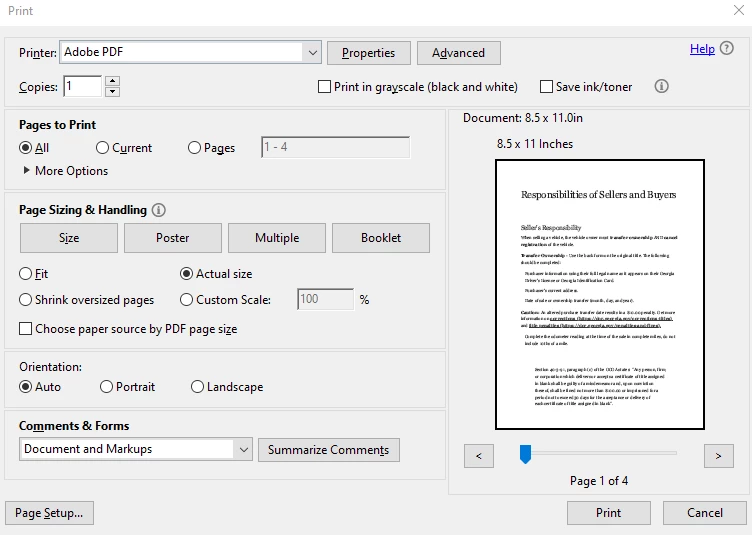
Go to Print Settings where you choose the Printer, uncheck Shrink oversized pages and check actual size.

It workeed for me. Hope it helps


34 replies

Participant
Jan 8, 2025 12:18 AM UTC

Why can't Adobe answer this question. I'm encountering the same thing and it's a really stupid feature. They have that should be able to be resolved. Quickly..  You should be able to highlight text that are and type sentences without ending up with the whole page being marked. Get with an Adobe

Translate
Frere Christopher
Participant
Oct 7, 2022 7:34 PM UTC

After some experiments, the problem appears only in documents that were saved as an Adobe PDF. When I print as a generic PDF and not as an "Adobe Pdf," the cursor was normal again. 

Translate
Efrain2407285271zsCorrect answer
Participant
Apr 17, 2022 3:52 AM UTC

Go to Print Settings where you choose the Printer, uncheck Shrink oversized pages and check actual size.

It workeed for me. Hope it helps


Translate
Participant
Mar 20, 2025 4:14 PM UTC

Thank you. It worked for me too.


Translate
Souvik Sadhu
Legend
May 18, 2025 3:35 PM UTC

Hi @Halyna35909983oy2f,


Hope you are doing well.


Thanks for writing about what worked for you.

Marking this as a correct answer for future users to use as a reference.


Regards,
Souvik.

Translate
Participant
Nov 10, 2021 12:07 AM UTC

The problem is clearly driver-related and swapping to a different pdf driver fully resolved the issue. My problem occurred when I used Windows 10 (control-p) to print a document, and it selected the pdf system driver default. Select another pdf "printer" in the print dialog and all iswell.

Translate
Participant
Apr 28, 2021 3:23 PM UTC

I used the save as pdf and works however I found another way when this happens in redacting.

While ignoring the large flashing curor with your mouse as a + sign select the area you wish to redact and a shadow box will appear around it.

Next select redact Text & Images and draw over that same area. (You will not see the first shadow box).

Next select apply redaction and select ok and area will be blacked out. 

Save accordingly. Hope this helps someone. 

Translate
Participant
Dec 2, 2020 6:25 PM UTC

Has anyone found a permanent fix to this issue? I am having the same problem when I print from Chrome using the "Adobe PDF" printer. I am using Adobe Acrobat Pro DC. 

Translate
Participant
Nov 9, 2021 7:32 PM UTC

The suggested solution works on my end: I am saving as PDF from Chrome, and not print to the Adobe PDF printer. If I still cannot select text in this newly created PDF I go to Scan & OCR => "Recognize Text in this file"

I am using Adobe Acrobat Pro DC.

Translate
Participant
Aug 29, 2020 10:52 AM UTC

It helped me too. I chose File > Print and saved the new PDF with a different name and now it looks normal.

Thanks for the workaround!

Translate
Mannheezziee
Participant
Jan 17, 2019 11:28 PM UTC

Not sure if anyone had found a solid solution for this post, but I was having the same problem both at home and at work. I'm so use to printing stuff to PDF using IE, it's a habit to do the same while using Chrome. Though this may not be the case for everyone having this issue, I've tested it out and it seemed to have worked.

I followed the steps in Adorobat's initial response, however I didn't have the option at the time to adjust my custom scaling size. Instead the only option I had was to turn off (or on, can't remember). I clicked it and was forced to sign out of my account. When I signed back in, all my text, apps, and other items were scaled back down to 100%. Not 100% sure this actually contributed to it working or not, but it may be something to try if the next step doesn't fix the issue.

Afterwards, I went back into Chrom and opened a PDF file in a new window. Once the file was done loading, I opened the it. I clicked on the printer icon in the ribbon at the top of the screen. I changed the destination to "SAVE AS PDF" instead printing to PDF. When I opened the saved PDF file, I was able to select the text I wanted to on a single line again.

I tested this out when changing the destination to "ADOBE PDF" and "MICROSOFT PRINT TO PDF", the courser was the 2" - 4". However, when I used the file "MICROSOFT PRINT TO PDF" and edited the text, after exiting out of the edit text mode I was able to select the text I wanted to on a single line again.

I hope this helps for solving your problem.

Translate
Participant
Sep 29, 2022 7:26 PM UTC

In Chrome, selected "Print," then "Save as PDF" worked for me. Thanks!

Translate
Participating Frequently
Jun 29, 2018 12:13 AM UTC

I had the exact same problem, I had printed the page from Chrome, and the cursor was about 4-5 inches long.

As, Shivam Suggested,I printed the same page using Internet Explorer and everything worked fine.

Sam

Translate
Participant
Jun 11, 2018 8:26 PM UTC

I had the same problem.  I solved it (at least for now) by decreasing the linespacing to the minimum possible.  Now when I create new text it shows up without the enlarged cursor.  However the text I "fixed" didn't seem to actually be fixed.  Not sure if this is the solution, but it's something.

Translate