
We Heard You: Full Control Over AI Features in Acrobat
Your feedback matters—and we’ve listened.
We understand that not everyone requires AI assistance in their workflow. Many of you shared concerns about intrusive prompts and lack of control, and we’ve taken action.
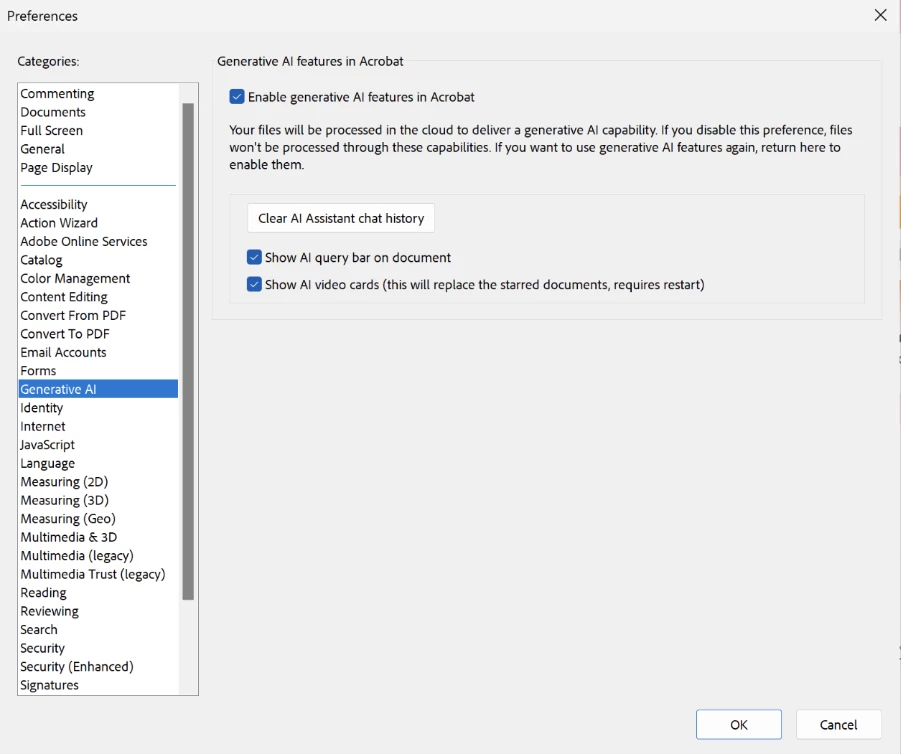
Now, Acrobat gives you complete control over AI features through Preferences. You decide what stays on and what turns off—no enforcement, no surprises — just flexibility.
Important Note:
Acrobat AI Assistant is continuously evolving, so different users may see slightly different options depending on their version of Acrobat. Rest assured, the available preferences will function as intended. To check the latest version available, please visit here: Release Notes.
Where to Find These Settings
- Go to Menu > Preferences (Windows) or Acrobat > Preferences (Mac).
- In the left panel, select Generative AI.
- Here’s what you’ll see:
- Enable generative AI features in Acrobat (If you want to disable AI features entirely, simply uncheck this option)
- If you want to keep AI enabled but adjust other behaviours, you can select or deselect the remaining options according to your preference:
- Show the AI query bar on the document
Quick access to ask questions about your PDF. - Show AI video cards
Replaces starred documents with smart previews (requires restart).
You can also clear the AI Assistant chat history at any time for peace of mind.
Note: We recommend relaunching Acrobat after making any changes for them to take effect.
Business or Enterprise Users
You may visit the link to check how to: Manage AI for Business or Enterprise Deployment
Why Keep AI On?
AI in Acrobat isn’t just a buzzword—it’s designed to save you time and simplify tasks:
- Summarise long documents in seconds.
- Generate quick insights without leaving your PDF.
- Navigate complex files effortlessly.
These features are optional, but they can make your work smarter and faster.
Check out Adobe’s official AI usage policy and limitations here:
Community Resources:
 AdChoices