

Sharing, Tracking & Managing your PDFs becomes much easier with Adobe Acrobat Reader Mobile
You can easily determine a file's share status and get a real-time notification using Acrobat Reader Mobile App.
Sharing & Reviewing Files
Sharing view-only files (free ) or sharing files for review (subscription) so that recipients can comment and markup files
- A Share user interface and feature set that's similar across the desktop, web, and mobile devices
- Easy controls for creating, participating in, and managing reviews
- Real-time notifications of file views, changes, and participation as well as support for @mention tags
Share and Review tags
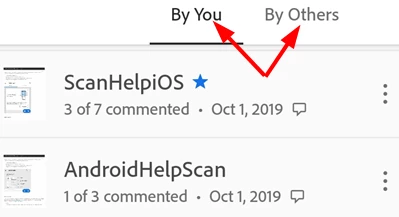
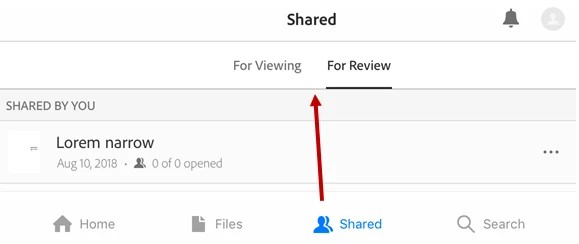
You can easily determine a file's share status since the app’s file lists indicate whether a file is simply Shared (view-only) or in Review.
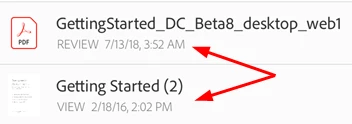
For Android "Shared “by you” and “by others”
For iOS “Share and Review tabs”
Get Started with Review: -
- Initiating a share or review: Sharing a file is easy, and you can track and manage the share from your mobile device, the desktop, and the web. You'll receive push notifications when reviewers participate.
See details here: for Android | iOS
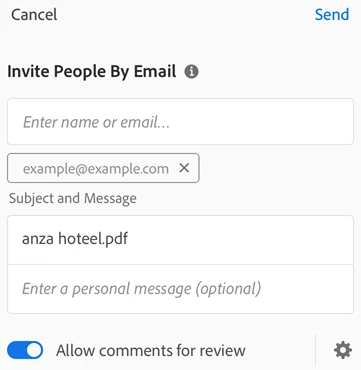
- Sharing files or links: Share options also include sharing a copy of a file or sharing a link to the file.

- Reviewing files: The review feature allows you to add comments and annotations, edit comments, reply to comments, and receive notifications when there is activity on your thread comments. When you receive a review invitation email, click the link. Clicking on a link in 3rd party mobile apps automatically opens the Acrobat Reader in the review.
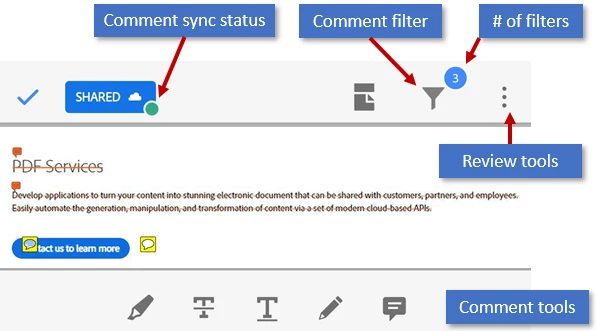
- Working with comments
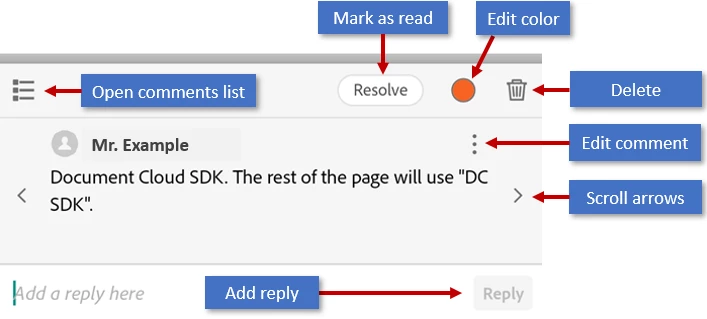
When you tap on a comment, the app shows the edit tools. From here you can:
- Open the complete comment list.
- Resolve comments (mark as read).
- Edit the color of your own annotations.
- Delete your own comments.
- Edit your own comments.
- Navigate through the comments.
- Reply.
This Android and iOS Guide will further help you to understand more about “Working and Navigating Comments”.
Managing reviews: -
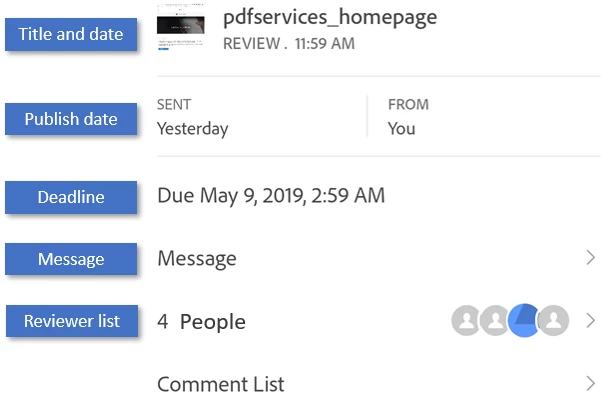
While you will receive a notification when reviewers view and comment on your file, you can actively monitor and track reviews online or from the desktop.
Once you've shared a file, you can track and manage that share. From any file list, select a file and use the right-hand pane to perform an action.
To manage a review when a document is open, simply click  the or simply tap
Features include:
- Send reviewers a real-time message. Messages are received as notifications
- View the reviewer list and how many comments each reviewer has added
- See who has viewed the file and when
- Add reviewers
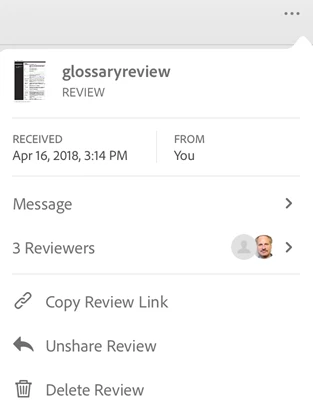
- Unshare files and delete reviews
How these Features works? To get into the details click here for Android | click here for iOS
Have further questions? Join the conversation here. We are listening!
To discover a host of other great features – Go straight to: Want to make simple edits of PDF on iPad/Tablets? We’re here to help! |
You can do more in Adobe Reader Mobile if you have an Acrobat Pro DC subscription.
 AdChoices