New Participant
August 30, 2016
Answered

Acrobat Pro DC: Problems with Scaling on Multiple Monitors/Windows 10
  • August 30, 2016
  • 3 replies
  • 7619 views

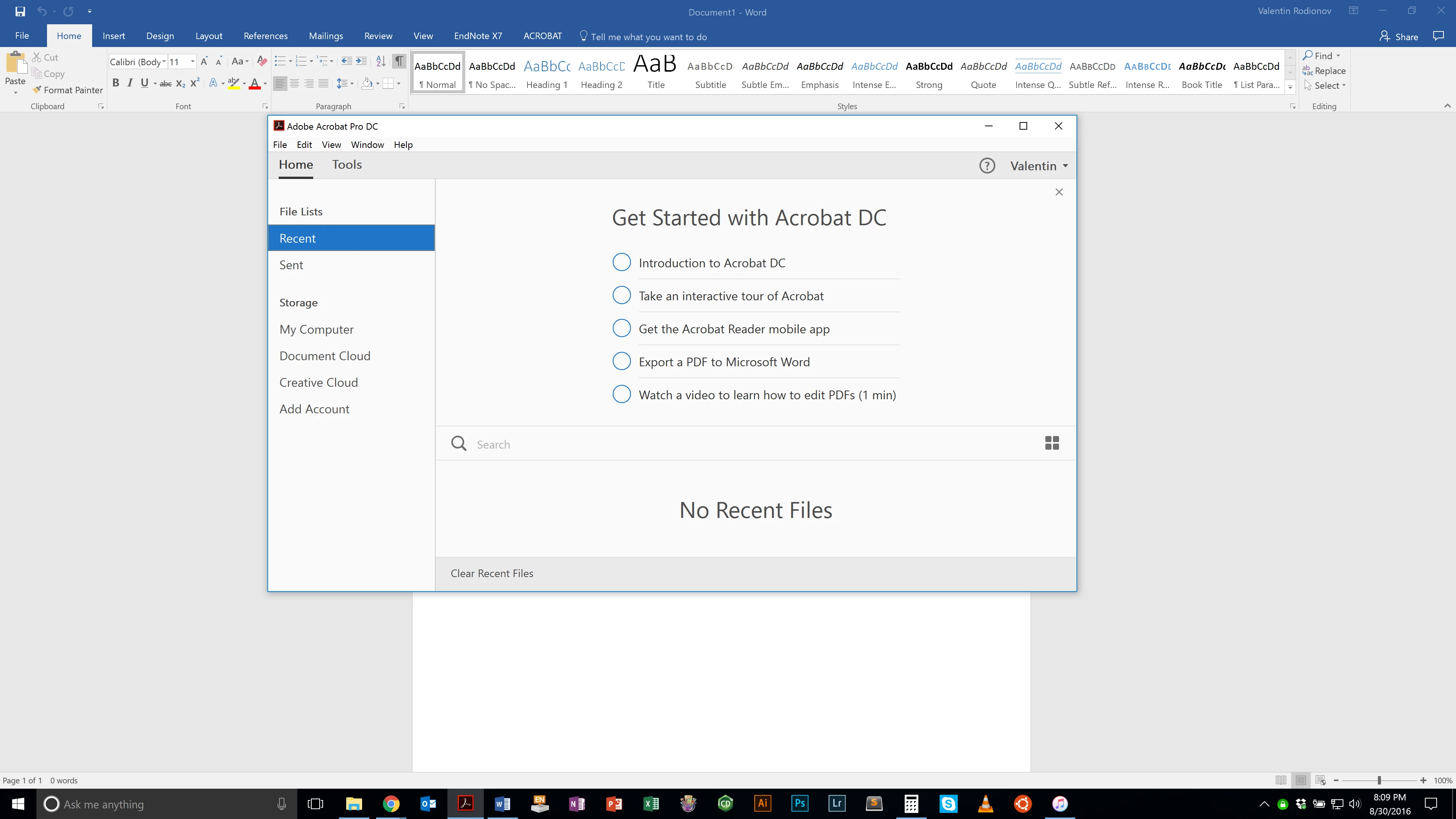
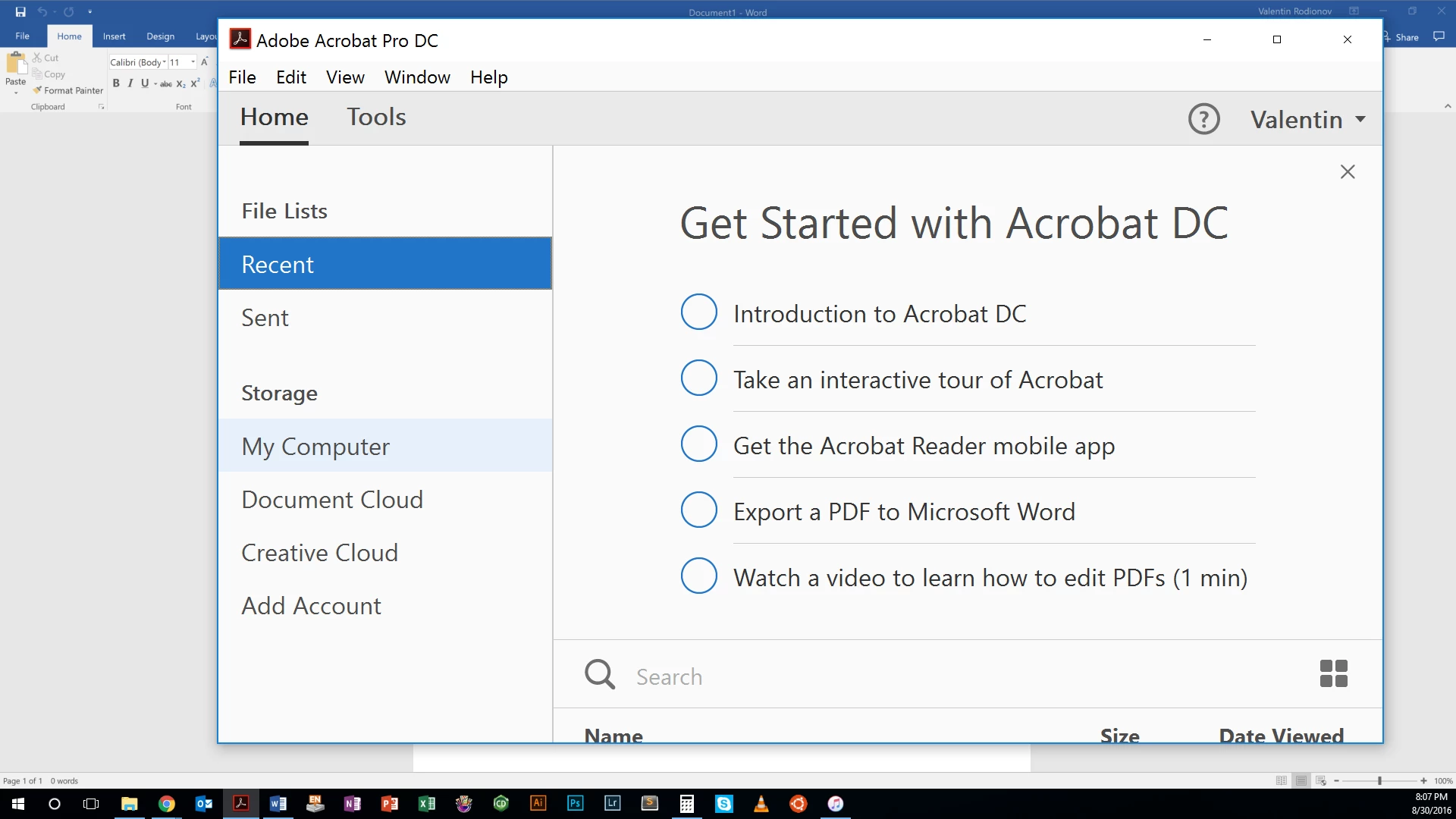
I have a problem with scaling of Acrobat DC UI, as detailed in the screenshots above (MS Word is positioned behind Acrobat windows for scale).

I have a Lenovo P50 with a 15' 3840x2160 high dpi screen (200% scaling); and a secondary 21' 1920x1080 monitor (100% scaling). I am running the latest version of Windows 10 with the latest graphics drivers available for my machine.

Acrobat DC looks fine on high-dpi screen. However, the interface becomes extremely large when the window is dragged to the secondary screen. Acrobat does not correctly resize the interface to 100%. As you can see, that impacts even the top title bar. Disabling scaling in Acrobat options does not fix the problem. The UI is then somewhat smaller, but still too large to be usable on the secondary display. However, everything becomes too small and unusable on the high-dpi display.

The only workaround that has worked so far is using the external manifest file:

Adobe App Scaling on High DPI Displays (FIX) | Dan Antonielli

However, this has significant drawbacks. The UI becomes somewhat blurry on high dpi display. Furthermore, the cursors on high dpi display become extremely small.

Is there another fix for this? Is the development team aware of this serious and critical bug? Will this be fixed in the next release of CC?

This topic has been closed for replies.
Correct answer AshuMittal9644438

Hi,

Acrobat DC update with multi-monitor DPI scaling support is now available, read more here: What's new in Adobe Acrobat DC. This update will be automatically applied to all Acrobat and Reader users in the coming days. You may also update to the latest release by opening the application and going to Help > Check for Updates.

Release notes for today's release are here: 17.012.20093 Planned update, August 8, 2017 — Acrobat and Adobe Reader Release Notes  

Please try it out and let us know your feedback.

Thanks!

-ashu

3 replies

New Participant
July 23, 2019

I seem to have resolved the issue by enabling "Override high DPI settings..." and selecting "System (Enhanced)". To explain: right-click Adobe's Start menu icon > More > Open file location > right-click the Adobe icon > Properties > Compatibility tab > "Change high DPI settings" button > checkmark "Override high DPI scaling..." > select "System (Enhanced)".  This is on Win10 Pro 1903.

New Participant
May 22, 2024

Praise the lord thank you.

I had to tick a couple boxes but eventually got there!

AshuMittal9644438
Adobe Employee
AshuMittal9644438Correct answer
Adobe Employee
August 8, 2017

Hi,

Acrobat DC update with multi-monitor DPI scaling support is now available, read more here: What's new in Adobe Acrobat DC. This update will be automatically applied to all Acrobat and Reader users in the coming days. You may also update to the latest release by opening the application and going to Help > Check for Updates.

Release notes for today's release are here: 17.012.20093 Planned update, August 8, 2017 — Acrobat and Adobe Reader Release Notes  

Please try it out and let us know your feedback.

Thanks!

-ashu

kglad
Community Expert
August 30, 2016