


Participating Frequently
January 14, 2021
Question

How to make font to fix text box automatically

  • January 14, 2021
  • 2 replies
  • 957 views

Hello, I need help with making an interactive PDF.

I'm new to this so I'm not sure how much of this is possible to do, but I would appreciate some help!


1) I need the font size in both left and right boxes to be set at 14pt and then to gradually reduce to fit the size of the box depending on the amount of text. 
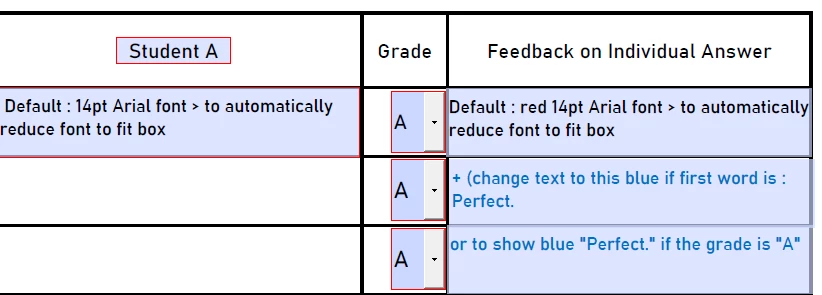
2) I would also like the text on the right hand column to be Red and 14pt font, unless the first word is "Perfect." the word perfect should be this shade of blue. Or for the box to automatically show a blue "Perfect." if the Grade is "A" (not sure which is easier to do).


Thank you in advance! 

This topic has been closed for replies.

2 replies

New Participant
January 20, 2021

I ran into a similar problem, so thanks for the help!

try67
Community Expert
January 14, 2021

1) You can't do it "gradually" while the text is filled in, unless you set the font size to Auto. You can set the font size after the text was entered to a desired value, based on its length, though.

2) Changing the color of a single word in a field is possible, but complicated. It requires setting it up as a Rich Text Formatted field and then applying the value as an array of Span items (two, in this case).

The second option you mentioned is much easier to implement, and can be done via the Validation event of the Grade field.

drewyoonAuthor
Participating Frequently
January 14, 2021

1) If I set it to Auto, can I set it so that it always begins with 14pt?

2) Could you talk me through the second option (validation event of the grade field)? 


And I've run into another problem, if you could help me with that, I would appreciate it!

If the sentence starts with Suggested Answer : ,  to have those first two words and the colon to be italicized.


Thank you so much for your help!

try67
Community Expert
January 14, 2021

1. No.

2. Add this as the custom validation script of the Grade field (let's say the feedback field is called "Feedback1"):


var f = this.getField("Feedback1");
if (event.value=="A") {
	f.value = "Perfect";
	f.textColor = color.red;
} else {
	f.value = "";
	f.textColor = color.black;
}


3. This requires the same kind of complicated solution as having only one word in a different color than the rest of the text.