

sandym17889623
New Participant
September 10, 2016
Answered

How to insert bookmarks with a colour legend?

  • September 10, 2016
  • 2 replies
  • 2550 views

How do I insert coloured bookmarks? Also how to design a legend for those bookmarks for easy reference?

thanks

This topic has been closed for replies.
Correct answer philippanmei

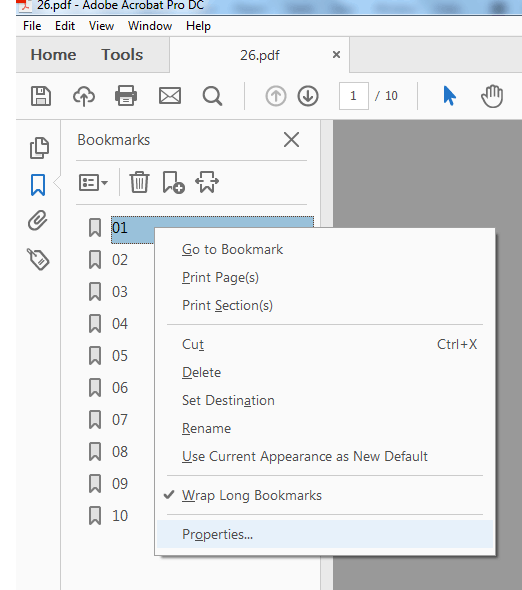
1. Select one the bookmark and right click on it and choose Properties (if you have already created a bookmark then select all the bookmark and right click on it and choose Properties)
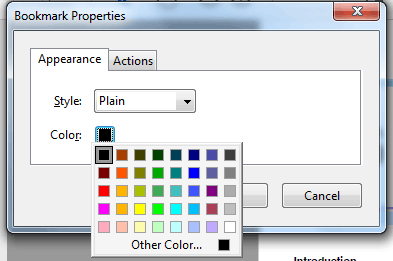
2. In the Bookmark Properties you can set color as well as the style if you wish to.
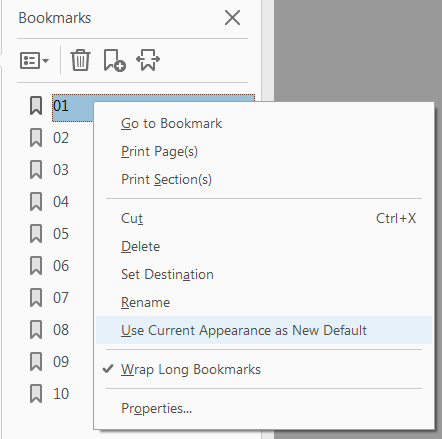
3. After setting all the properties, right click on it and choose "Use Current Appearance as New Default" (to make your setting as a default)
Thanks

2 replies

philippanmei
philippanmeiCorrect answer
Participating Frequently
September 12, 2016

1. Select one the bookmark and right click on it and choose Properties (if you have already created a bookmark then select all the bookmark and right click on it and choose Properties)

2. In the Bookmark Properties you can set color as well as the style if you wish to.

3. After setting all the properties, right click on it and choose "Use Current Appearance as New Default" (to make your setting as a default)

Thanks

try67
Community Expert
September 10, 2016

You can select multiple bookmarks and change their color all at once, by right-clicking one of them, selecting Properties and then changing the Color value under the Appearance tab. You can also right-click any bookmark and select "Use Current Appearance as New Default", and after that each bookmark you create will have that bookmark's color.

You can create a legend in the form of bookmarks, or place it on the pages of your file, or use a pop-up message. There are many possibilities.