Participant
April 11, 2018
Answered

Fields that repeat information

  • April 11, 2018
  • 2 replies
  • 7600 views

Hello,

I am starting to use Adobe esign after using PandaDoc for many years. How do I great a text field in a document that I can use in multiple places in one document and, once I fill out the first of these fields, the information will be repeated everywhere else the text field is on the document? Thank you.

This topic has been closed for replies.
Correct answer ScottCarter

Greetings!

The idea of creating multiple fields that must always contain the same field values is called "field pollination".  Typing any string into any one of the fields pollinates that content to all other fields.

Field pollination is predicated on field names.  All fields that have exactly the same name will cross-pollinate the value of the field to all other fields.  (Field names are important!)

If you are creating your form with text tags or Acroforms, you can simply copy and paste the tag/field and the name value will copy and paste successfully.

If you are using the in-app authoring environment, you will need to open the properties of a field you want to use multiple times.  Configure that field according to how you need it to work (appearance, validations, that kind of thing).

Then expand the Tools section, and click the Clone Field link at the bottom of the properties window.

This creates an exact replica of the field, including the name.

Additionally, at the top of the field properties, you will see the number of field clones that exist, with a handy Prev || Next option that will cycle you through those cloned fields.
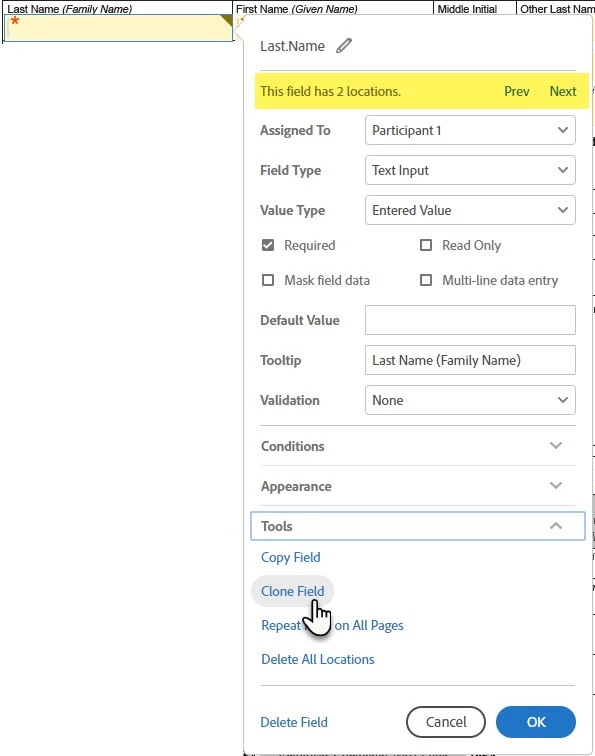
There's no practical limitation to the number of fields you can clone, or the number of clones that can exist for any one field.

Tangential tip: If you have a lot of forms, or if you have to cycle your forms often, it may be worth creating a naming convention that you use across all forms.  This would allow you to leverage field pollination across files if you ever send an agreement with multiple library documents attached.

2 replies

ScottCarterCommunity ManagerCorrect answer
Community Manager
April 12, 2018

Greetings!

The idea of creating multiple fields that must always contain the same field values is called "field pollination".  Typing any string into any one of the fields pollinates that content to all other fields.

Field pollination is predicated on field names.  All fields that have exactly the same name will cross-pollinate the value of the field to all other fields.  (Field names are important!)

If you are creating your form with text tags or Acroforms, you can simply copy and paste the tag/field and the name value will copy and paste successfully.

If you are using the in-app authoring environment, you will need to open the properties of a field you want to use multiple times.  Configure that field according to how you need it to work (appearance, validations, that kind of thing).

Then expand the Tools section, and click the Clone Field link at the bottom of the properties window.

This creates an exact replica of the field, including the name.

Additionally, at the top of the field properties, you will see the number of field clones that exist, with a handy Prev || Next option that will cycle you through those cloned fields.

There's no practical limitation to the number of fields you can clone, or the number of clones that can exist for any one field.

Tangential tip: If you have a lot of forms, or if you have to cycle your forms often, it may be worth creating a naming convention that you use across all forms.  This would allow you to leverage field pollination across files if you ever send an agreement with multiple library documents attached.

Known Participant
October 20, 2021

Hello! I am working with some internal and external hiring documents in a workflow. I have fields with repeating information I'd like to either pollinate through cloning or using the Workflow form fields. My issue is I need the appearance of some of these fields to be different from their cloned counterparts - the external document is branded while the internal document is generic. I was thinking I could just let the internal form copy the external branding if I need to but would be nice if I could keep appearance settings more specific while using field pollination of the data. Am I missing something? 

Known Participant
November 16, 2021

I'm surmising you are creating 2 seperate library templates?  In Adobe Sign library template start 'alone' without knowledge of any other documents you may use to combine with htis template.

With dragging and dropping you may need to add a 'placeholder' master field on this document.

Make it super tiny and read-only, so that in the final agreement it's not visible.


Another option is to create a combined template. When creating a library template you can use more than 1 file.


Ultimate solution is to use text tagging, as it allows you to create the templates outside Sign in a word document, or PDF. 


Thanks for continuing to help me through this. I did create a combined template with the two files and was able to make the Masterfields work that way. But when sending in a workflow, I don't want the final signer to see document 1. And so far I can't figure out how to make that work with Limited Document Visability. Their signature is only on document 2 but document 1 is still showing when I test. Document 1 is internal to the hiring process and document 2 is the final offer letter to candidate. 

candices4657289
Participant
April 12, 2018

I'm having the same problem; it's really starting to irritate Me!