



Adobe Firefly MAX release: Generate videos with text prompts and images (Beta)

Hi Everyone,
Happy MAX!
We're excited to introduce a new feature: Generate video (Beta). Now, you can transform text prompts and still images into high-quality, cinematic videos that perfectly align with your vision. Give it a try and bring your ideas to life like never before!
Generate video (Beta) in Adobe Firefly allows you to transform written descriptions into engaging video clips. Text prompts can define content, mood, and settings, such as camera angles and movements, to produce videos that align with your vision. Adding images provides visual cues, further enhancing the video's tone and direction.
Are you excited to try out this new feature? Click here to sign in and join the waitlist!
Once you have access, then please follow the steps mentioned below to try the Generate video (Beta) feature-
- Visit the Firefly website and select Generate video.
- On the Generate video page, type a text prompt into the Prompt field. Then, choose “Upload” in the Image section of the prompt bar to set an image as the first frame and direct the video.
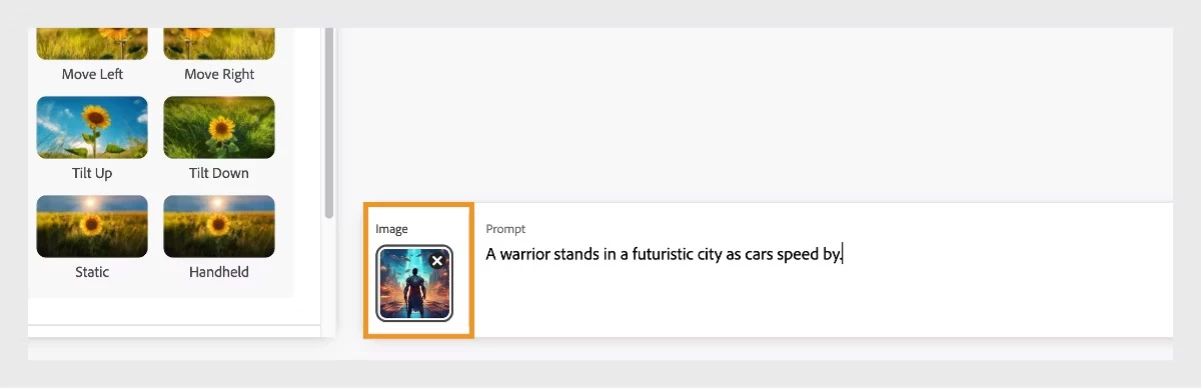
- In the General Settings section, you can determine the Aspect Ratio and Frames Per Second.
- In the Camera section, use the Shot Size dropdown menu to select the desired framing for the main subject in the videos, such as Close-up shot, Medium shot, and more.
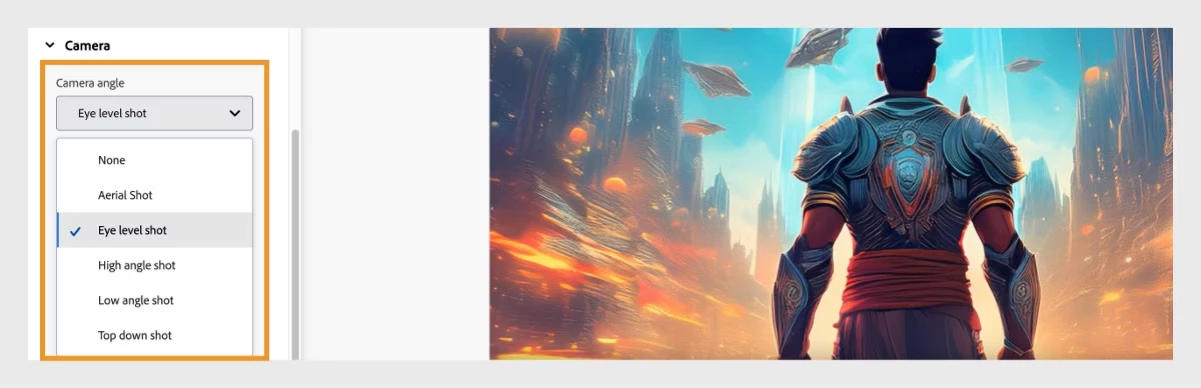
- Use the Camera angle dropdown menu to select from the available options such as Aerial shot, Eye level shot and more.
|
|
Note: |
If an image is uploaded in the prompt bar, the Camera angle and Shot Size options are disabled. The camera angle will be derived or used from the uploaded static image. |

6. In the Motion section, choose from the available camera motion options, such as Zoom, Move,Tilt and more to direct the camera's movement within the generated video.
7. In the Advanced section, you can use the Seed option to add a seed number.
|
|
Note: |
In AI-generated video, the Seed number initiates the process and controls the randomness of the output. Using the same seed, prompt, and settings allows you to regenerate a similar video clip. |
8. Select Generate to start the generation of the video clip.
9. Once the current video generation is complete, it will appear in the queue as ready.
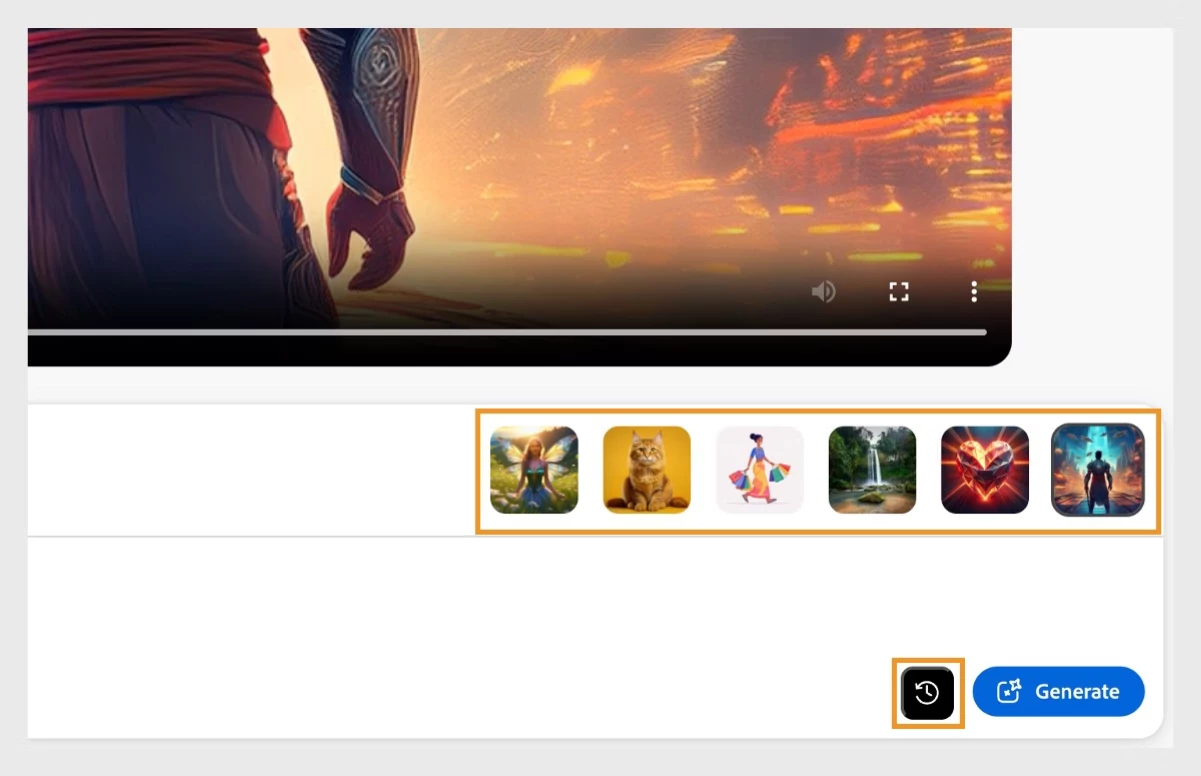
10. Once the video clip is generated, use the Download button to download it on your local device.
For more details, please click here
Supplemental Links:
Writing effective text prompts for video
Have questions? Click 'here' to start a discussion.


 AdChoices