Exit
  • Global community
    • Language:
      • Deutsch
      • English
      • Español
      • Français
      • Português
  • 日本語コミュニティ
  • 한국 커뮤니티
0

How can I preserve the face in the reference image in Adobe Firefly?

Explorer ,
Nov 05, 2025 Nov 05, 2025

Hallo,

How can I preserve the face in the reference image in Adobe Firefly?


I have a picture of a person who should stand before another backround. But the program always changes the face to a new person. Can I preserve the original face?


Thank you,

Alex

TOPICS
Generate Image
209
Translate
Report
Community guidelines
Be kind and respectful, give credit to the original source of content, and search for duplicates before posting. Learn more
community guidelines

correct answers 1 Correct answer

Community Expert , Nov 05, 2025 Nov 05, 2025

Hello @AALEXX,

Thank you for your message. 


If you are using a composition reference in models 3 or 4, you basically cannot. A composition reference is used to guide the structure of the generated image, not the detail. 


The better option for you is to use Generative Fill. With generative fill, you can select the background and use a prompt to describe what background you want.  Some people have said it was hard for them to find the generative fill function after the recent reorganisation. It

...
Translate
Community Expert ,
Nov 05, 2025 Nov 05, 2025

Hello @AALEXX,

Thank you for your message. 


If you are using a composition reference in models 3 or 4, you basically cannot. A composition reference is used to guide the structure of the generated image, not the detail. 


The better option for you is to use Generative Fill. With generative fill, you can select the background and use a prompt to describe what background you want.  Some people have said it was hard for them to find the generative fill function after the recent reorganisation. It is here:

droopydog500_0-1762367000193.png

So, if I start with this image:

Firefly_woman standing in front of a car in a new car dealership facing camera 480769.png

and I want to have this woman in an office, I take the image into generative fill and select the background:
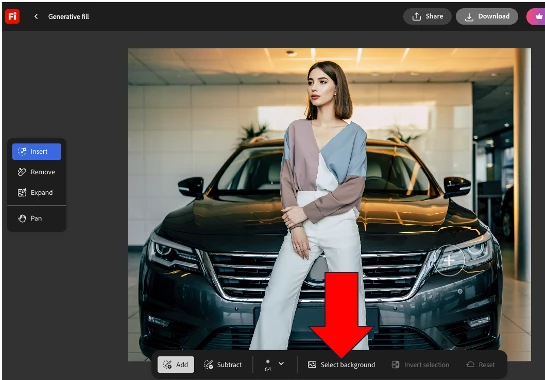
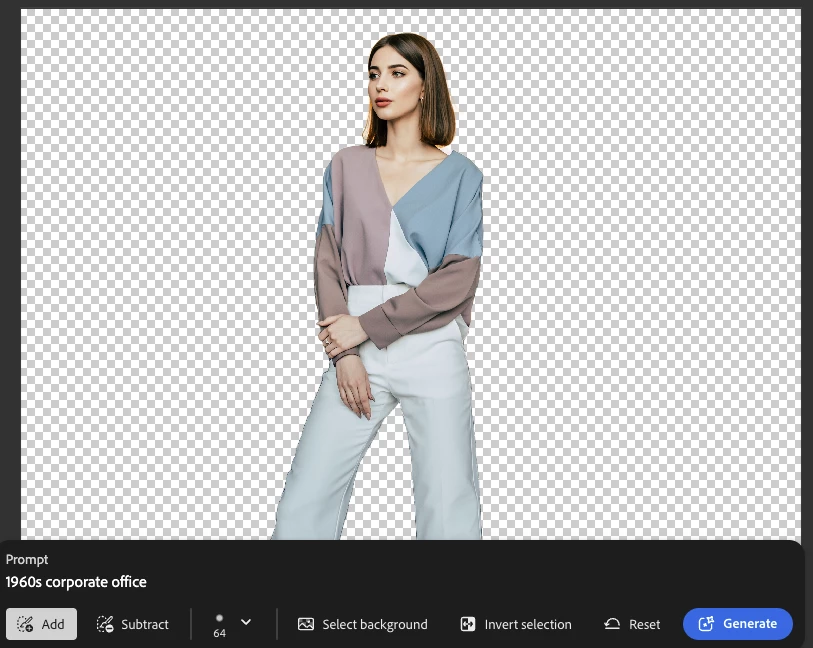
droopydog500_1-1762367273402.png

droopydog500_2-1762367332953.png

Type in a prompt and hit generate and get:
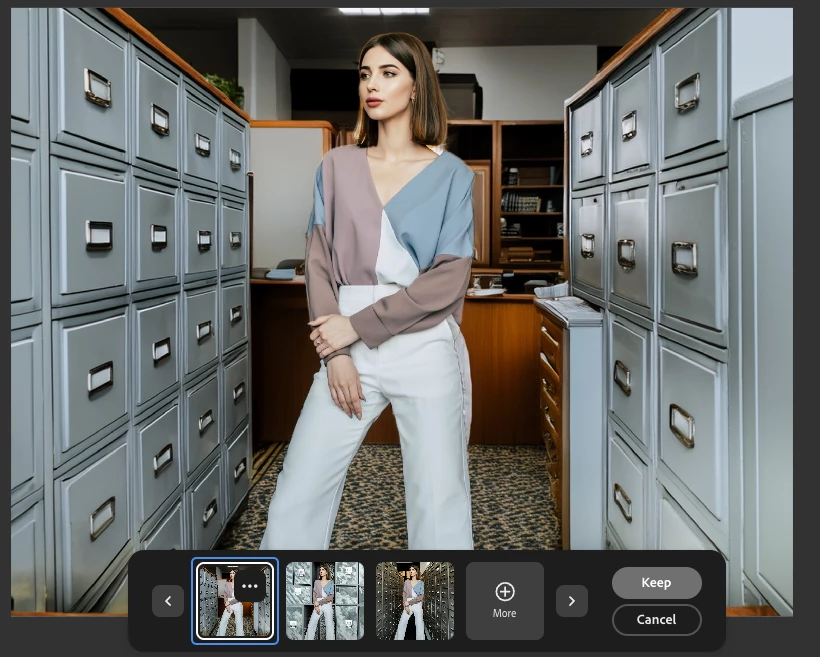
droopydog500_3-1762367705848.png

You can accept one of these by pressing keep, or generate again (), or cancel and re-edit your prompt. After you are done editing, you can click Download at the top to save:
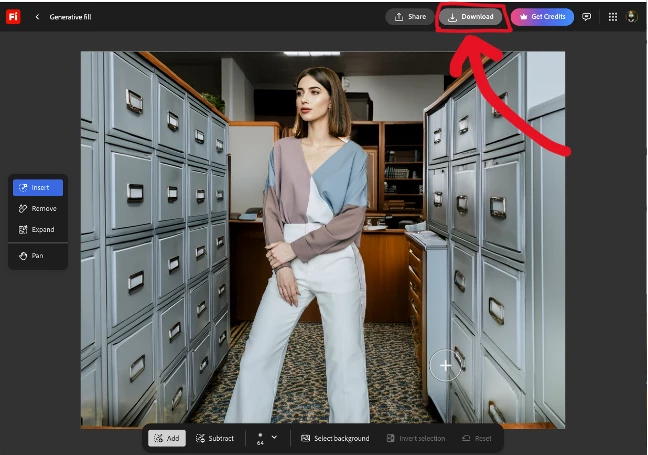
droopydog500_4-1762367852605.png

Good luck!

My best,
    droopy

Translate
Report
Community guidelines
Be kind and respectful, give credit to the original source of content, and search for duplicates before posting. Learn more
community guidelines
Explorer ,
Nov 10, 2025 Nov 10, 2025
LATEST

okay, got it. Thank you, droopy 🙂

Alex

Translate
Report
Community guidelines
Be kind and respectful, give credit to the original source of content, and search for duplicates before posting. Learn more
community guidelines