



Now in Beta: Use Media Encoder to analyze your videos for visual search in Premiere Pro
New in Media Encoder (Beta) 25.3 build 35 you can generate visual analysis sidecar files so that editors in Premiere Pro will be able to use visual search as soon as they import the media.
Read the Premiere Pro Beta Feature page and the FAQ page to learn more about Media Intelligence Search.
With this new functionality in Media Encoder, you can:
- Analyze individual files in the Queue using the Visual Analysis system preset
- Create an Ingest Preset that includes a Visual Analysis step
- Create a new Analysis Watch Folder
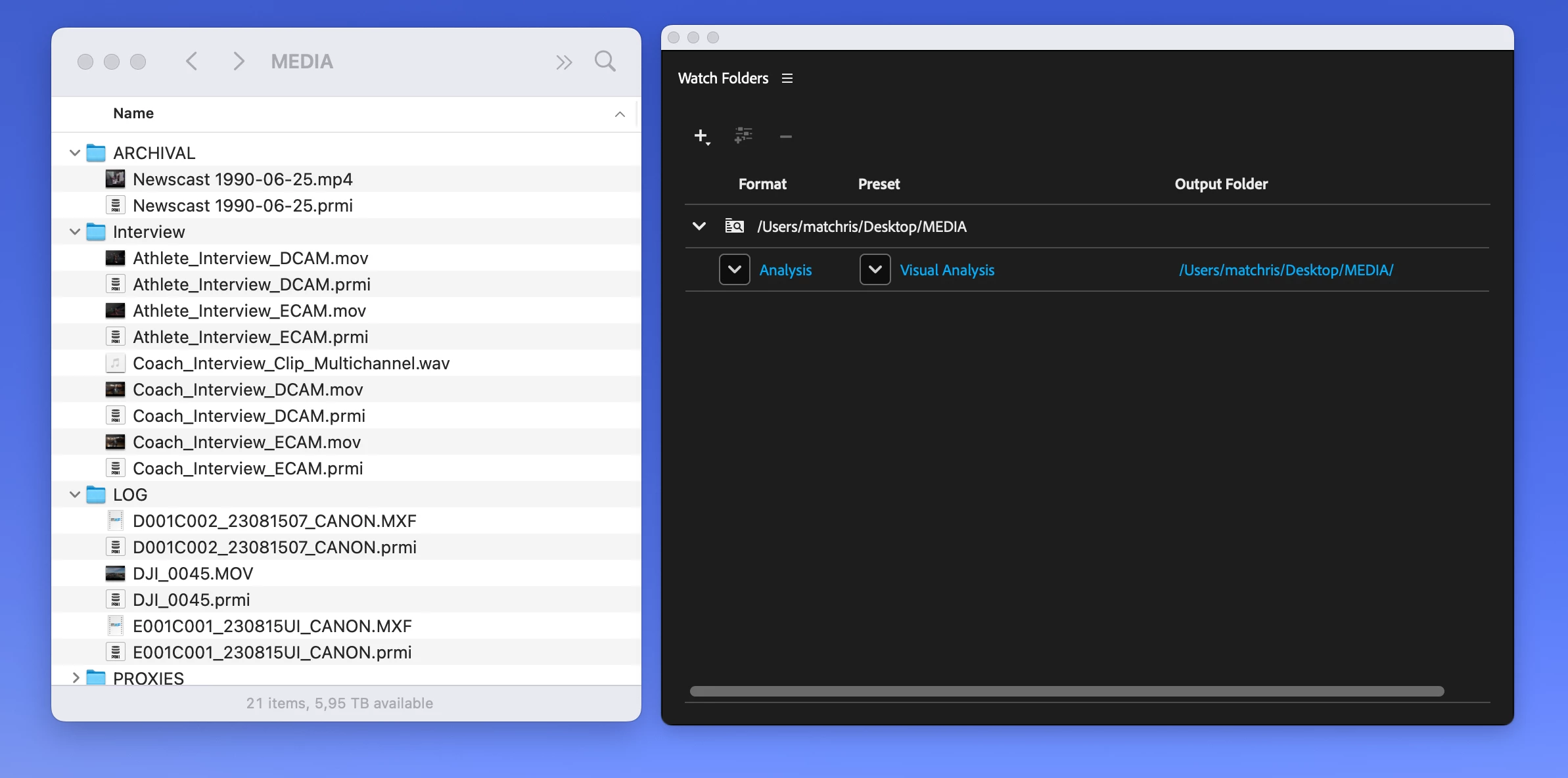
These will write a sidecar .prmi file next to the media file which contains the visual analysis. When that media is imported into Premiere Pro, the sidecar file is used so that editors can search immediately without analyzing the clips in Premiere Pro.
Analyze files in the Queue
If you need to analyze just a few files outside of Premiere Pro, follow these steps:
- Drag your media into the Queue panel in Media Encoder
- Select all the items in the queue (Edit > Select All)
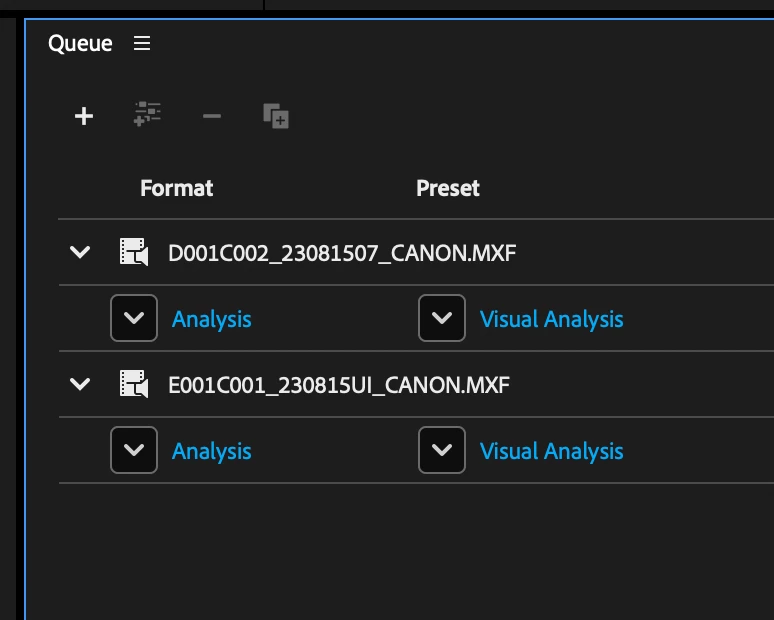
- In the first dropdown menu on the first job, change the menu to “Analysis”
- All the items in the queue should then change to “Analysis” with the preset “Visual Analysis”
- Run the queue
Use Visual Analysis in an Ingest Preset
If you already use Ingest Presets to transcode, copy, rename, or add metadata, now you can add Visual Analysis as a step, resulting in a .prmi sidecar file written next to the output file. Check the box “Analyze for visual search and write a sidecar file” in the Ingest Preset options.
Create an Analysis Watch Folder
Point this new type of watch folder at a folder full of media (and subfolders). The watch folder will automate the analysis for you, writing .prmi sidecar files next to each media file with video that it finds. While Media Encoder is open, any newly added media files will be processed. Unlike the existing watch folders, all media files are left in place in an Analysis Watch Folder. Follow these steps to create an Analysis Watch Folder:
- Open the Watch Folder panel in Media Encoder
- Click the + button, then choose “Add Analysis Folder…”
- Choose a folder in the file picker
Please give these new Media Intelligence analysis features a try while they’re in Beta. We look forward to your feedback!
 AdChoices