



Atul_Saini
Community Manager
Community Manager
January 28, 2020
Question

Create a button that resizes based on the text inside - XD 26

  • January 28, 2020
  • 6 replies
  • 22395 views


You just received instructions from your client asking to rename all buttons with the text “SUBMIT” in them to “CLICK HERE FOR LAUGHS”. You aren’t too pleased because it is the weekend and there’s a party you cannot miss. 


In this case at least, you have room for cheer. With a few simple steps, you can now create a button that resizes itself based on the text inside. Just in case your client has a quick change of heart (and mind), you will still party.  


Let’s get started. 


  1. Create a rectangle that will be the container for your text. 
  2. Type “SUBMIT” using the Text Tool. 
  3. Drag the Text into the rectangle and position it. Don’t worry about the exact padding. 
  4. Now, select the objects and use Ctrl+G/Cmd+G to group the objects. 
  5. In the Properties Inspector panel, enable the Padding option. 
  6. Ensuring that the layer for text is selected, change text to “CLICK HERE FOR LAUGHS” 
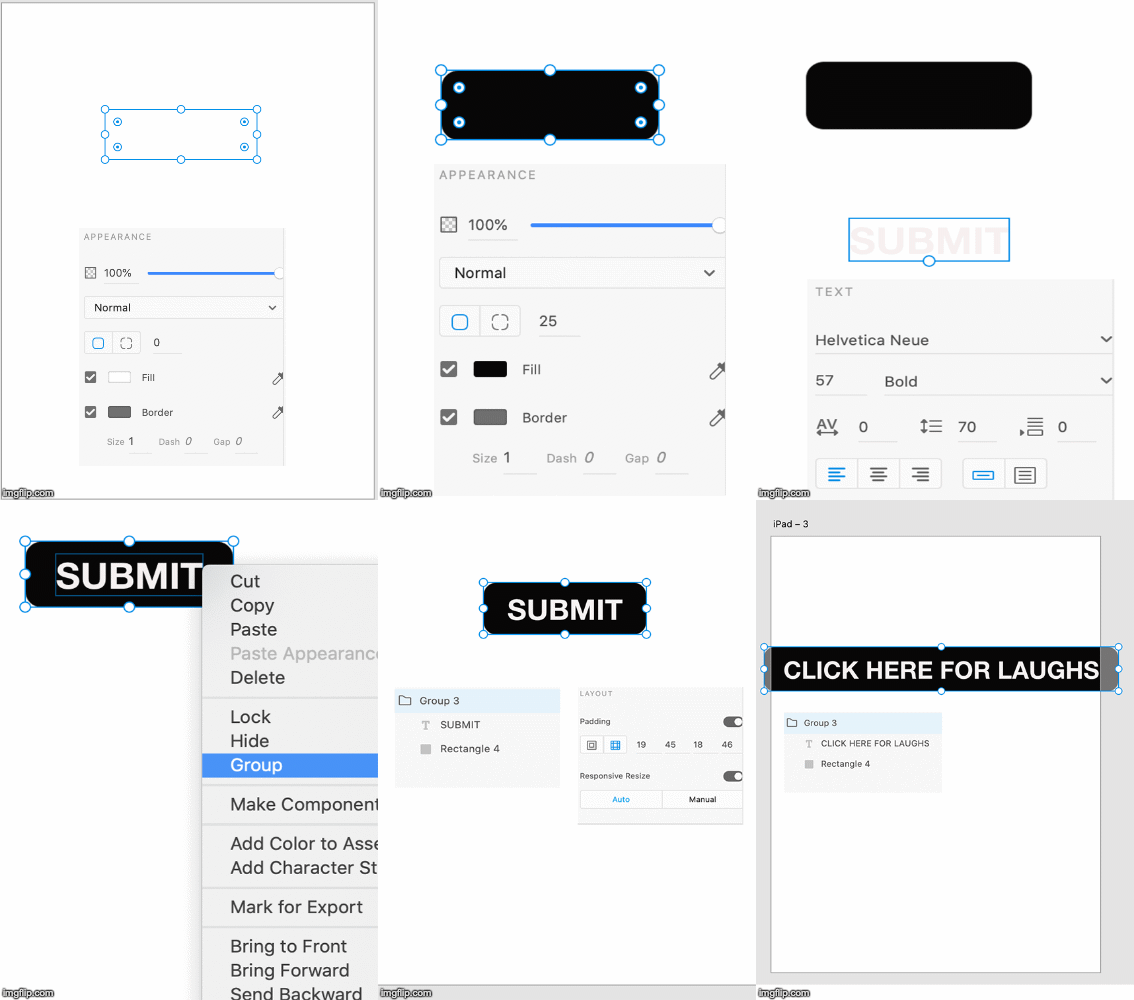


Did the rectangle resize? Good. 


Now that you are a pro at creating magic buttons, look at all the padding options and play around with them. See https://helpx.adobe.com/xd/help/set-fixed-padding-for-components-groups.html for more info and for the download file. 


This topic has been closed for replies.

6 replies

Ertuğrul24892880d5b8
New Participant
June 16, 2022

Hello, thank you for your sharing. Box radius is increasing with text. How can I lock the box radius when using responsive feature. 

Glenn Lignel
New Participant
June 16, 2022

Hi,

As i see from your example, you're trying oval borders instead of the standard rounded border. I managed to aquire the result you're looking for in this way:

In my example I work with 2 ovals & a rectangular center, union combined

You can download an example source file from my personal website:
https://www.glennlignel.be/design/Responsive-button-with-oval-borders.xd

Known Participant
November 5, 2020

This sounds like a pretty good improvement. But on XD 34, it works only on master components. As soon as you create an instance of a component, which is exactly the purpose of components, when you change the text of the default state, this change is not propagated to child states. So...it's useless.


Since months, I try to alert the XD components system is totally broken, and nothing changes.

BlackR4inbow
Inspiring
September 23, 2021

Adobe's UX has become a disaster over the past 5 years.


A scalable button, that's easy to create that supports an icon is a very common need.


I've created them in the past. Then a new release comes along, and things no longer work the same way and seemingly aren't possible. That is, at least without having to learn a new approach.


Also, Adobe, any update on Color Profile Management that we've been asking for? It's been years...still no update.

New Participant
April 2, 2022

I have had to switch to it for work and it is a nightmare. I am constantly having to google for workarounds to basic functions and needs. What an embarassment...

Inspiring
February 4, 2020

Hi,

Margins are great imporvement, but.... It doesn't work if the background button is a component. My margins stays at 0

Inspiring
February 5, 2020

foubnd a workaround : ctrl+g to create a group of your component and you're good to go

New Participant
January 29, 2020

What we really want is to use that button as a component. This only solves half the problem.

When you create another button from the component and change the text, the button resizes correctly, but you have to do the same for each and every state of that component. Still quite annoying experience. 

New Participant
January 29, 2020

I just ran into the same thing. Padding and responsive resize work fine, having to change text for every state for every instance is just useless.

Participating Frequently
January 30, 2020

+1 would like to see this feature, I have also just encountered this issue.

New Participant
January 28, 2020

Is it possible to have the icon on the right using this? In my example below the icon just stays in place as the padding grows, the icon is set to use responsive resize and fixed to the right hand size.

FrancoBits
Brainiac
January 28, 2020

Maybe the anchors for the responsive layout can help

FrancoBits
Brainiac
January 28, 2020

Thank you!