



monterxz
Inspiring
April 17, 2020
Question

Customized components revert to their default state after updating library.

  • April 17, 2020
  • 3 replies
  • 4294 views

Hi,

I've decided to change opacity of buttons' disabled state. Now all customized buttons in my design reverted to their default template state from cloud document. I have a lot of buttons in my design, so manually fixing them one by one is not an option. Is there any way to fix this? Or at least is there any guide on how should I use linked components so that they don't revert to their original state?

This is a very urgent question, because my work is totally ruined now.


Update: I've tried to capture this issue step by step with a new document with new lincked assets, but could not replicate exactly the same behavior. Instead I've got another issue which ruined buttons components in my design. Added new video attachment.

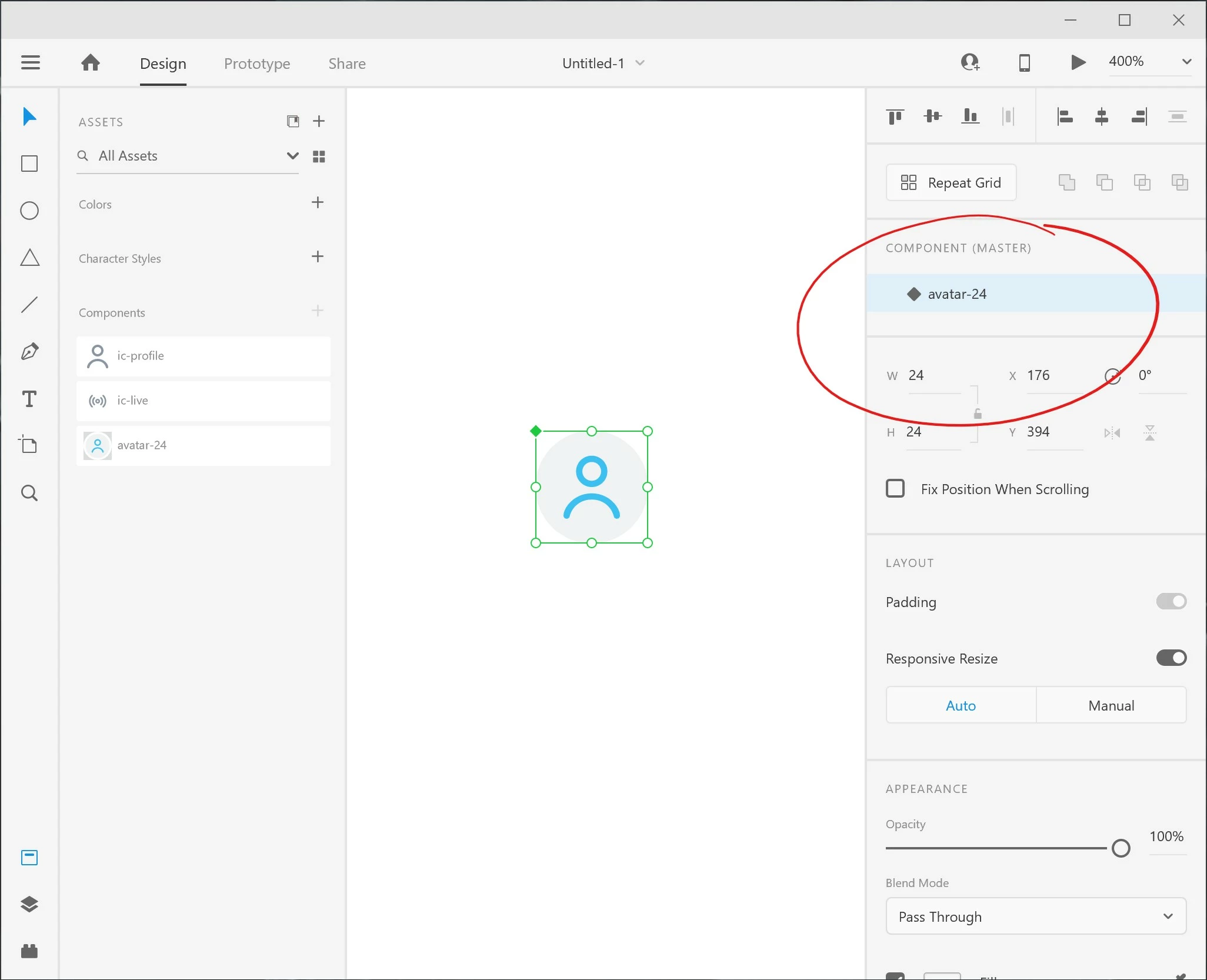
Update 2: I've got a new issue, after making a local component from a linked one it lost it's Default state and the ability to add new states. I can not attach an Adobe XD file here for some reason but here is rhe screenshot.
This topic has been closed for replies.

3 replies

Participant
February 16, 2022

I'm having a similar issue. The original components contain heavy SVG files. I open it, change out the SVG in the master component for an image which fixes the issue. After saving, closing and reopening, the SVGs have reappeared. They are all local components. So don't understand why this keeps reverting back. Its makign the files unworkable due to the size when reverted.

Peter Villevoye
Community Expert
Community Expert
April 24, 2020

Hi, I'm afraid I can't get a clear or complete impression of what you're doing with these customized Components, based on your explanation and videos. So it would be nice to get a bit more information on what's the situation.


The issue with the linked Component not showing its original States, is clear though. But unfortunately I can't reproduce what you're getting (I'm seeing the States showing up without a problem). So there must be something different or strange with your file. Would be nice to verify it in some way with your files. Could you email a copy (or minimised version) of your file with the original Component, and a (new) file which holds a linked copy, not showing the States ?


monterxz
monterxzAuthor
Inspiring
April 27, 2020

Hi, I've created a new file with components missing their default state and sent you both source and a new one. But I can tell you right away, that in your example you have a component with 2 states - I have no issues with those. In my example I'm copying components with the single Default state - in this case issue appears in 100% cases.


I'll try to explain my issue with customized linked components (I'm not going to try to recreate it, because I don't want to remake them again in my design):

I have a cloud document with button temlates, like a button with icon only, button with icon and text, button with text only - each one has several states, like Default, Hover and Disabled. I want to use these templates to populate buttons in my design. So here what I did:

1. Created new local document and linked assets from my cloud document by pressing Link Assets.

2. Dragged linked components for buttons into my design. Then replaced icons in button templates with the ones I need in my design (for example replaced "+" icon in the template with the "heart" icon to make a "Like button") and changed text to what I need (for example changed the "BUTTON" to "SAVE").

3. Created a local component for an app bar that consists of some background and these customised linked components for buttons.
4. Went back to my cloud document and changed the opacity for the Disabled state inside my button templates.

5. In my local document I pressed Update All in library panel and all buttons' Default states in my app bar reverted to their original template with "+" icon and "BUTTON" text. Hover and Disabled states kept my new icons and text, like "heart" icon and "SAVE" text.

6. I had to replace icons and change text on all Default states of my linked button components inside the local app bar component.

HARSHIKA_VERMA
Community Manager
Community Manager
April 28, 2020

Hi Montexz,


We apologize for the frustration. We understand it could be annoying for you and thank you for sharing the steps. We would like to know if you've shared your file with Peter. If not, we would request you to please share the file with us so that we can escalate the issue to the team and they can further investigate on it.


You may upload the file to a shared location such as Creative Cloud app or Dropbox and share the url with me over a private message. 


Note: Please share the url of this post over a private message for reference.


Thanks,

Harshika

Rishabh_Tiwari
Community Manager
Community Manager
April 17, 2020

Hi there,


Sorry to hear about the trouble. As per your request, I found an article which includes details on working with linked assets and you can refer to the article here:https://helpx.adobe.com/xd/help/linked-assets.html


Regarding the second issue, please confirm the version of Adobe XD and also please share a sample file so that we can test it on our end and we'll get back to you.


Regards

Rishabh

monterxz
monterxzAuthor
Inspiring
April 18, 2020

I know how to create, use and customize linked assets. I was asking for a guide on how to avoid linked components reverting to their default states or getting duplikated elements inside components.


In one of the videos I've created a new file, so I don't see why you need MY file. I've already shared another file for another issue several months ago and got nothing out of it.

There are a lot of reports of different issues with components in general here in Support Community.