Participating Frequently
July 7, 2022
Answered

how do I import my currently live website into Adobe XD?

  • July 7, 2022
  • 2 replies
  • 13523 views

I just purchased Adobe XD purely for this purpose.

We are currently working on a site makeover and it is currently hosted and live.

I expected I could import it into XD to more easily provide and communicate feedback/comments to my web developers.

If I cannot do this, I am going to cancel this purchase and request a refund.

Any instruction I find says to save to PDF, then open that via Adobe Illustrator, and copy and paste into XD. There is no Adobe Illustrator option for me.

Can someone please help?


    This topic has been closed for replies.
    Correct answer Spas K.

    PS, all of the files that I am trying to import or copy/paste are PNG and it's supposed to be acceptable file format.  Again, I bring them in, see them, name them, save them, but then when I select them to make notes, my screen is blank.


    Hey there. It would be nice if you can share a screenshot, although I suspect what might be happening.


    Everything in Xd must be on an artboard in order to be visible in the prototype. If you just paste a PNG inside Xd you can see it, but it's probably in the "Pasteboard" - i.e. in the space outside any artboard.


    You must first create an artboard with the size of the screen you want to show. When you're first creating your Xd file, make sure you click on one of the artboard options on the home screen, for example Web 1920. You will then see only one artboard on your screen. Make sure you paste while it's selected, and if the image is outside of it, drag it in there.


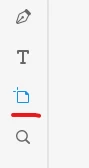
    To make more artboards, select this one by clicking on its name and press Ctrl/Cmd + D. Make sure all your images are inside an artboard. You can also make one with a custom size or use presets while using the artboard tool - Press A, or select it from the tools pane:


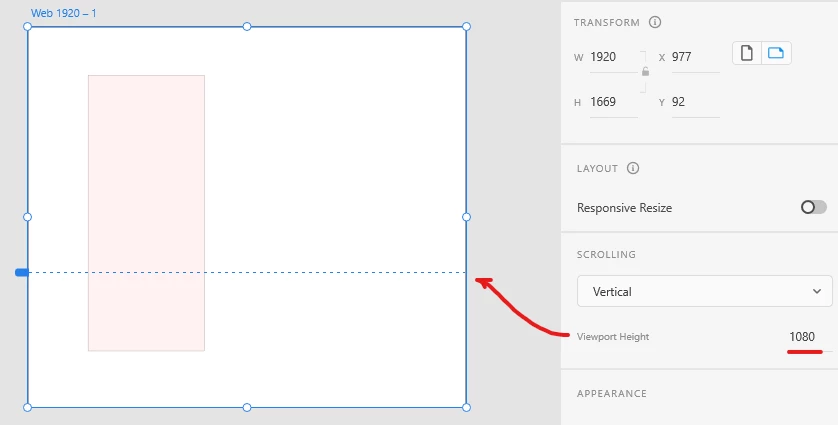
    If you scale the artboard vertically from the bottom, you will see a dotted line - this represents the viewport, i.e. what part of the screen is visible, while everything below the dotted line you will have to scroll in order to see when viewing the prototype.
     

    About the screenshots, browsers can take full size screenshots - the whole height of the page, without having to make multiple and stitch them together. If you're running Chrome, you must do the following

    1. Press Ctrl-Shift-P (or Cmd-Shift-P on a Mac).

    2. Ctrl-Shift-P (or Cmd-Shift-P on a Mac).

    3. Type "screenshot" in the command field, and you will see "Take full size screenshot", which will capture the whole page top to bottom and save it to your PC.


    On Firefox, you can simply right click anywhere, choose Take Screenshot, and choose "Save Full Page" on the top right.


    So, you would make the full size screenshot, paste it in an artboard, resize it so it matches the height of the screenshot, and your prototype will pretty much function like your website in terms of scrolling. Then you will just have to make the notes with drawing rectangles on top of the screenshot + text areas on top of them or something like that.


    If you're still having troubles, let us know. The software is specialized and has a bit of a learning curve.


    2 replies

    Spas K.
    Community Expert
    Community Expert
    July 7, 2022

    Hey there, Brenda! Short answer: When I've had to make re-designs like this I would make a screenshot of the whole page, paste it in Xd and make changes on top of it. That is the easiest and least troublesome way to do it, albeit a bit dirty.


    Xd is an app for user interface and experience design. In most cases you would use it to create vector graphics and interface elements, with some limited raster graphics editing ability, but you won't very often modify existing designs created outside of Xd.


    Adobe Xd and your browser are very different environments. Your live website is built with code (html, css, javascript), and that code is rendered by the browser. Xd uses a different kind of code, and the relationship between its elements are different than how html works.


    Unfortunately, Adobe Xd can't just read that code and interpret it as vector elements. There is some conversion that needs to occur. You need to somehow capture the vector elements from the webiste (text, structure elements, .svg icons etc.), along with raster images into one file - a PDF file can hold all that in the same place.


    Adobe Xd can't interpret PDF files and convert them to vector elements as of now. Reason probably being it's a very rare workflow and it will probably take too much time away from other more important things on the agenda. So your option would be to import the PDF into Illustrator, which can read it properly and convert the graphics to a format Xd can understand. At this point you can just copy them from Illustrator and paste in Xd. It is likely all your text will be turned into outlines and you won't be able to edit it anyway. It most definitely won't be dynamically editable elements like text fields and so on, so it kinda defeats the purpose of doing it in the first place.


    Participating Frequently
    July 7, 2022

    Thank you Spas!  My goal isn't to modify code, but to import the looks of the website pages into one place so I can easily comment and tell my developers what needs to be fixed or changed.  That is all, so in that sense, my purpose is cosmetic.  Actual coding work would be done outside of XD.  Maybe your screenshot method is an option.  I haven't tried it yet but screenshots can be a bit challenging when it comes to scrolling, at least in my experience.  I am going to try it though.  Thank you, and appreciate any other thoughts you might have.

    HARSHIKA_VERMA
    Community Manager
    Community Manager
    July 7, 2022

    Hi @Brenda B.251642843hnc,

    Welcome to the XD Community.

    Thank you for reaching out. We would like to inform you that you can use the plugin "Web Export," which allows you to extract HTML and CSS from your design.


    You can also use Adobe XD plug-ins that allow for extracting HTML and CSS. Select Plugins > Discover Plugins and search using the webHTML, and CSS keywords.


    Sharing a video from one of our Youtube experts on this topic.


    Hope it helps.


    Thanks,

    Harshika

    Participating Frequently
    July 7, 2022

    Yes, thanks Harshika, I'm still a little confused though from where am I going to 'select plugins'?  This sounds like WP and our new site is using Laravel.  Also, the video is talking about designing in XD and then exporting.  Not my question.  I already have the design but need to give my developers feedback and thought XD would simplify the process.  I need to import my site into XD and it does not seem like this is possible so buying XD is not the solution I needed.  

    Participating Frequently
    July 7, 2022

    PS, hi again Harshika, I did see the browse plugins under Adobe XD but nothing comes up when searching for Web Export other than some Lightroom Desktop for photos.  I also tried 'Import' because I need to import my site into XD, not export.  Unless the plugin you mention means "export the site".  Anyway, I appreciate your help.  This is no where near as user friendly as I'd hoped.