


Introducing Variable Font Animation in After Effects Beta 26.0x40
Get hyped for variable type! We're excited to announce support for Variable Font Animation in After Effects! Stretch, squash, jitter and transform your text with the combined power of After Effects text animators and variable font axes. You can now animate variable font properties like Weight, Width, Slant, and more directly in the Timeline using Text Animators, edit them interactively in the Properties Panel, and drive them through the Essential Graphics Panel + Mogrts, unlocking powerful new typographic animation possibilities.
Imagine animating your text from whisper-thin to ultra-bold with buttery smooth transitions, all the characters at once or with a gradual fade from one weight to another. Or making each character dance with its own unique style. Or driving font dynamics with expressions that respond to your scene. Now stop imagining—because it’s all real.
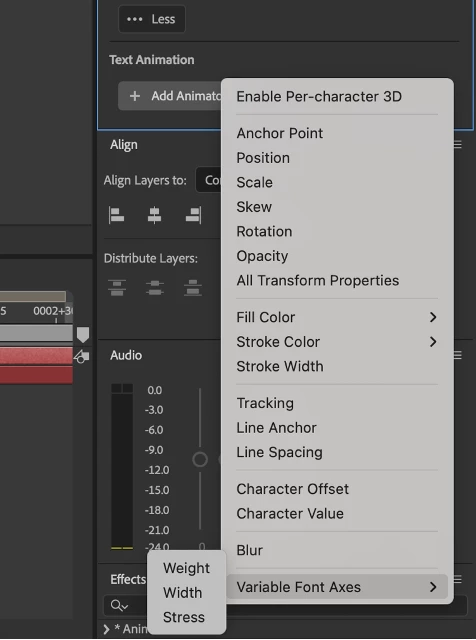
Any axis your variable font supports can be animated with the full power of After Effects’ Text Animators.
That means full keyframe control, expression support, and up to 8 axes animated simultaneously per layer. Whether you're designing slick title sequences, expressive motion graphics, or experimental typographic art, this feature unlocks a whole new playground.
Properties Panel Editing
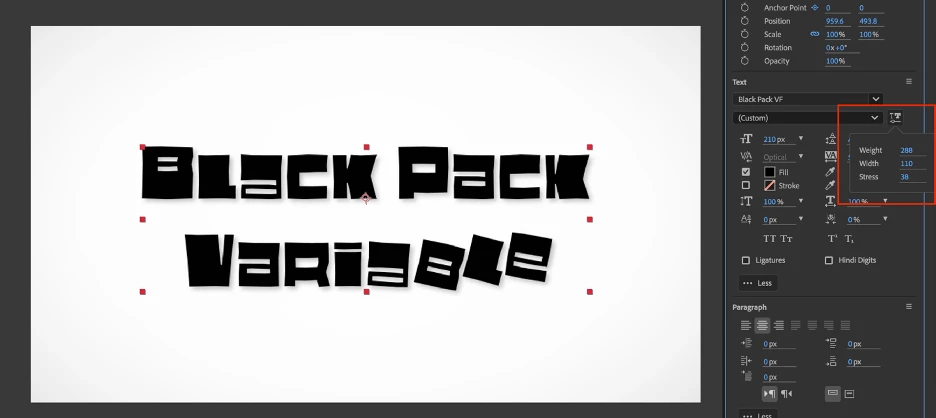
When you select a text layer with a variable font, a Variable Font Axes button appears in the Properties Panel next to the font family selector. Click this button to reveal a showing all available axes for your font with interactive controls.
Text Animator Animation
Variable fonts contain multiple stylistic variations within a single font file, and now you can animate between these variations smoothly in After Effects. Access any axis available in your variable font—from standard axes like Weight and Width to custom designer-defined axes—and animate them just like any other property. You can have your type interpolate from Light and Roman to Bold and Italic, with the transition traveling across your entire text block.

Getting Started
- Quick Font Tuning in the Properties Panel
Fine-tune your typography without animation:
- Select a text layer with a variable font
- Open the Variable Font Axes popup from the Properties Panel
- Adjust Weight, Width, or other axes to find the perfect look
- Dynamic Weight Transitions
Animate text from thin to bold for emphasis or title reveals:
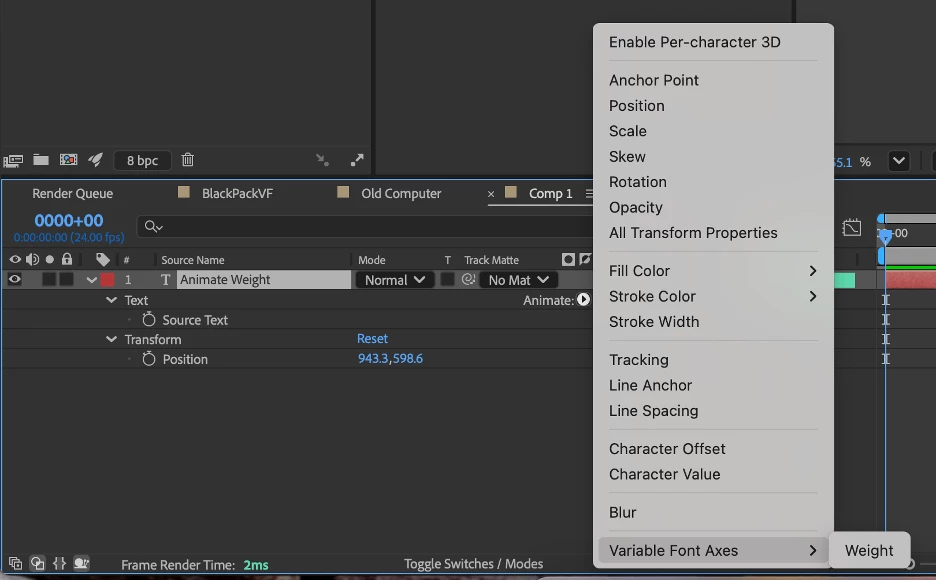
- Add Font Axis Weight as a text animator
- Keyframe from minimum to maximum weight values
- Creates smooth, native font weight transitions
- Per-Character Wiggly Typography
Create organic, playful text animations:
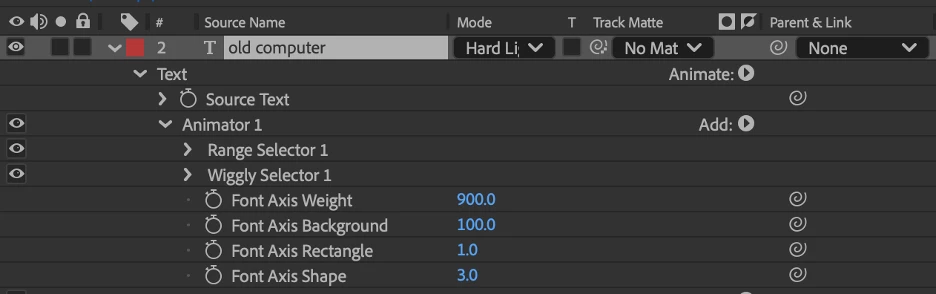
- Add Font Axis Weight (or any axis) as a text animator
- Add a Wiggly Selector to the animator
- Each character will randomly vary its font weight over time
- Expression-Driven Typography
Link font properties to other animation parameters:
- Use expressions to drive a Font Axis based on any other property
- Map slider controls to multiple font axes
- Create responsive typography that reacts to layer properties
- Range-Based Reveals
Animate text reveals with changing font characteristics:
- Add Font Axis Weight and a Range Selector to a text animator
- Animate the Range Selector Start from 0% to 100%
- Text reveals while simultaneously changing weight
- Mixed-Font Variable Animations
Apply axis animations across multiple variable fonts in one layer:
- Use character ranges to apply different variable fonts
- Add axes from any font used in the layer
- Each character animates according to its font's axis capabilities
7. Essential Graphics and Motion Graphic Template Support
Drag and drop the Font Axes from the timeline into the Essential Graphics Panel:
- Decide which axes are available as values in parent comps
- Save as a Motion Graphic Template and use in Premiere with access to the selected Font Axes
- Animations using variable fonts will replay and render in Premiere
Variable Font Spacing
The Variable Font Spacing property gives you control over how After Effects handles character spacing when animating Variable Font axes.
When you animate Variable Font axes (like Weight, Width, etc.), the individual characters can change width. After Effects can apply per-character tracking adjustments to compensate for these design changes. This property lets you control when and how these adjustments are applied.
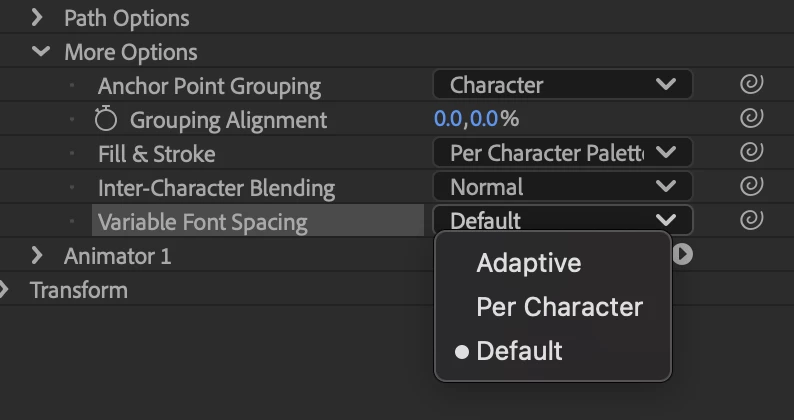
Variable Font Spacing Modes
The Variable Font Spacing property offers three modes:
- Adaptive – Applies per-character tracking compensation when appropriate to maintain natural spacing as font axes change.
- Per-Character – Always applies per-character tracking compensation.
- Default – Disables per-character tracking compensation entirely. Characters maintain their original spacing despite font axis changes. Useful for creative effects where you want the natural width changes of the font to affect the overall text layout.
Accessing Variable Font Spacing
To access the Variable Font Spacing property:
- Expand your text layer's Text property group
- Add a Variable Font Axis to animate
- Open the More Options section
- Look for the Variable Font Spacing property (it appears only when at least one font axis is active)
Scripting API Documentation
Adding Variable Font Axes
Variable font axes are added to Text Animator Properties using the addVariableFontAxis() method:
// Create a comp
var comp = app.project.items.addComp("Create Axis Comp", 1920, 1080, 1, 30, 30);
comp.openInViewer();

// Create a text layer
var textLayer = comp.layers.addText("Hello World!");

// Set the font to primary font
var textDocument = textLayer.property("Source Text").value;
textDocument.font = 'ShantellSans';
textLayer.property("Source Text").setValue(textDocument);

// Get the font object back from the text document
textDocument = textLayer.property("Source Text").value;

// Get the text property and animators group
var textProp = textLayer.property("Text");
var animators = textProp.property("Animators");

// Add a new animator
var animator = animators.addProperty("ADBE Text Animator");
var animatorProps = animator.property("ADBE Text Animator Properties");

// Add the Weight axis
var axisProp = animatorProps.addVariableFontAxis("wght");
Common Axis Tags
Standard registered axes include:
- "wght" - Weight (100-900 typical range)
- "wdth" - Width (percentage of normal width)
- "slnt" - Slant (angle in degrees)
- "ital" - Italic (0-1 range)
- "opsz" - Optical Size (point size)
Fonts may also include custom axes with 4-character uppercase tags (e.g., "INFM" for Informality).
Note: Axes must exist on the font to have any impact. These are just examples of some axis tags.
Working with Axis Properties
Once added, variable font axes behave like standard After Effects text animator properties:
// Set a static value
axisProp.setValue(700);

// Set keyframes
axisProp.setValueAtTime(0, 300);  // Light at 0 seconds
axisProp.setValueAtTime(2, 900);  // Heavy at 2 seconds

// Read values
var currentWeight = axisProp.value;
var weightAtTime = axisProp.valueAtTime(1, false);

// Check properties
var axisName = axisProp.name;  // "Font Axis Weight"
var numKeyframes = axisProp.numKeys;

// Display the results
alert("Axis Name: " + axisName + "\n" +
      "Current Weight: " + currentWeight + "\n" +
      "Weight at time 1: " + weightAtTime + "\n" +
      "Number of keyframes: " + numKeyframes);
Getting Font Axis Information
To discover what axes a font supports:
var comp = app.project.items.addComp("Test Comp", 1920, 1080, 1, 30, 30);
comp.openInViewer();

var textLayer = comp.layers.addText("hello world");
var textDocument = textLayer.property("Source Text").value;
var fontObject = textDocument.fontObject;

if (fontObject && fontObject.designAxesData) {
    var axes = fontObject.designAxesData;
    var message = "Variable Font Axes (" + axes.length + " total):\n\n";

    for (var i = 0; i < axes.length; i++) {
        var axis = axes[i];
        message += "Axis " + (i + 1) + ":\n";
        message += "  Tag: " + axis.tag + "\n";
        message += "  Name: " + axis.name + "\n";
        message += "  Min: " + axis.min + "\n";
        message += "  Max: " + axis.max + "\n";
        message += "  Default: " + axis.default + "\n";

        if (i < axes.length - 1) {
            message += "\n";
        }
    }
    alert(message);
} else {
    alert("No variable font axes found");
}
Adjusting the Variable Font Spacing Property
// Working with Variable Font Spacing
var moreOptions = textProp.property("More Options");
var variableFontSpacing = moreOptions.property("ADBE Text Variable Font Spacing");

// Variable Font Spacing has 3 modes:
// 1 = Adaptive - Applies per-character tracking when appropriate
// 2 = Per Character - Always applies per-character tracking
// 3 = Default – Tracking is per the default Text Animator settings

// Set to Per-Character
variableFontSpacing.setValue(2);

// Get the current mode
var currentSpacingMode = variableFontSpacing.value;
Accessing Axes in Expressions
Variable font axes can be referenced in expressions using their property accessor. It will be fontAxis[4 char tag], e.g. fontAxisWght, fontAxisWdth, etc.
// Reference axis from another property
text.animator("Animator 1").property.fontAxisWght
// Link layer opacity to font weight
var weight = text.animator("Animator 1").property.fontAxisWght;
weight / 10;
// Create responsive typography – apply to Font Axis Weight
var scale = thisComp.layer("My Layer Name").transform.scale[0];
linear(scale, 50, 150, 300, 900);  // Map scale to weight
A few things still to come…
- While Variable Font Animation works with both Point and Box Text, the defined area of Box Text is not maintained with Text Animators. Variable fonts will cause the rendering area to change, and justified text will not wrap as expected. We are investigating improvements here.
We can't wait to see what you create with this powerful new typography animation feature! Share your projects and techniques in the comments below.


 AdChoices