Participant
January 11, 2019
Answered

Absolute Beginner: I am confused about how to use Track Mattes

  • January 11, 2019
  • 1 reply
  • 330 views

I have recently started working on After Effects (just two days ago!) I am now familiar with the basics and I was trying to recreate a video for practice.

Here is the link to the video: Your Morning Fix: Upper caste quota bill is cleared by Parliament. Here are five key takeaways. - YouTube

After the intro graphics, the number 1 pops up on screen with text, then the number moves to the side. Another scene comes up with more of the 'smooth reveal' style showing pictures, numbers, etc.

I animated the number popping up by using track matte as I had learned in some tutorials. But when I tried to create the next step of the number shrinking and moving to the corner of the screen, the number was not visible because of the track matte I had used. To get around this, I precomposed the first number and shape, then created the same number in the same size again, animated that to shrink and slide to the corner.

Is there an easier way to do this?

Also, now I want to add text in the same slide reveal form. Do I again have to precompose to go to the next stage?

I am sorry if the question is unclear! I don't know how else to explain it. Please help!
This topic has been closed for replies.
Correct answer Rick Gerard

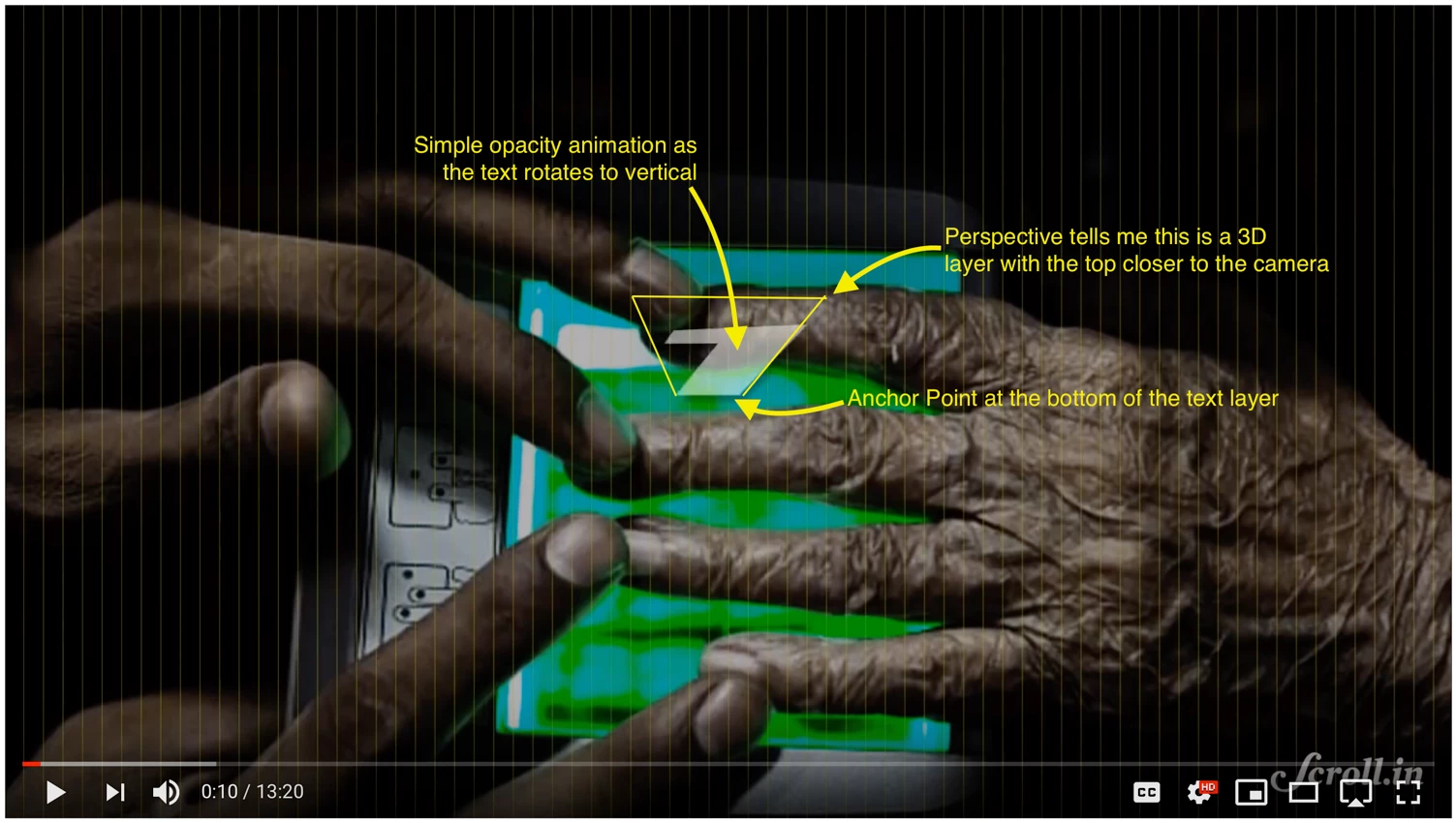
The reveal of the text layer looks like an opacity fade and a rotation in Y of a 3D text layer with the anchor point at the bottom of the letter. I see no need for a track matte.

There is no need for a pre-comp if you don't use a track matte.

If you do use a track matte then you can either parent the track matte layer to the text layer or pre-compose and collapse transformations.

When you ask procedural questions like this it is always best to include a screenshot with the modified properties of the layers you are having problems with included. Just select the layers (your track matte and text layer) press the U key twice, make sure the CTI (current time indicator) is set to the frame where the trouble starts, make sure any problematic footage you have in your composition is selected in the Project Panel so we can see what kind of footage you are working with, then Print Screen and Paste to the forum or take a screenshot and drag it into the reply field. That will help us help you.

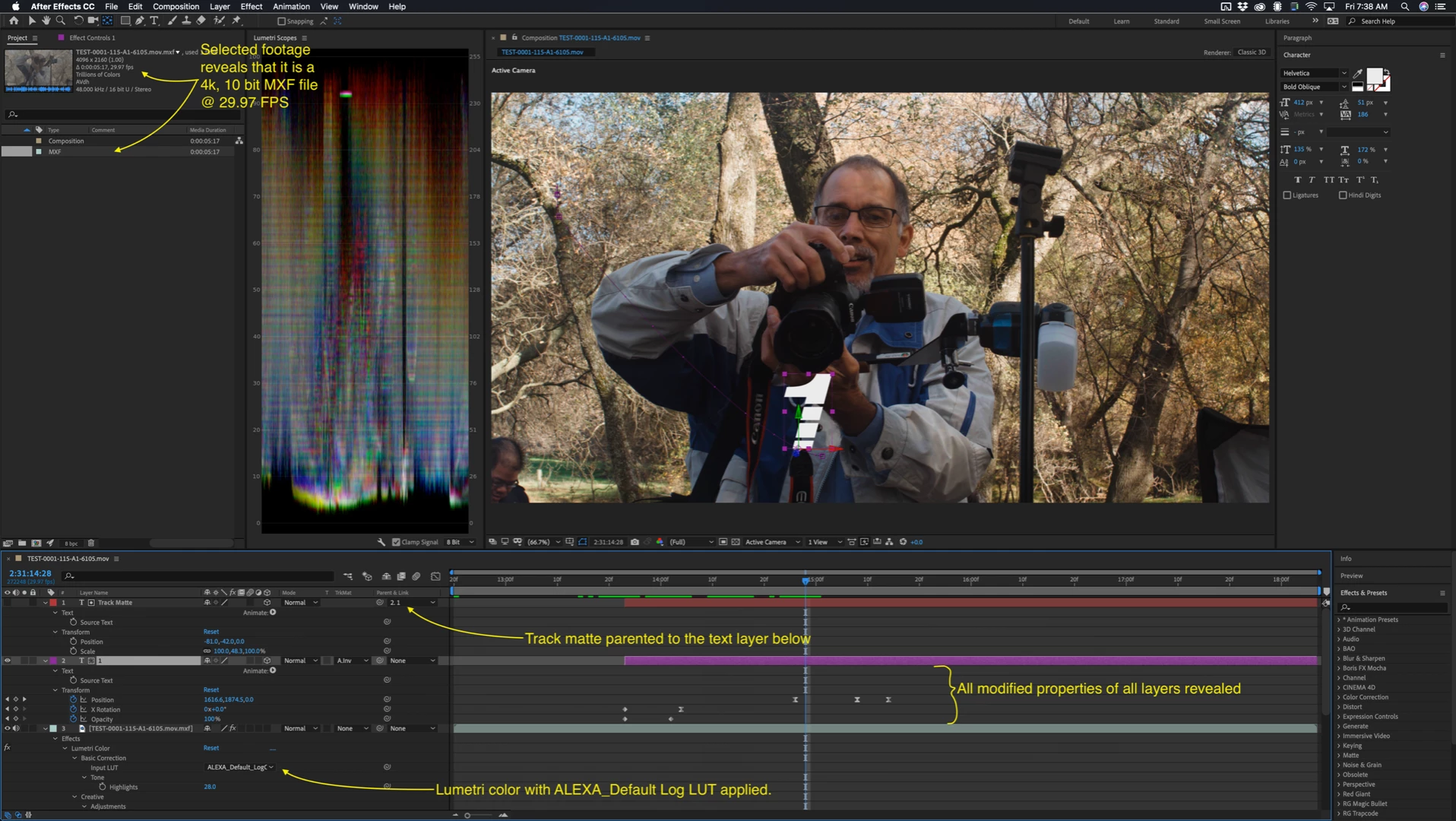
Here is a screenshot with a recreation of the shot but I added a track matte of the letter E to stylize the number 1. It shows you everything I did to create the text reveal and transition and I even revealed the color correction applied to my shot:

1 reply

Rick GerardCommunity ExpertCorrect answer
Community Expert
January 11, 2019

The reveal of the text layer looks like an opacity fade and a rotation in Y of a 3D text layer with the anchor point at the bottom of the letter. I see no need for a track matte.

There is no need for a pre-comp if you don't use a track matte.

If you do use a track matte then you can either parent the track matte layer to the text layer or pre-compose and collapse transformations.

When you ask procedural questions like this it is always best to include a screenshot with the modified properties of the layers you are having problems with included. Just select the layers (your track matte and text layer) press the U key twice, make sure the CTI (current time indicator) is set to the frame where the trouble starts, make sure any problematic footage you have in your composition is selected in the Project Panel so we can see what kind of footage you are working with, then Print Screen and Paste to the forum or take a screenshot and drag it into the reply field. That will help us help you.

Here is a screenshot with a recreation of the shot but I added a track matte of the letter E to stylize the number 1. It shows you everything I did to create the text reveal and transition and I even revealed the color correction applied to my shot:

meg_chowAuthor
Participant
January 14, 2019

Thank you so much! I will try out the instructions you have given!