
Participant
March 13, 2020
Answered

Add more frames between keyframes

  • March 13, 2020
  • 4 replies
  • 8800 views

This may be really simple but I'm having a hard time finding where in AE menu to achieve this.
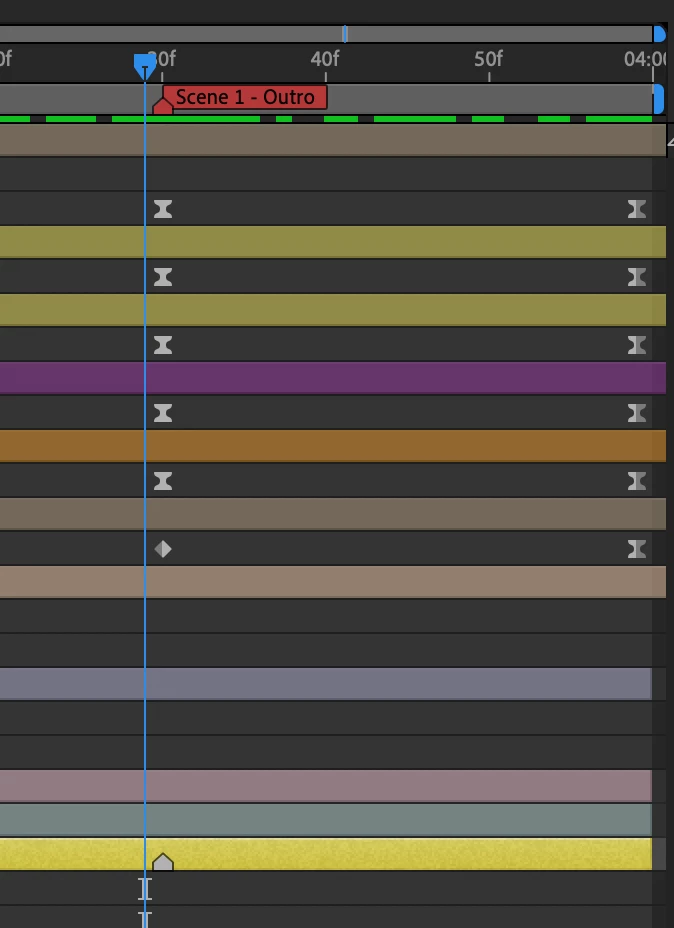
Is there any way to add more frames in between two keyframes?  For example, in the image below.. If I want to add say 15 frames in between my "Scene 1 - Outro" and the 4s mark for all layers.  Is there a shortcut anywhere that will let me position the blue timeline marker in between the two time-code and add more frames to stretch out all the layers below?


Thank you for all the help.

    Correct answer Whit_Serenity

    It's probably too late to help the o/p, but I arrived here searching for the same functionality and have determined that it doesn't exist in AE — at least not in the simple manner that you and I both want. 🙂 But I was pointed to this tool in a similar conversation on Reddit:

    https://aescripts.com/rift/


    Here it is doing exactly what you're asking for:

    https://imgur.com/uFQqUtn


    4 replies

    Community Expert
    July 16, 2022

    If you have three or more keyframes in any layer or even multiple layers with three or more keyframes, you can easily change their timing. Drag a selection around all keyframes, hold down the Alt/Option key, then grab the last keyframe in the stack and drag it left or right to change the timing of them all.


    If you want to smooth out a transition between three or more keyframes, you can select Window/Smoother and fiddle with the settings. The smoother is often very helpful if you try to smooth out a jittery motion track or some animation with some bumps.


    If you need to smooth out an animated mask or shape layer path, you can use Mask Interpolation. It is another underutilized standard AE tool. You have to use a little expression trickery to smooth out a shape layer path, but that is pretty easy. Add a comp-sized solid, make it a guide layer, copy the animated shape layer path, set one mask point anywhere on the solid guide layer, and paste, then use the Pickwhip to tie the Shape layer path to the Guide layer's mask path and apply Mask Interpolation.


    Whit_Serenity
    Inspiring
    July 18, 2022

    Those are all helpful tips, Rick, but they're not getting to what the o/p asked for and what I came here for: adding frames to the entire comp (or some sub-group of layers) at a specific spot. There's a simple, obvious reason for wanting this one function — if you need for one particular area of your animation to be longer or shorter. I feel like there's a missing AE feature here: "Add Frames at Current Time," which would bring up a dialog where you can add X amount of time to all selected layers at the current time. 

    Whit_Serenity
    Whit_SerenityCorrect answer
    Inspiring
    July 14, 2022

    It's probably too late to help the o/p, but I arrived here searching for the same functionality and have determined that it doesn't exist in AE — at least not in the simple manner that you and I both want. 🙂 But I was pointed to this tool in a similar conversation on Reddit:

    https://aescripts.com/rift/


    Here it is doing exactly what you're asking for:

    https://imgur.com/uFQqUtn


    tamcao-aeAuthor
    Participant
    July 15, 2022

    @Whit_Serenity, great find! this is exactly what I was looking for. Thank you! 🙏 

    Community Expert
    March 13, 2020

    Press this button and strech more or less your layers with the duration or porcentage.


    Byron.
    Known Participant
    March 13, 2020

    If I understand you correctly, all you can do is modify your frame rate in the composition settings OR you can precompose your layer(s) and then time stretch or comprress to your desired length without changing your frame rate.