
Participating Frequently
November 4, 2022
Question

Adobe After Effects and Premiere Pro Font List Problem

  • November 4, 2022
  • 3 replies
  • 3243 views

Currently, I'm facing more problems with Adobe Software. Video-based Adobe applications such as After Effects and Premiere Pro are currently not working properly for me. Photoshop and Illustrator are not suffering from this problem.


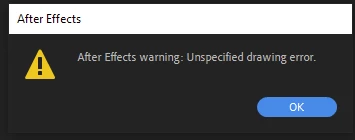
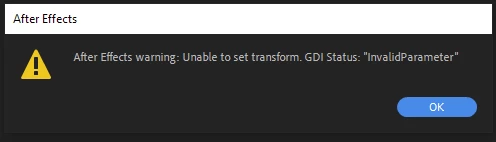
Any time I try to change fonts in a project, the list closes, and I'm shown this message:

- Ae 2022:
 

- Ae 2023:
 

- Pr 2022:
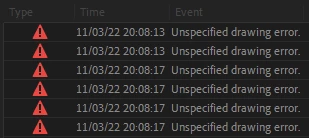
 

- Pr 2023:
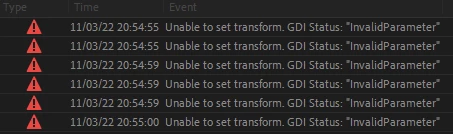
 

I tried to contact an Adobe technician:

We spent three hours in a remote session and tried uninstalling all software, including Creative Cloud. We tried emptying caches in all software and uninstalling Adobe fonts. Then he disconnected, and I went back to the waiting line. After another hour, I gave up.


After some tests, I concluded that the problematic font is one called Arca Majora. Unfortunately, that font was not in the Control Panel fonts list. I, then, followed this tutorial to uninstall fonts not shown in the Control Panel.


I believe that removing that font might solve the problem, but I could be wrong. Not only that, but I used this font in multiple projects without problems before. Unfortunately, Arca Majora is not on Control Panel, but is present in 'C:\Users\USERNAME\AppData\Local\Microsoft\Windows\Fonts', even after I "uninstalled" it.


My next step would be to try using an external font manager such as FontBase; copying the name of the font and pasting it to the font list search bar before Ae tries to load other fonts.


My System Info, in case it's useful:

  • OS: Windows 10 22H2
  • GPU: Nvidia RTX 2060
  • CPU: Intel Core i7
  • RAM: 32Gb
This topic has been closed for replies.

3 replies

nishu_kush
Community Manager
Community Manager
November 15, 2022

Hi EdgarFalcao,


Let us know if Mylenium's suggestion help. If it doesn't, try clearing the font cache: https://thegeekpage.com/delete-font-cache/

Looking forward to your response.


Thanks,

Nishu

Participating Frequently
January 10, 2023

I've been having the same problem for a long time now and i tried deleting the cache but when i get to the final part of that tutorial, it says that the fontcache files are open in another application even though they aren't and i cant delete them.

Mylenium
Legend
November 14, 2022

You need to make your hidden files visible and then dig into the Windows folder and it's sub-folders as well as the Program Data folder. The default fonts and caches are in Windows/Fonts and Windows/System32 and the of course there may be copies in your user folder. Once you've unhidden all files they're easy to find with a simple search for "font".


Mylenium 

Mylenium
Legend
November 5, 2022

Have you actually booted into safe mode to remove fonts? Is the font being used by an app or a tile? If so, you need to disable those as well or Windows will bring back the font from its hidden cache, which you may also need to get into and remove the backups.


Mylenium

Participating Frequently
November 14, 2022

Hey Mylenium,


Thanks for answering here!


I tried booting into safe mode to remove the fonts, but I couldn't find them... how can I disable these fonts or remove them from the backups?