
Inspiring
November 7, 2017
Answered

After Effects 2018 CC - composition preview doesn't show anything

  • November 7, 2017
  • 10 replies
  • 30148 views

Hello,

I usually create something in Illustrator and import it to After Effects. Unfortunately, I've been unable to use After Effects for a while now, because my composition preview doesn't work. My composition simply doesn't show. I am, however, able to animate something and export it - and it works fine. I just can't see what I'm animating. In my "Info"-tab (right side of the video below) does register my composition (colours, position etc.).

I've tried to reinstall the program, I've tried playing around with the preview-settings (in the bottom of the preview-display), but nothing has helped. Any ideas?

My specs are as follows:

MSI GS43VR Phantom Pro

Windows 10 Pro 64-bit (10.0, build 15063)

16 GB DDR4 RAM - 2400 MHz

Core i7 - 2.8 ghz

NVIDIA GeForce GTX 1060 (6 GB)

256 GB SSD & 1 TB HDD

Let me know if you need any other information from me, and thanks! 🙂

Screenshots:
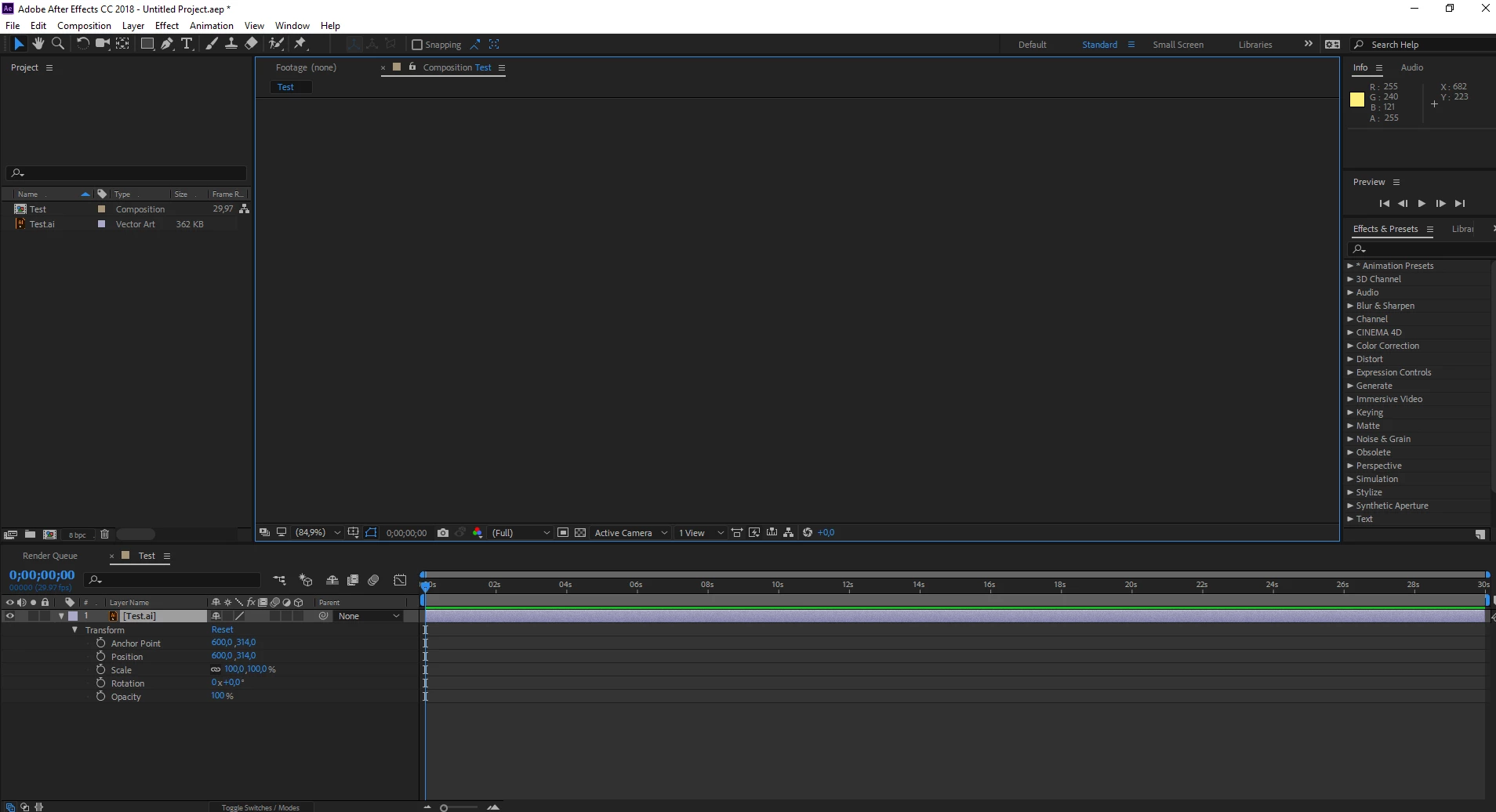
This topic has been closed for replies.
Correct answer Radius Maj og stationær

Working now, xSchubert?

Thanks,
Kevin


Hi Kevin and Liam,

Yes, After Effects seems to be working without problems after I reinstalled it on my HDD rather than my SSD. This may have been a solution due to only 30 GB of space on my SSD, whereas my HDD has almost 1TB. I'm not sure why this fixed my problem, but it did.

Thank you all for your help.

Cheers,

Morten.

10 replies

Participant
December 5, 2018

Hello - I had the same problem. Scrubbing, I saw my animation, but preview produced a Black Screen.

In the Preview window, I changed the Range to "Work Area" and now everything is running fine!

Participant
October 4, 2019
I have a similar but somewhat different issue to that being discussed here- I have an AE CC2018 project with three separate compositions. The problem is that when I click between compositions in the timeline editor, I continue to see the same composition in the preview window.. I've tried opening the file on two different PC workstations, both quite well specified with 32Gb and 64Gb of RAM respectively, running Windows 7 and Windows 10. So I think it's something to do with the project file or the software version, not the hardware or operating system. If anyone has any insights, they'd be gratefully received.
Mike_Abbott
Legend
October 4, 2019

In the top left corner of the Composition window, between the colour chip and the word 'Composition', is a padlock symbol. Check it isn't 'closed'. If it is - click on it.

Participating Frequently
November 29, 2018

Hi, I had the same problem with imported illustrator-files in AE CC 2019. I re-installed AE from my SSD to HHD (although I have 150 GB free on my SSD) and it didn't help me.

I finally realized that some of my Pre-comps had a different framerate from the one that caused the problem. Once I picked the same framerate for every comp, it worked.

Participant
October 18, 2018

Same here!
Deadline tomorrow, AE CC 2018 kills it...all grey.
First I could´nt work on my old projects, cause CC-2018 does not support them all of the sudden
and now my large client project crashes 1 day before deadline >(

WTF adobe???

Community Expert
October 18, 2018

If a working version of your software suddenly stops working and you can't even create a new simple project using one layer and default settings then something changed on your system. Some software was updated, a component is failing, you ran out of memory, you are running a different program in the background, or one of your drivers was updated. That's the first place I would look. Just telling us something isn't working does not give us anything to work with to try and find a solution.

Participant
October 18, 2018

Thanks for your reply. And sorry, but I was just adding my frustration, cause this is the second time CC2018 doesn´t work for me.

I have exactly the same issue like the other members above.
It´s possible to create a new project and everything works fine, but if I import the project, same problems.
I tried the same solutions, settings, reinstall, grafikdriver update...but nothing worked.

I´m already started the project from the beginning, but this time on CC 2017 and now it seems to work. It´s just alot of pain to start again and I will surely stay at 2017 as long as I can...

Participant
September 26, 2018

I'd like to bump this issue, as it is happening on a project I'm working on as well. I have done the above suggestions: default prefs reset, workspace default, have over 200GB of space on ssd, drivers up to date, etc... No preview since 15+

Are there any other suggestions to help fix this?

Inspiring
September 27, 2018

Hi Lindseys.

Did you try completely reinstalling rather than prefs setting? That's the only thing that helped for me.

Otherwise I'm out of suggestions. I haven't had the issue since I reinstalled on my larger HDD.

Participant
August 5, 2018

Same problem here. Since the 15.1.2 Update all preview after importing Illustrator files with images are just not happening.
Pls anyone found solution for this?

Participant
July 1, 2018

Having the same issue, preview doesn't show no matter what i do and how i change the settings, 200 gb of disk space free. first occurred after the last update, but installing previous versions doesn't help(even CS6 doesn't show). tried everything that was written below, at some point the problem was solved (if right clicking on the icon -> run with graphics processor -> integrating graphics). But after a couple of days it's the same and it kills me that i have to spend so many hours on figuring how to fix this problem out of nowhere :/ please help

prwilliams64
Participant
January 8, 2018

Sadly I'm suffering this problem all of a sudden. Strangely the preview comes back for a while, then goes again. There are no graphics driver updates from Dell for my machine. I'm basically unable to work at the moment.

dagg66136449
Participating Frequently
January 8, 2018

I did find a workaround (sort of) and also a culprit:

it started happening with comps overloaded with png's and some jpgs that I was animating. Once it died there was no way to consistently revive it. Opening a new project and pulling in the same pictures didn't work either, which wouldn't matter since I'd done SO much work already.

the workaround was this:

First purging- I purged from inside the job, then I went and deleted all the files (temporary/media/render) from the scratch disk.

Then I started with a new project and moved all the images to a new folder, imported the old project and opened it up and everything came back but the images were not online.

Now I did this also but I dunno if you want to do the amount of work it really was... I took images animated them in their own project and exported them as images sequences to use in comps. THE REASON i did this is because i remembered I'd had trouble with animating images in Final Cut years ago and I began to have suspicions that adding effects to an image in big comp might be doing something similar. So far this has worked for me.

Participant
November 17, 2017

Whenever I have encountered blank screens in the past, it is due to not enough RAM.

I have found CC 2017 and CC 2018 preview frequently goes blank and/or does not update. It seems like  that could be a RAM issue but CC 2014 works fine. (MBP Retina 16 G)

In general as a very long time AE user I find CC 2017 and so far CC 2018 (only used it for a day or two) to be  problematic.  I don't think they are really ready for pro use. CC 2017 (possibly a plug-in compatibility) crashes and takes down my whole machine. Again, CC 2014 works fine.

You might revert to CC 2014. Be careful to make sure you uncheck "delete old versions" somewhere in the CC app.

Thanks,

Paul

Inspiring
November 30, 2017

Hi Paul,

This might be the right solution, although I don't see why RAM would be a problem with my current machine. I might try reverting. Thank you for your answer!

/Morten

dagg66136449
Participating Frequently
December 21, 2017

Hi Kevin and Liam,

Yes, After Effects seems to be working without problems after I reinstalled it on my HDD rather than my SSD. This may have been a solution due to only 30 GB of space on my SSD, whereas my HDD has almost 1TB. I'm not sure why this fixed my problem, but it did.

Thank you all for your help.

Cheers,

Morten.


I'm having this same disaster and it's killing me. I was on the phone with Adobe AND NVidia all day last week. Am I correct that the only fix here is re-installing After Effects on an HDD instead of an SSD?

Rameez_Khan
Legend
November 7, 2017

Hi xSchubert,

Thanks for providing the video and the screenshot!

Does this happen with other types of media too or just Illustrator files?

Try this:

Switch the Video Renderer to Mercury Playback Acceleration or Mercury Software Only under File > Project Settings...

Let us know if that helps!

Rameez

Inspiring
November 10, 2017

Hi Rameez,

Thanks for your answer :-)

My project settings was already on Mercury GPU Acceleration (CUDA), but I also tried Mercury Software Only. Neither worked.

I tried importing .PNG, .PDF and .MPEG into my project, but the same problem happened. I could see the colours of all the imported file in the right side of AE (as in the video), but nothing in the preview-window.

Any other suggestions?

Thanks,

Morten

Mike_Abbott
Legend
November 10, 2017

Morten,

A few further thoughts:

1. It's worth checking you have the latest Nvidia drivers for your card.

2. I can see your comp above is not using 3D space, but it might be worth checking: Composition > Composition settings > 3D renderer tab and checking what renderer you have selected. Ray trace is not recommended, classic or Cinema should be fine.

3. If you open Ae and just create a new comp with a black background, does that empty comp show up - what about if you toggle the transparency grid (just to the left of the active camera menu)?

4. Have you tried resetting your prefs. Immediately on launch of AE hold down Ctrl, Alt and Shift. You'll get a small dialog asking f you want to reset your prefs. click OK. Obviously the downside to this is that it will reset all program prefs to default.

Mike_Abbott
Legend
November 7, 2017

Left field suggestion.... check to see if you have any windows display scaling set at the system level - if so see what happens if you set display scaling to 100%

Inspiring
November 7, 2017

Hi Mike,

Thanks for your answer!

Is this the scaling you're refering to (see image - it's in Danish, but should look like other Windows 10 otherwise)

In that case, it was already set to 100% on both screens (as was recommended by Windows).

On an extra note: I have a setup with a USB-dock that expands my work-space to an external monitor. However, the issues still persist even if I unplug the USB-dock.

Any other suggestions?

Cheers!