Correct answer emmgervais

Toggle the Mask and Shape Path Visibility... that seems to fix it.  Buggy.

8 replies

Participant
July 27, 2023

Haveing the same issue with 2023. Liquify is not working.

Participant
July 27, 2023

To follow up, I tryed liquify in a new proejct file and it worked fine. The project file with the issue had come from Pr "Replace with after effects comp..". Not sure why the issue happened, but I was able to work around it.

Participant
July 8, 2021

Go to View/Show layer controls. That should fix it. 

Participating Frequently
March 8, 2021

Guys, I disconnect my Wacom and the effect worked again. Hope this can be helfpul.

Known Participant
July 4, 2020

Having the exact same issue. Liquify Brushes suddenly stop being visible and just drag the layer around. Cannot shape or make adjustments to anything new. 

Participant
August 11, 2020

Yeah, me too.


I was using it just a few minutes ago.. and now I can't select the various tools. They click yellow but stay gray, and simply move the layer around.


Adobe is falling apart. 

We don't need new crappy tools. We need reliable software that works well. 

Known Participant
August 26, 2020

I had the same problem but I figured it out. I had "View>Show Layer Control" (Shift+Ctrl+H) set to OFF. Try enabling it and the brush should appear and stop moving around the layer.

emmgervaisCorrect answer
Participant
July 4, 2020

Toggle the Mask and Shape Path Visibility... that seems to fix it.  Buggy.

Known Participant
July 4, 2020

Thank you, this totally fixed it. Why on earth would Mask Visibility stop the brushes from showing up?

Community Expert
June 6, 2020

Try changing the GPU settings in your Preferences file (two places) and in the Project Settings Panel.

Participant
June 24, 2020

hello, same problem here. Your advice is not very clear, more precision would be useful.


edit: i found a solution to my problem (put a key on the envelope distort option ) my bad 

Community Expert
May 22, 2020

Do you have the Liquify effect selected in the Effects Control Panel or the Timeline? Did you turn on Show Grid in the View Options? Are you using the Selection tool (v)? 

If the layer is moving it means that you do not have Luqify selected and you have not selected one of the Liquify tools. 

Participant
June 1, 2020

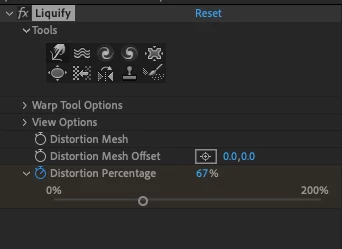
Same prob here. The toolset does work when trying to change the layer itself, but I want to use them on a composition in order to add keyframes and animate. In the composition however, when hovering over the toolset (e.g. warp/hand) the icons do turn yellow but it's not possible to activate the tools. You can click as much as you want, the icons stay gray/inactive, as above screenshot. No brushes appear when hovering over the composition, just the curvor , so the only thing happening when dragging is moving the position.

Participant
June 6, 2020

did you found the solution? I'm also having the same problem.

Mylenium
Legend
January 17, 2020

And what exactly? You need to be much more specific and explain what is actually going on. Just showing us a screenshot of the effect controls is not telling us anything.


Mylenium

claytons11095750
Participant
May 22, 2020

I am having an issue with it as well, it won't do any distortion, it just moves the object's position.