AlanDogg
Participating Frequently
March 21, 2019
Answered

After Effects 3D Drag Not Working

  • March 21, 2019
  • 3 replies
  • 5723 views

Hi All,
I'm new to after effects so please bare with me I'm trying to follow a tutorial to add green screen to a still back using green screen vanishing point in adobe photoshop creating a grid which I have done, I'm them opening the Vpe file in AE and getting as far as adding the green screen video. After clicking the 3d button on the green screen layer the picture goes into the 3d  space but i cannot drag in to make it bigger, no matter what I do it just doesn't work as in video below, please help

Greenscreen & Vanishing Point Tutorial - YouTube

any help would be much appreicated

alan

This topic has been closed for replies.
Correct answer Rick Gerard

Thanks for your input Rick & Angie, I totally understand there are many things to learn within AE before I become a guru etc. I have read and watched several tutorials and I'm still at the same stumbling block, When I drag the z axis with the hand all that happens is the layer becomes bigger, at no point does it come forward, its always 6 layers deep and all I need is it to become the top layer, The tutorial I'm followed from the begging for this effect the guys simply drags the z layer from the centre of the project and this doesn't work.

Even if I change the values of position manually all that happens is the layer gets bigger.  Surly there must be a method that will work without having to fry what's left of my brain. I would have thought by selecting that layer I would bring it to the front?

thanks for your time an patience teaching an old dog new tricks


If the layer gets bigger when you drag the z values then the camera is perpendicular to the camera and it appears to get bigger. If you open up 2 views then you can clearly see and move layers in 3D space.

Some times, if you have effects applied to layers, layer order becomes important and no matter what you do a 3D layer will still appear in front of a layer it is actually behind.

You said you have watched several tutorials. You should vet your trainers. I would give the tutorial you are following a D. Poor explanations, no explanation of AE's 3D space, and an only partially successful result.

From your screen capture video, I can see that the z position of the layer is at the comp center and Z never changes. You also just grab the layer, never the Z axis only.
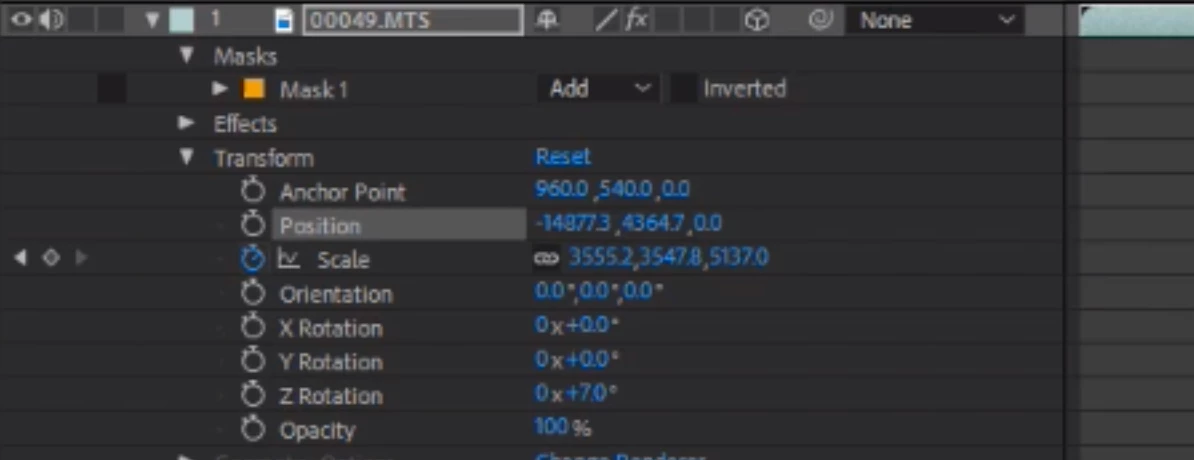
If you opened 2 views you would see that your footage is behind the walls you have created. You will have to move it so that it lines up with the floor. The footage also looks way too big. You'll have to scale it down. I also suspect that the camera you have has way too long a focal length. The tutorial you are trying to follow never shows the relationship between the actor and the 3D set, the effect of camera position on perspective, the effect of focal length on framing, or anything else a tutorial using AE's 3D space should explain or at least refer to.  That's why it gets a D.

Spending about 20 minutes with the User Guide through the search help feature in AE would give you the tools you need to solve your problem and spend a lot more time making sure that the folks presenting tutorials know what they are talking about. You have probably wasted several hours just poking around trying to figure it out.

3 replies

angie_taylor
Legend
March 22, 2019

In your video, it looks like you are dragging on the layer name in the timeline? This will not make it bigger, you need to scrub the Scale Property to make the layer bigger, or scrub the Z Position property to move it nearer the camera.

it also,looks like your layers re “popping” which can happen if they all occupy the same Z Position Space. To fix this, just move the layers apart in Z space so there’s a bit of distance between them.

AlanDogg
AlanDoggAuthor
Participating Frequently
March 23, 2019

Hi Angie, Thanks for the reply, Im not understanding some of the lingo im afraid Scrub? same Z position? popping?. I have played around with it and have found my layer but cant bring it to the top?

Many thanks for your time

AlanDogg
AlanDoggAuthor
Participating Frequently
March 24, 2019

Under the Position value, in the timeline, you will see the Position value, it has three numbers; these are the X,Y and Z values. Scrubbing is the process of hovering over the value till you see a little hand, then clicking and dragging left or right to adjust the value.

What you need to do is scrub the Z Position value till your layer pops in front of the others.

I’d also second Rick’s suggestion of going through a structured course before attempting 3D in After Effects. It would be like me trying to learn to play Bethooven’s Fifth on the piano without first learning the scales and how to read music - an uphill struggle! ;-)


Thanks for your input Rick & Angie, I totally understand there are many things to learn within AE before I become a guru etc. I have read and watched several tutorials and I'm still at the same stumbling block, When I drag the z axis with the hand all that happens is the layer becomes bigger, at no point does it come forward, its always 6 layers deep and all I need is it to become the top layer, The tutorial I'm followed from the begging for this effect the guys simply drags the z layer from the centre of the project and this doesn't work.

Even if I change the values of position manually all that happens is the layer gets bigger.  Surly there must be a method that will work without having to fry what's left of my brain. I would have thought by selecting that layer I would bring it to the front?

thanks for your time an patience teaching an old dog new tricks

AlanDogg
AlanDoggAuthor
Participating Frequently
March 22, 2019

I have included a short video of the error, Thanks for looking

Szalam
Community Expert
Community Expert
March 21, 2019

Select your layer and reveal the position properties by pressing P. Can you move it by scrubbing those three values?

AlanDogg
AlanDoggAuthor
Participating Frequently
March 21, 2019


Hi,
Thanks for the quick reply, I have tried the 3 values but image doesn't appear, it only shows before pressing the 3d button

AlanDogg
AlanDoggAuthor
Participating Frequently
March 22, 2019

Anyone know what the issue may be?

Many thanks