Participant
October 29, 2024
Answered

After effects automatic positioning expression trouble

  • October 29, 2024
  • 3 replies
  • 1491 views

Trying to write an expression that automatically pushes a shape/text a set amount of space away from another shape or text by the bounding box. It only has to work in the X axis.


That way what ever i do with the previous shape (scale, Mask path, etc) the bounding box will automatically push the layers to the right without having to adjust.


Any help would be appreciated 

This topic has been closed for replies.
Correct answer Rick Gerard

If the Anchor point of the background (shape layer) or the text layer is in the center of the layer, and you have a Controls layer with a Slider Control added to it, all you have to do is add this expression to the position property of the layers below the first layer on the left. 


// Set the layer with Controls
ctrl = thisComp.layer("Controls");
mrgn = ctrl.effect("H Margin")("Slider");
// Calculate half of the Width of the layer above this one
ref = thisComp.layer(index-1);
rPos = ref.position;
rSize = ref.sourceRectAtTime();
rScl = ref.scale[0]*.01;
rWidth = rSize.width/2 * rScl;
// Calculate half of the width of this layer
tLScale = scale[0] * .01;
tLWidth = sourceRectAtTime().width/2 * tLScale;
// Do the math
xPos = rPos[0] + rWidth + tLWidth + mrgn;
// Final Result
[xPos, rPos[1]]


There are workarounds if you use right- or left-justified text instead of center-justified text. You can also compensate for layers that don't have the anchor point in the center of the layer. If you use shape layers, you can also use this approach to offset multiple shapes in the same shape layer. 
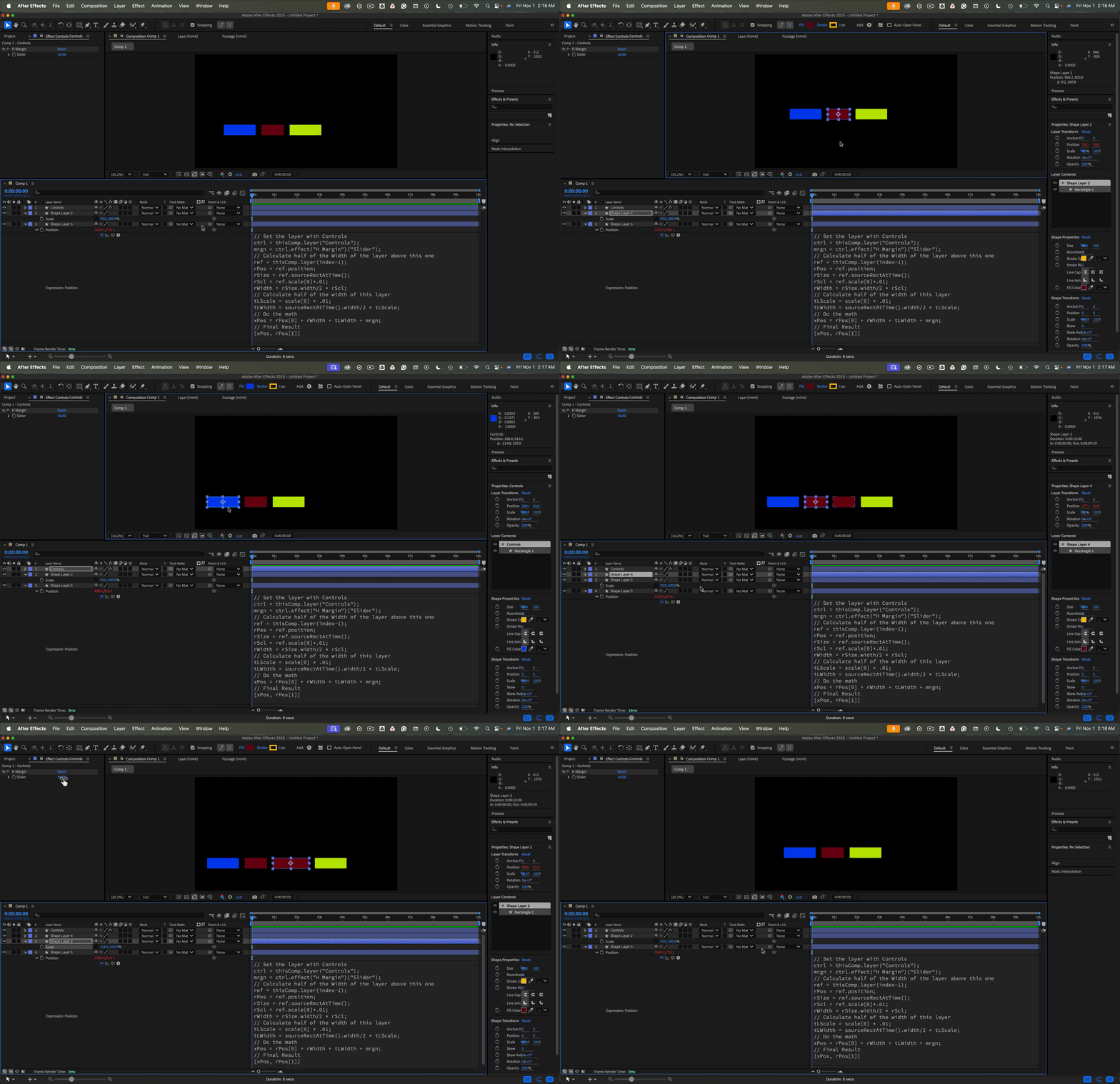
I have uploaded the project file for the sample I made. The expression will also work with text layers or even a mix of text and shape layers as long as the anchor points are at the layer's center.

3 replies

Rick GerardCommunity ExpertCorrect answer
Community Expert
November 1, 2024

If the Anchor point of the background (shape layer) or the text layer is in the center of the layer, and you have a Controls layer with a Slider Control added to it, all you have to do is add this expression to the position property of the layers below the first layer on the left. 


// Set the layer with Controls
ctrl = thisComp.layer("Controls");
mrgn = ctrl.effect("H Margin")("Slider");
// Calculate half of the Width of the layer above this one
ref = thisComp.layer(index-1);
rPos = ref.position;
rSize = ref.sourceRectAtTime();
rScl = ref.scale[0]*.01;
rWidth = rSize.width/2 * rScl;
// Calculate half of the width of this layer
tLScale = scale[0] * .01;
tLWidth = sourceRectAtTime().width/2 * tLScale;
// Do the math
xPos = rPos[0] + rWidth + tLWidth + mrgn;
// Final Result
[xPos, rPos[1]]


There are workarounds if you use right- or left-justified text instead of center-justified text. You can also compensate for layers that don't have the anchor point in the center of the layer. If you use shape layers, you can also use this approach to offset multiple shapes in the same shape layer. 

I have uploaded the project file for the sample I made. The expression will also work with text layers or even a mix of text and shape layers as long as the anchor points are at the layer's center.

Participant
November 4, 2024

Awesome, this is what i was looking for. You are the man!

One thing i didnt notice until i was applying the expression was that my anchor points were left aligned.


I tried adjusting the code but i couldnt figure it out. Where would i adjust things to account for a left middle aligned anchor point?

Community Expert
November 7, 2024

You can compensate for anchor point problems by using top and left values from sourceRectAtTime() and then throwing in a divide by 2. 


I don't have time to modify the expression right now. I'll try later tomorrow.

Community Expert
October 30, 2024

You need to combine sourceRectAtTime() with a scale multiplier and add that to the position property of the correct layers. Combine that with some simple addition, and multiple layers will line up and maintain position as the layers animate one of them or move the camera. 


Show us your timeline and describe how the layers need to move, and I'll point you to an efficient workflow. I have about a dozen expression-based animation presets that do this kind of thing. 

Participant
October 31, 2024

Heres an test example, basically i would want shape layer 1's bounding box to push shape layer 3 and 4 to only the right should i choose to scale "shape layer 1" up or down. On the project im working on having this be able to work with text would also be great. Let me know if this helps


Inspiring
October 30, 2024

Sorry if i midunderstand, would it work just to parent the text/shape layer to the shape you're moving?

Participant
October 30, 2024

In normal situations that would work however im working on a job that has translation and so the width of words flucate and i might need to adjust the scale of shapes but i dont want to adjust everything else. only the position. Think of how websites are responive in design when shrinking the browser window down.