Your solution is not the real solution - it just so happens that default setting for Previews initiated with the Spacebar is set to start Previews from Current Time. What you should be looking at is Preview Panel; specifically, the Play From setting - it has a menu below it which provides for two Play From (Preview start point) - Start of Range and Current Time.
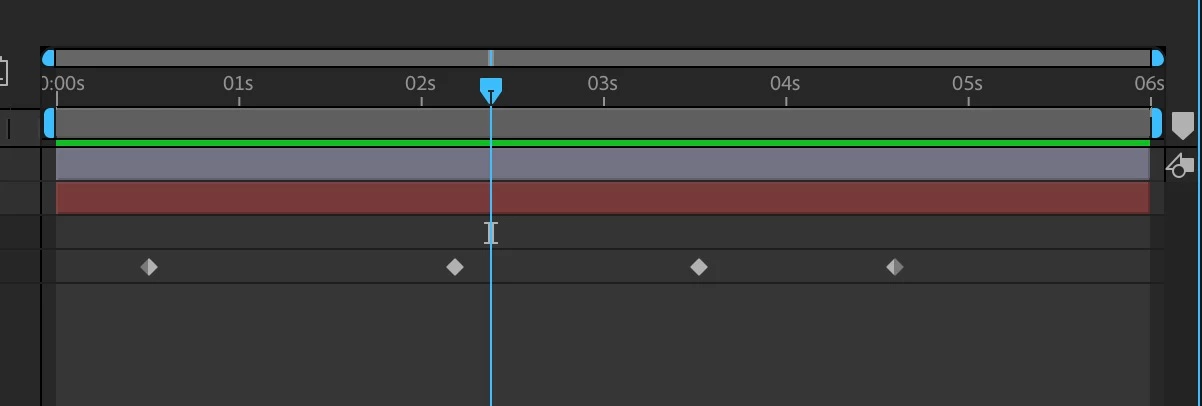
When set to Current Time, your Preview will begin at the Current Time Indicator (CTI) and proceed onwards - where the Preview ends gets tricky as it depends on the Range setting. When "Start of Range" is selected, the Preview begins at the frame set by the "Range" parameter.
It is useful to note that you can have two Preview settings; with each set to start at different points in time. On my system, I have Spacebar set to initiate Previews at the CTI and Shift+Spacebar to initiate Previews starting from the Range - my Range is set to Work Area for both shortcut keys.
Although the Shortcut menu provides up to seven Preview options; only the Play From option dictates where in time, the Preview begins. You can add other Preview shortcuts via the Shortcuts menu but these will be relevant based on the Range you select for the shortcut. So, you can set Numpad 0 to start Previews from the beginning of the Timeline by selecting Numpad 0 from the Shortcut Menu; Entire Duration from the Range Menu and Start of Range from the Play From Menu.




 AdChoices