
Known Participant
June 24, 2017
Answered

After Effects - Draft 3d, Motion Blur etc. boxes not displayed

  • June 24, 2017
  • 2 replies
  • 7829 views

Hi

The draft 3d and motion blur boxes are not displayed on individual layers. This screenshot  shows my software where it is only possible to ​click on a "general" box and this screenshot from a recent Youtube tutorial where they are displayed individually. Consequently it is not possible to display the X, Y and Z orientation options.
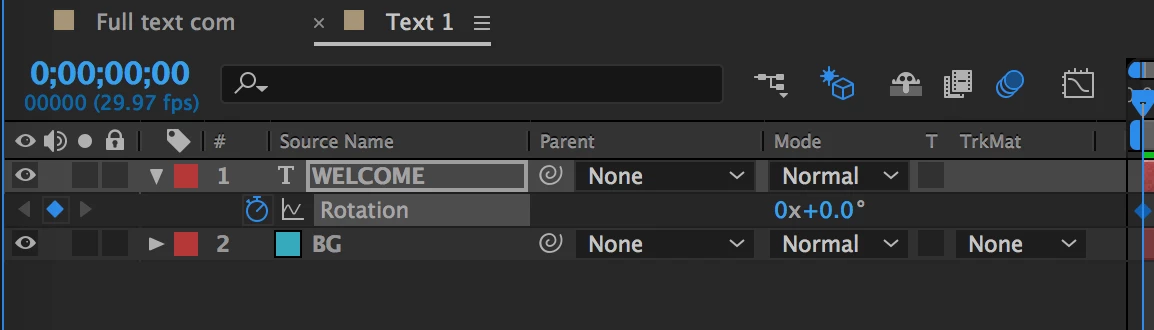
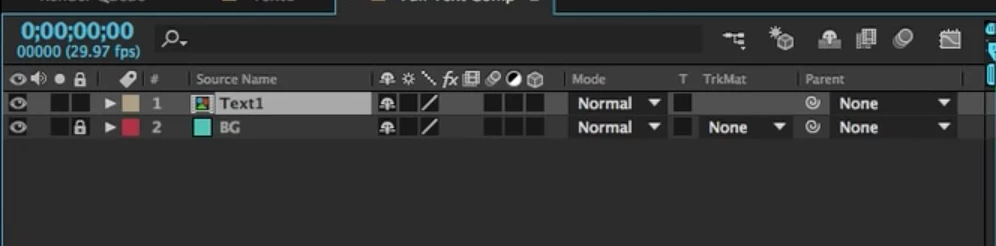
I am new to After Effects so I hope I am not missing the blindingly obvious. Any help would be much appreciated.
    This topic has been closed for replies.
    Correct answer Szalam

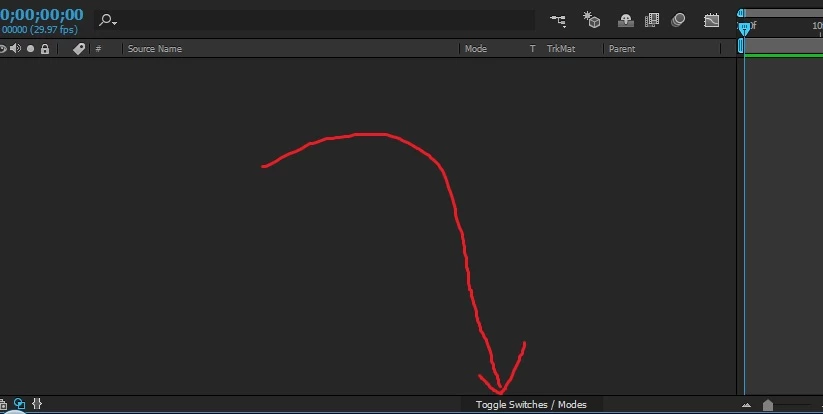
    At the bottom of your timeline panel, underneath the "Mode" column is a button that lets you toggle between the blending modes that you're seeing now and the switches you want to see.

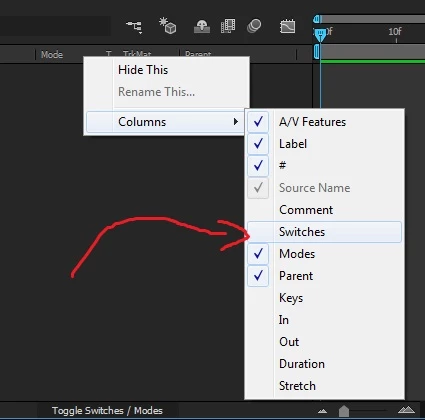
    You can opt to have them separated as in the YouTube screen grab you've shown by right-clicking on the column headers, going to the columns option, and choosing to show the switches column.

    2 replies

    Kevin-Monahan
    Community Manager
    Community Manager
    July 27, 2017

    Hi geoffreya,

    Are you still facing this problem? If not, let us know how you solved it. If so, please let us know so we can assist you further.

    Thanks,

    Kevin

    Kevin Monahan - Sr. Community and Engagement Strategist – Adobe Pro Video and Audio
    Participant
    July 31, 2021

    I have a similar problem. When im making a project, i dont have a draft 3d button, and when i press a different draft 3d button it says its disabled and to turn on hardware accelerate panels, but i have it turned on. I dont know what to do anymore.

    Participant
    November 30, 2022

    I had the same problem, and when I switched AE to my second screen with higher resolution, I had no problem viewing the 3D. Hopefully, this helps someone else. 


    Thank you for the solution 🙂

    work with 27_HD screen but not with 27_4K screen

    Szalam
    Community Expert
    SzalamCommunity ExpertCorrect answer
    Community Expert
    June 26, 2017

    At the bottom of your timeline panel, underneath the "Mode" column is a button that lets you toggle between the blending modes that you're seeing now and the switches you want to see.

    You can opt to have them separated as in the YouTube screen grab you've shown by right-clicking on the column headers, going to the columns option, and choosing to show the switches column.