
Participant
May 6, 2019
Question

Ai to Ae

  • May 6, 2019
  • 2 replies
  • 1839 views

Hello, never used the discussion before but I seem to be in a bind.

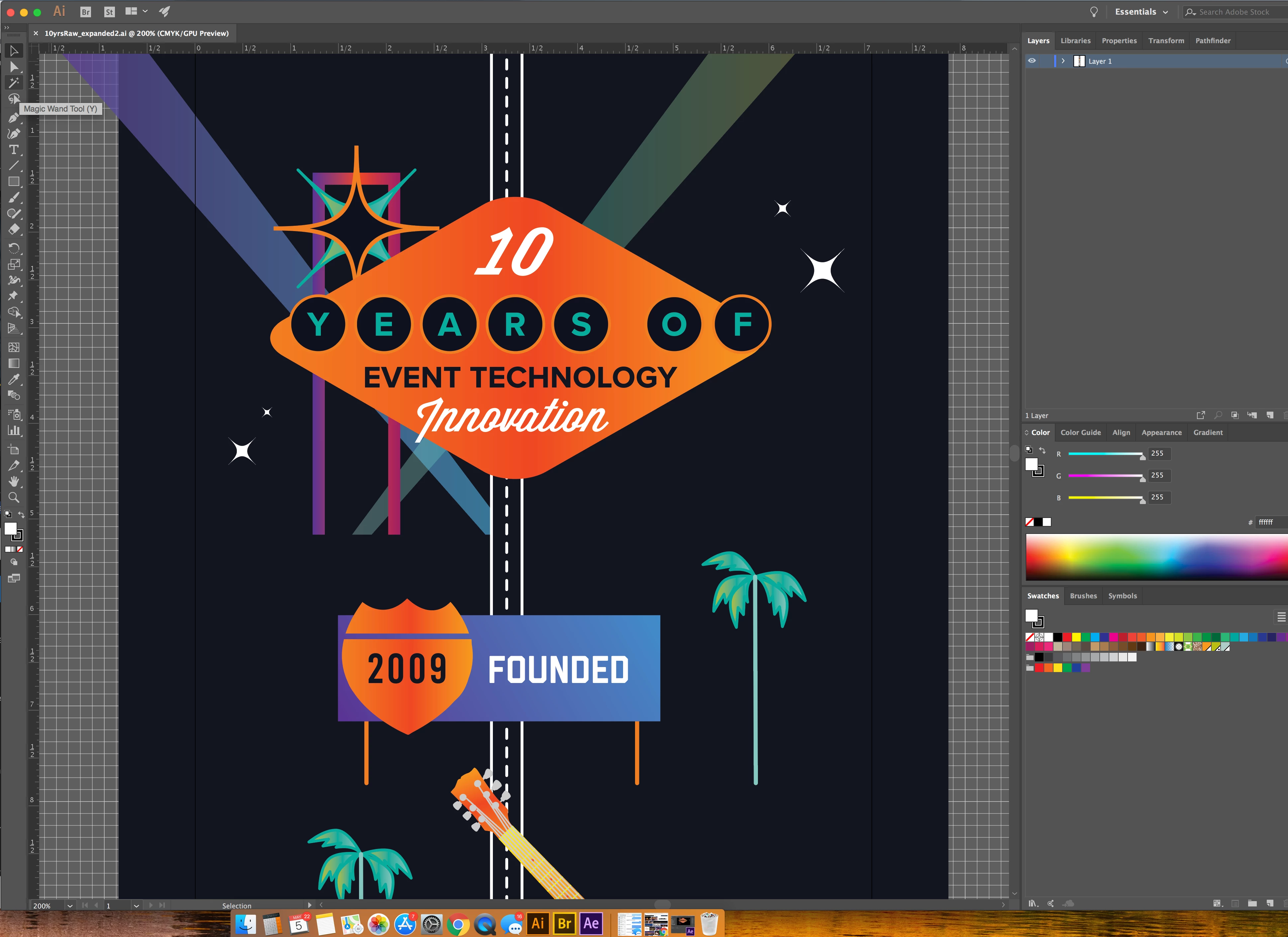
My client had a Graphic Designer make an infographic in Ai and hand over the expanded Ai file to me. I am importing into Ae and everything in regards to importing and what not are fine... but many of the gradients within the shapes have lines missing and the opacity seems to be down a bit as well. I looked through the project file and she made everything with path lines for the gradients. I tried to merge everything or flatten the groups in Ai but end up with the same result... my lingo is not up to par in regards to Ai as I do not use it as much as Ae. The first image is the project in Ai and the second is the same in Ae.

This topic has been closed for replies.

2 replies

Roland Kahlenberg
Legend
May 6, 2019

Most Gradient Styles from AE do pass over to AE with a caveat - if the AI file is in a different resolution to the comp in AE, then the Gradient Points which define where the colors are, will be in a weird position in AE. You can try concerting problematic AI layers into AE Shape Layers to see if you can adjust the gradients in AE. Alternatively, most folks have been using the Overlord Extension for transferring AI layers to AE - even Blending Modes work.

https://www.battleaxe.co/overlord-usage

Very Advanced After Effects Training | Adaptive & Responsive Toolkits | Intelligent Design Assets (IDAs) | MoGraph Design System DEV
Community Expert
May 6, 2019

Solo the missing layers. If the missing layers are missing from the timeline or the folder that was imported when you created the comp from the Illustrator file then you have to go back to AI and take a look at the original files. Here are some basic rules.

  • All strokes should be 2 pixels wide or more
  • Snap to pixel should be turned on and every line lined up to the pixel grid
  • The artboard should be the same size as the comp in points or pixels
  • If there is more than one artboard the first artboard should be the same size as the final video in points or pixels, the first artboard must be completely inside the second (the way the video templates are set up) but it is better if there is only 1.
  • All of the elements should fit inside the first comp sized artboard\
  • Artwork that is outside the artboard will not be imported or it will be cropped
  • No raster effects should be applied to any element in the AI file

Your artwork was obviously prepared by someone that did not understand the rules. You will have to fix it in AI by combining, resizing, expanding, or modifying the layers there. It's not an AE problem, it's a Graphic Artist that did not take the time to learn how to prepare artwork for a video that caused the problem.

imeilfx
Inspiring
May 6, 2019

Please read that help file on preparing files to import to AE: Preparing and importing still images in After Effects

Participant
May 6, 2019

Sorry but that didn't provide the information needed. These are not images, these are layers consisting of grouped paths. The Graphic Designer created the shapes with lines to make all the gradients. Many of the lines show up fine but a lot of them are missing or importing wrong.

OussK
Community Expert
Community Expert
May 6, 2019

i see your AI is in CMYK try make it RGB and let us know is this can help