
flowsnone
Inspiring
February 1, 2018
Question

Aliasing and Jagged Edges with Illustrator Files - Please Help!

  • February 1, 2018
  • 5 replies
  • 9596 views

Hey Folks,

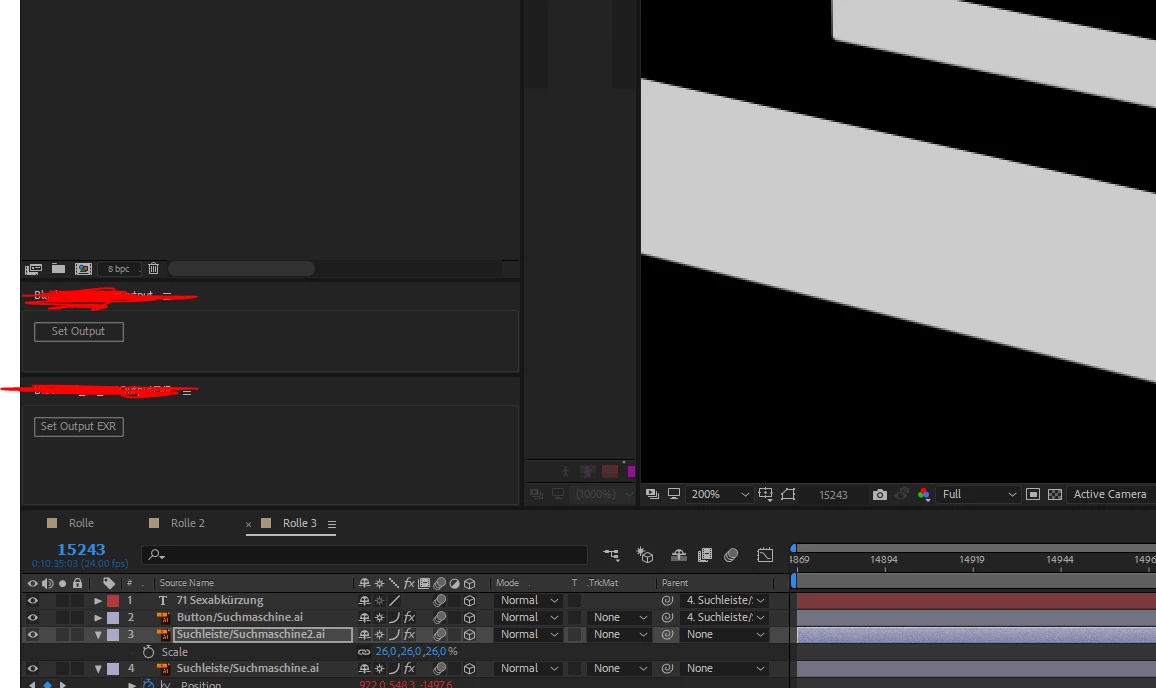
I'm working on some feature film graphics animations where I have to put Illustrator Shapes into perspective. I have some real bad Aliasing problems.

I compared this by rendering the graphics flat and comping them with nuke, which gave me much better results. I already activated the "better" AA Option in "interpret footage", activated the sun, used the curve thingy in the layer manager. I don't know what to do. Is AEs Anti Aliasing really that bad? In Nuke, also the type was much much clearer when I put it into perspective. Everything looked better overall. But I dont want to switch to Nuke for comping as I have a lot of animation going on and this would not be a good workflow for me. What Can I do?
    This topic has been closed for replies.

    5 replies

    Participant
    June 6, 2021

    Just had the same problem, with a shape layer in 3D space, When I turned off the Draft 3D switch in the composition window the issue went away. Is yours activated (blue)?

    Community Expert
    February 9, 2018

    To really see what is going on you should try a one pixel shift in 256 pixels.

    The different interpolation methods will give you a different gradient in the two rows of pixels. The real difference in interpolation is not as apparent in straight lines as it is in fine detail when you resize an image.

    A much bigger problem is moving horizontal and vertical lines, especially when they are at a slight angle.

    angie_taylor
    Legend
    February 9, 2018

    Make sure to click on the Collapse Trasformations switch and change the Anti Aliasing Settings to Best

    flowsnone
    flowsnoneAuthor
    Inspiring
    February 9, 2018

    I did both, doesnt help at all as my shape is already over 2000px wide in a 2k comp.

    Roland Kahlenberg
    Legend
    February 9, 2018

    It does not matter how large your image is. What's important is if you've Continuously Rasterized the AI file if you have scaled it up.
    I also suggest that you go to Preferences>Previews and ensure that the settings there are set to More Accurate. Then, ensure that you do not have Pixel Aspect Ratio correction enabled.

    AND, please post a side-by-side comparison of what you get from Nuke and AE.

    Very Advanced After Effects Training | Adaptive & Responsive Toolkits | Intelligent Design Assets (IDAs) | MoGraph Design System DEV
    flowsnone
    flowsnoneAuthor
    Inspiring
    February 9, 2018

    Went to nuke

    Participating Frequently
    October 5, 2021

    Had a laugh, thanks!

    flowsnone
    flowsnoneAuthor
    Inspiring
    February 1, 2018

    Also worth mentioning: I already tried blend mode "alpha add" and my illustrator files are HUGE

    Mike_Abbott
    Legend
    February 1, 2018

    You are viewing this at 200% of course...

    You have fx applied to those layers. How does it look with fx switched off?

    As a work around: could you get away with a tiny amount of fast box blur to smooth the edges?

    flowsnone
    flowsnoneAuthor
    Inspiring
    February 1, 2018

    Thanks for your response Mike!

    Yes I know its 200% so you can see the pattern. In Nuke its a lot better anti aliased.

    I have no FX on the layers exept some position wiggle scripts, which have controllers.

    I tried blurs but thats not what I want.