
flowsnone
Inspiring
February 1, 2018
Question

Aliasing and Jagged Edges with Illustrator Files - Please Help!

  • February 1, 2018
  • 5 replies
  • 9596 views

Hey Folks,

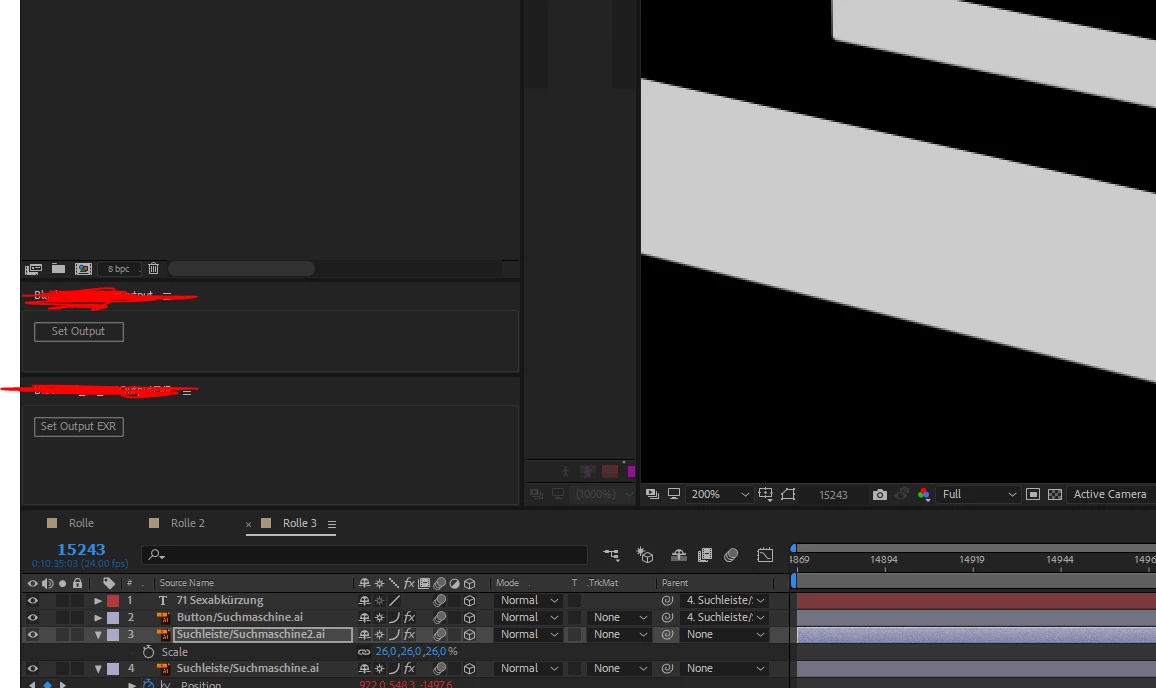
I'm working on some feature film graphics animations where I have to put Illustrator Shapes into perspective. I have some real bad Aliasing problems.

I compared this by rendering the graphics flat and comping them with nuke, which gave me much better results. I already activated the "better" AA Option in "interpret footage", activated the sun, used the curve thingy in the layer manager. I don't know what to do. Is AEs Anti Aliasing really that bad? In Nuke, also the type was much much clearer when I put it into perspective. Everything looked better overall. But I dont want to switch to Nuke for comping as I have a lot of animation going on and this would not be a good workflow for me. What Can I do?
    This topic has been closed for replies.

    5 replies

    Participant
    June 6, 2021

    Just had the same problem, with a shape layer in 3D space, When I turned off the Draft 3D switch in the composition window the issue went away. Is yours activated (blue)?

    Community Expert
    February 9, 2018

    To really see what is going on you should try a one pixel shift in 256 pixels.

    The different interpolation methods will give you a different gradient in the two rows of pixels. The real difference in interpolation is not as apparent in straight lines as it is in fine detail when you resize an image.

    A much bigger problem is moving horizontal and vertical lines, especially when they are at a slight angle.

    angie_taylor
    Legend
    February 9, 2018

    Make sure to click on the Collapse Trasformations switch and change the Anti Aliasing Settings to Best

    flowsnone
    flowsnoneAuthor
    Inspiring
    February 9, 2018

    I did both, doesnt help at all as my shape is already over 2000px wide in a 2k comp.

    Community Expert
    February 9, 2018

    I dunno Roland, maybe Nuke really does it better we need to see and maybe we should aspire to cleaner lines! antialiasing is annoying and rotated art on some degree introduce ugly steps that we should all try to avoid our best. this is more apparent when the graphic is supposed to stand still. it is true for example that continousely rasterize is worse than using a shape layer because there are less antilaiased steps.  here's an example sent by Robert Kjettrup, a colleague of us both:

    and also interpret footage can make cleaner antialiasing on some cases. so if all these are checked, I don't see any difference from any of the other Adobe's software's implementation of antialiasing. Maybe Nuke did something else? I am guessing some sort of softening we can also do ourselves using a bit of blur with the right amount. 


    Video is limited to the pixel grid, there are no vectors in the final product. If a line does not perfectly line up with the grid it will appear to have stair steps. Take a black line one pixel wide on a white background that starts precisely on 10, 10 and ends precisely on 266, 11. In 256 pixels the line moves up 1 pixel. Try this with a shape layer.  The line will be interpreted and except for the exact middle and each end, the line will be 2 pixels thick. The color of each of the two rows will be divided into sections based on the color depth and available shades as top row get progressively lighter and the bottom row gets progressively darker. If you have a 10-bit monitor you can see the stair-stepping in the colors change as you increase bit depth in the project, but if you have an 8-bit monitor you are limited to 256 shades. You will never see the improvement in antialiasing on an 8-bit monitor. Changing the interpretation rules for aliasing only changes the rate at which the colors change.

    So what's the point of that paragraph? The point is that there will always be stair-stepping (aliasing) and the quality of the antialiasing can only be increased by increasing the bit depth but you can't see any increase in quality unless you have a high bit depth monitor.

    So what's the point? The point is that if you want perfect lines in a video the lines must be horizontal and vertical and perfectly aligned with the pixel grid. Otherwise, there is no such thing as a perfect line. If you want to increase the quality of the antialiasing, increase the bit depth, but you will not be able to see it unless you have a high bit depth monitor and when the video is compressed to an 8-bit codec for delivery the stair stepping is going to return. There is no way around this.

    In practical terms, the only way to judge the quality of the lines in your video is to watch the video at 100% scale in real time. Obsessing about the antialiasing in a still frame viewed at 200% or 400% is a complete waste of your time. If you don't like the edges you are getting either make them move or change the design. If a line appears to change widths as it moves or it moves erratically then change the speed because smooth movement of fine detail will only happen if the movement of the line is a whole number of pixels per frame and the frame rate and speed of the motion does not create a stroboscopic effect on the line causing it to judder. If you are stuck with a certain speed that causes juddering your only option is to try and hide the problem with motion blur.

    Sorry, but those are the facts. I have avoided this thread because has been a discussion about a limitation that cannot be overcome when working in video. You are stuck with the pixel grid and the frame rate and you have to work within those limitations.

    flowsnone
    flowsnoneAuthor
    Inspiring
    February 9, 2018

    Went to nuke

    Participating Frequently
    October 5, 2021

    Had a laugh, thanks!

    flowsnone
    flowsnoneAuthor
    Inspiring
    February 1, 2018

    Also worth mentioning: I already tried blend mode "alpha add" and my illustrator files are HUGE

    Mike_Abbott
    Legend
    February 1, 2018

    You are viewing this at 200% of course...

    You have fx applied to those layers. How does it look with fx switched off?

    As a work around: could you get away with a tiny amount of fast box blur to smooth the edges?

    flowsnone
    flowsnoneAuthor
    Inspiring
    February 1, 2018

    Thanks for your response Mike!

    Yes I know its 200% so you can see the pattern. In Nuke its a lot better anti aliased.

    I have no FX on the layers exept some position wiggle scripts, which have controllers.

    I tried blurs but thats not what I want.