Inspiring
July 10, 2019
Answered

Alpha channel always renders "premultiplied"

  • July 10, 2019
  • 2 replies
  • 17930 views

Hi,

I'm trying to give footage with an alpha channel to someone using Avid MC, and I learned that that one only accepts direct, un-premultiplied alpha channels.

Now, I rendered in AE with RGB+Alpha with a "direct" alpha channel
- to DNxHD w/ alpha,
- to DNxHR w/ alpha and
- to 32-bit Targa sequence (i.e., also w/ alpha channel).

My recipient still reported for all those files the dark halos around the objects, which indicate a premultiplied alpha.

And when I then tested (= opened) my renders in Premiere Pro, I got the same dark halos.

That only changed when I told Premiere to interpret the footage as having a "premultiplied" alpha instead of a "direct" one.

So am I still missing a setting in the AE render settings? Or somewhere else? Or might this be a bug?

Thanks in advance!

This topic has been closed for replies.
Correct answer Rick Gerard

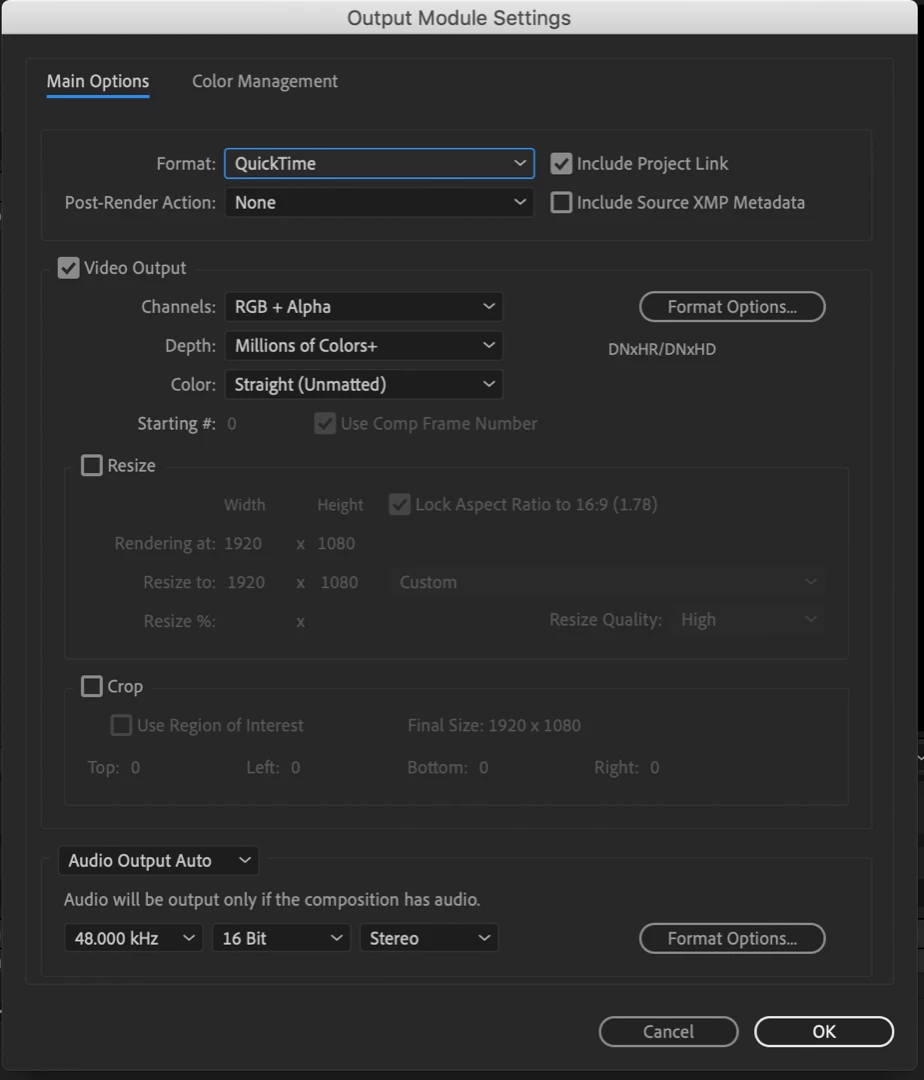
Make sure that the Output Module is set to Straight:

This applies to any format that supports an Alpha Channel.

This will give you an Alpha channel with no color added to the semi-transparent pixels. If you use the default Premultiplied then the Background Color of the Composition will be pre-multiplied with the colors of the edge pixels.

If changing interpretation the settings in Premiere Pro or After Effects to Premultiplied will appear to choke the render and color the edges based on the chosen color so it is not surprising that the halo in a pre-multiplied file will be reduced.

The industry standard is Straight - Unmatted, I do not know why Adobe always has had Premultiplied (Matted) as the default.

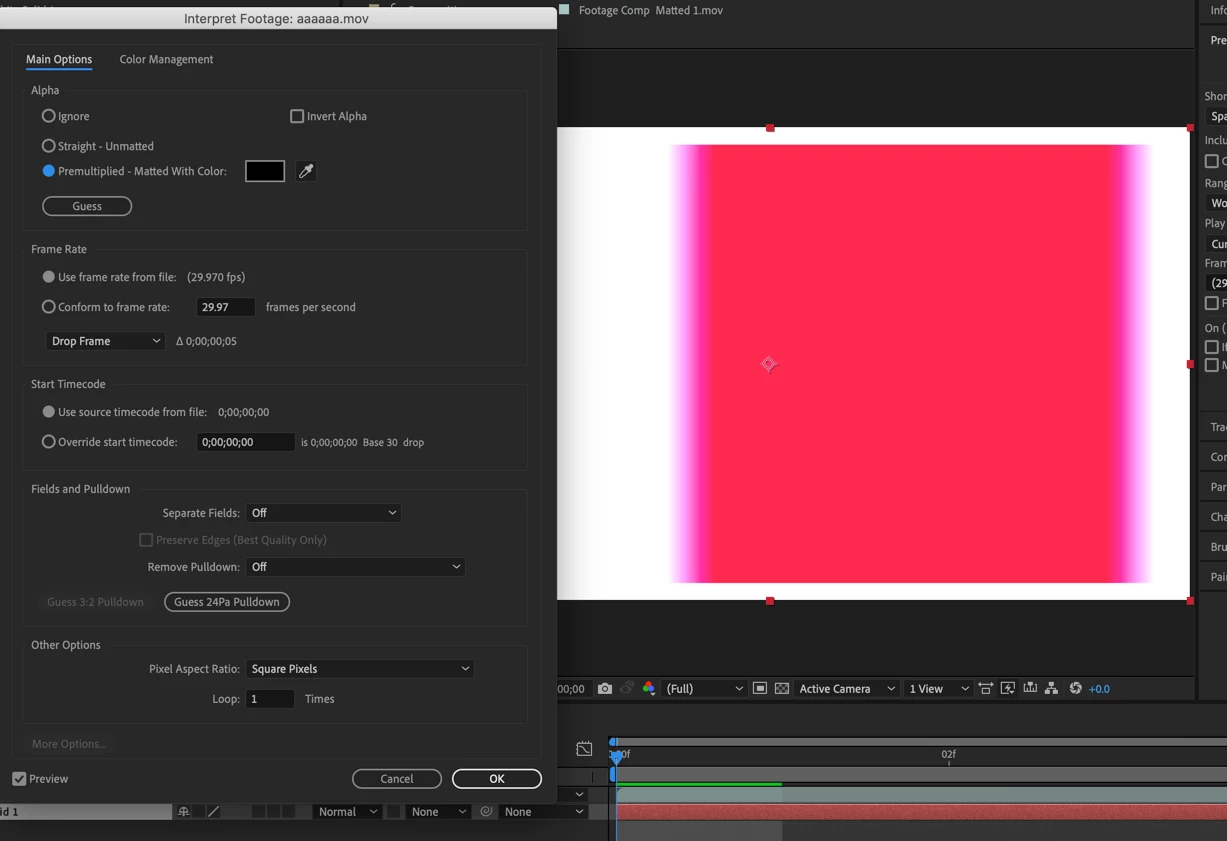
Run a quick test and see what you get. It is really easy to see if you have a premultiplied alpha interpreted as straight:

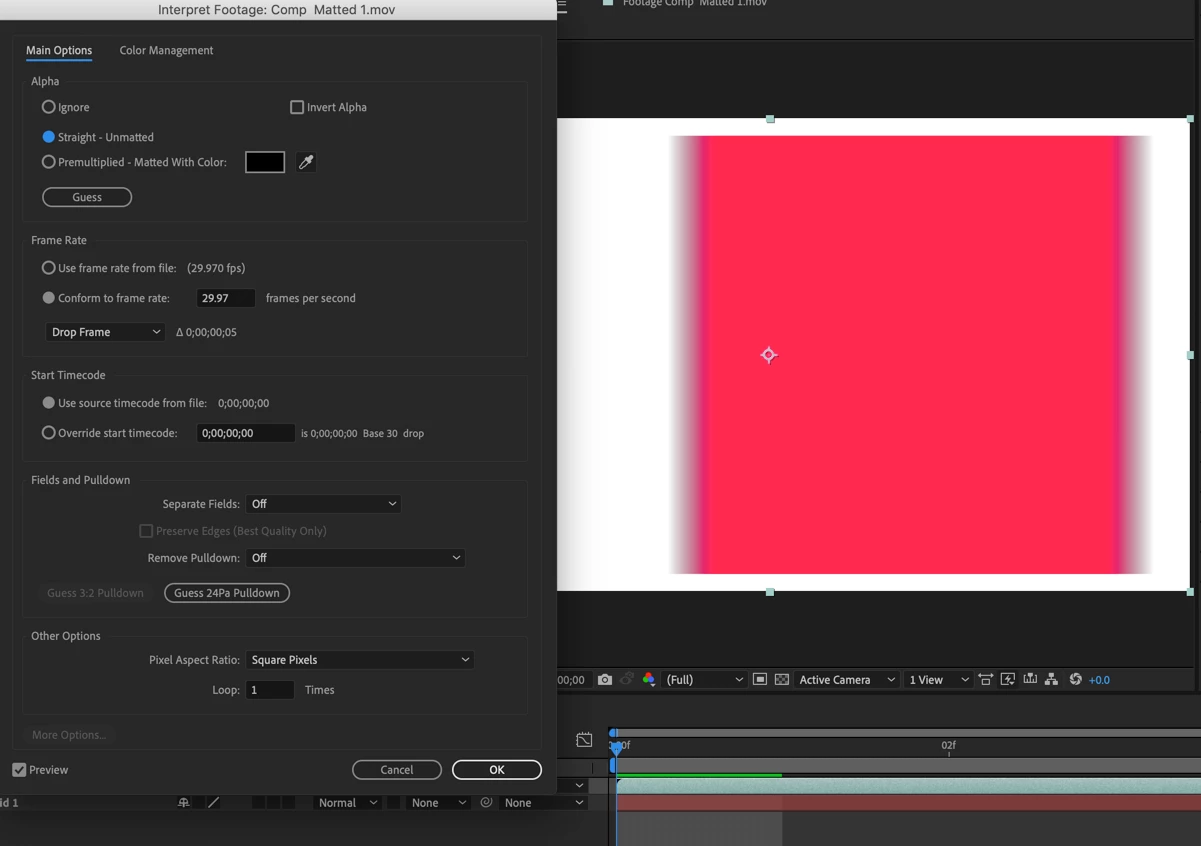
A straight movie interpreted as premultiplied is a little harder to see unless you have strong colors:

In both of these screenshots, the interpretation is wrong.

2 replies

Rick GerardCommunity ExpertCorrect answer
Community Expert
July 10, 2019

Make sure that the Output Module is set to Straight:

This applies to any format that supports an Alpha Channel.

This will give you an Alpha channel with no color added to the semi-transparent pixels. If you use the default Premultiplied then the Background Color of the Composition will be pre-multiplied with the colors of the edge pixels.

If changing interpretation the settings in Premiere Pro or After Effects to Premultiplied will appear to choke the render and color the edges based on the chosen color so it is not surprising that the halo in a pre-multiplied file will be reduced.

The industry standard is Straight - Unmatted, I do not know why Adobe always has had Premultiplied (Matted) as the default.

Run a quick test and see what you get. It is really easy to see if you have a premultiplied alpha interpreted as straight:

A straight movie interpreted as premultiplied is a little harder to see unless you have strong colors:

In both of these screenshots, the interpretation is wrong.

Inspiring
December 20, 2022

Unfortunately Adobe Media Encoder lacks these settings.

Roei Tzoref
Legend
July 10, 2019

when you exported from Ae did you make sure you rendered straight alpha?

and when you import back did you see that it was recognized as straight?

ug_ffm2Author
Inspiring
July 10, 2019

Thanks – I was pretty sure I did, but deleted my render queue meanwhile (and can't check that), but now have the strong feeling that the "straight" setting didn't make it into my preset but was only set manually – and I guess that was the mistake I was making.

Thanks anyway for the quick reply! (Didn't see the import recognization info before!)

Community Expert
July 10, 2019

Let's lobby to make Straight the default. Who needs Pre-multiplied?

Ok, somebody beat me up on that one. I can take it.