If you created a text box by clicking and dragging with the text tool, then added your paragraph to that shape all you have to do is spin down the Text layer properties panel, click the Animate> option and choose Opacity. Animator 1/ Range Selector will appear with the Animator 1/Opacity property set to 100% just below it.
Spin Down Animator 1/Range Selector 1 and you'll see Start, End, Offset, and >Advanced. Spin down Advanced and change Units - Percentage to Index, and Based On - Characters to Words. Set the Animator 1/Opacity to 0 and set a keyframe for Animator 1/Start and set the value to 1 and the first word will appear.
Move the CTI down the timeline until the first word is said in the audio track and click the Animator 1/Range Selector 1 stopwatch to set a keyframe, then use Alt/Option + [ to set an in point for the text layer.
Move down the timeline until about 5 words have been spoken and change the keyframe value to 5 so that the fifth word is visible. Now preview the timeline and see how closely the first 5 words match up with the audio. They should be pretty close.
It is almost never necessary to set a keyframe for each word spoken because our brains and our eyes are just not that accurate. I've done this before with a lot of similar animations and been able to get a complete sentence to look perfect with just two keyframes. Sometimes a little work with the graph editor will fix everything. Your comp will look something like this:
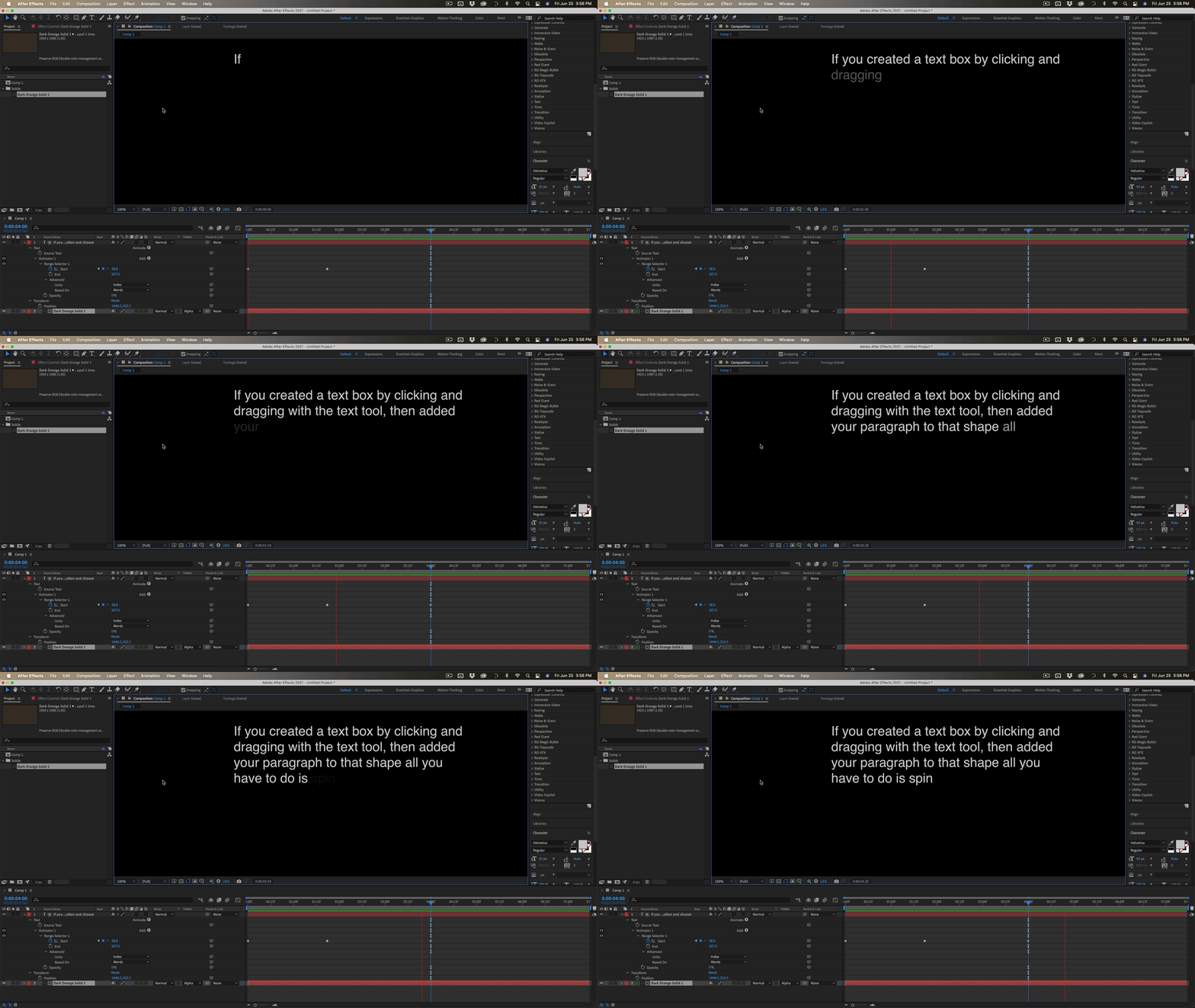
The screenshot shows you everything I did to the text layer. It should take you about 5 minutes.

 AdChoices