 Adobe Community

- Home
- After Effects
- Discussions
- Re: Banding issue driving me insane
- Re: Banding issue driving me insane

Copy link to clipboard
Copied
Hey Adobe community. I'm running into an issue with banding in one of my AE comps. The particulars are below:
- 13 second .tiff sequence exported from Cinema 4D (r16), 32-bit color, uncompressed (gradient is yellow/orange which fades in from black)
- Comp size is 4K, 4096x2160, 24fps, square pixels, 13 seconds in length
- Composited with other video files in AE CC 2017 (Not sure of actual build number, but not latest update)
- All animations/edits are complete, only thing left is to get rid of the banding
- Opened up each frame image in Photoshop, and the banding is not present
- Tried exporting the final comp as both a Quicktime file with an Animation preset, and an Open EXR sequence which is then taken into Premiere Pro
I've been troubleshooting this for a couple weeks now, based on what I've read online:
- Comp settings in AE project are set to 32-bpc
- I've adjusted the color adjustment properties to everything in the dropdown list. Currently it's set to None since the options changed the color, but not the banding
- Each video file in the comp has been interpolated to match the project comp settings
- I tried adding grain using AE's "Add Grain" settings. This worked to a point, but I had to crank the grain up so much that it ruined the image
- I tried a 4K video Overlay of grain as well. This also worked to a point but didn't get rid of the banding completely
- Tried taking the .tiff sequence into Premiere to create a single file, but due to 32-bpc color, wouldn't import
- Tried rendering through both AE's render settings and Adobe's Media Encoder renderer. No difference in the banding issue
At this point, I'm starting to think it's my monitor. I'm working on an LG 43UD79-B 43" 4K UHD LED IPS monitor. My video card is an EVGA GTX1080ti and I'm using a DP cable. I've read that certain monitors have issues reproducing smooth colors and I've only been working with this monitor for a month so I'm only now starting to find out what it can handle. Should I just export the project and ignore the banding since it may be my monitor? Are there any settings with this monitor that I should adjust, or any other project settings I may be missing? I just want to deliver the best product I can so any help would be really appreciated. Thanks in advance!!!


 1 Correct answer

The Animation CODEC is capped at 8 bits per channel (or millions of colors). If you switch to GoPro Cineform 4, Uncompressed YUV 10-bit or Apple ProRes 422, you can get to trillions of colors (16 bits per channel). For floating point (32 bits per channel), I've always understood that you have to switch to a still image format that supports that and render an image sequence. You're on Windows, right? Try GoPro Cineform 4 or 5 (five is the highest setting).
One of the many challenges of workin
...
 8
Replies
8
8
Replies
8


Copy link to clipboard
Copied
It will be VERY helpful to know the kind of media container & codec to which you're rendering.
Copy link to clipboard
Copied
Hi Dave,
Thanks for the reply. I've tried both a straight Quicktime file with the "Animation" codec, all settings set to best. I've also tried an Open EXR sequence with both 32-bit float and non 32-bit float settings with the "Use maximum render quality" and "Render at Maximum bit depth" settings always checked. I stuck with these because I'm familiar, and there are so many settings in Adobe's Media Encoder that I was a little overwhelmed.
Copy link to clipboard
Copied
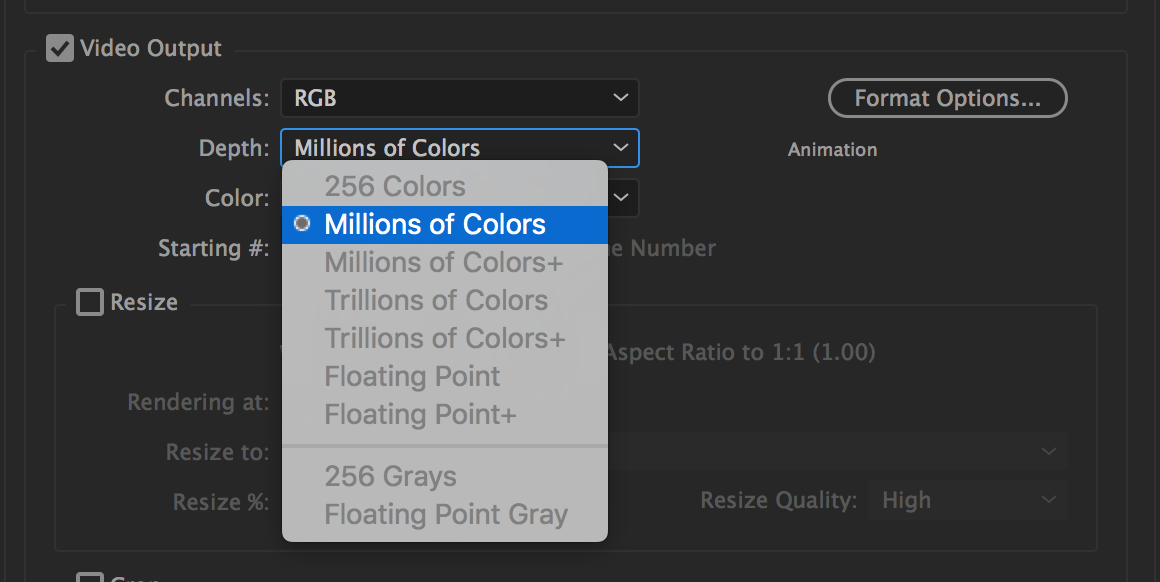
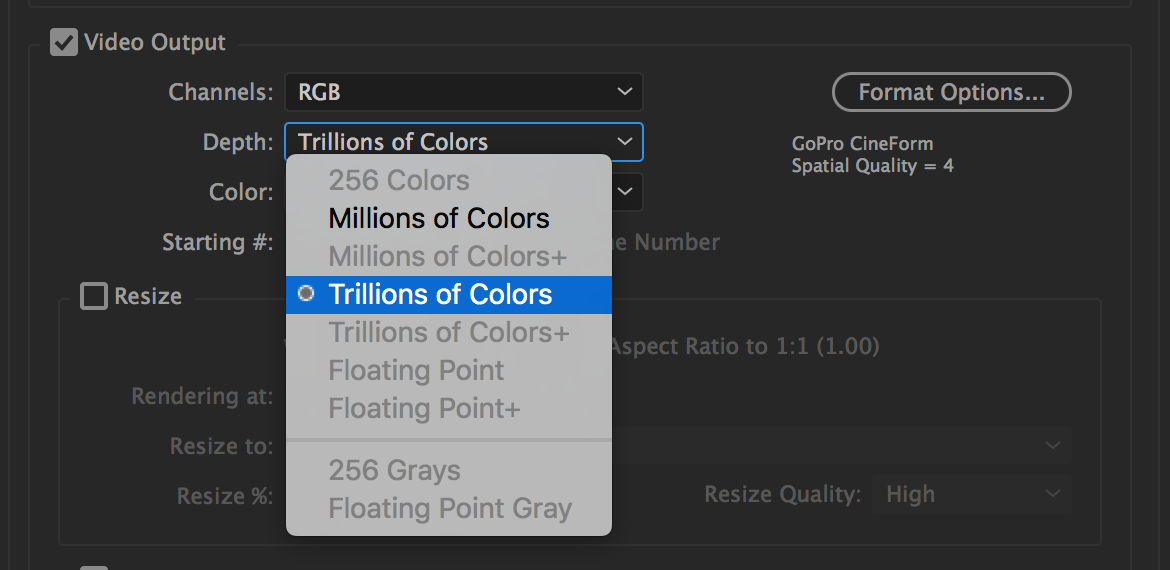
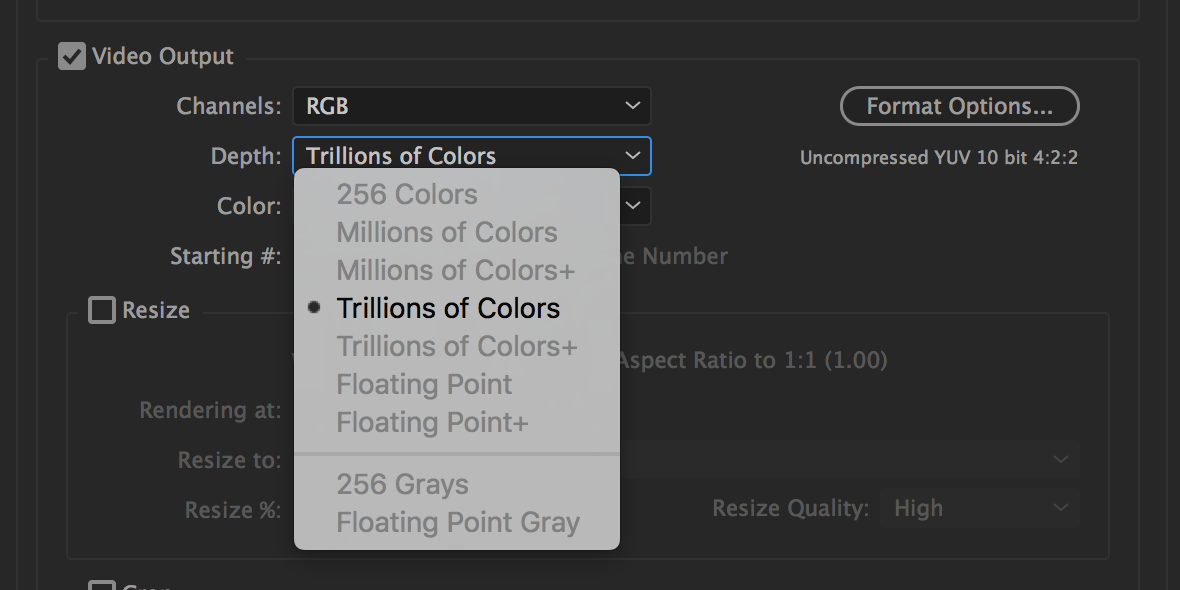
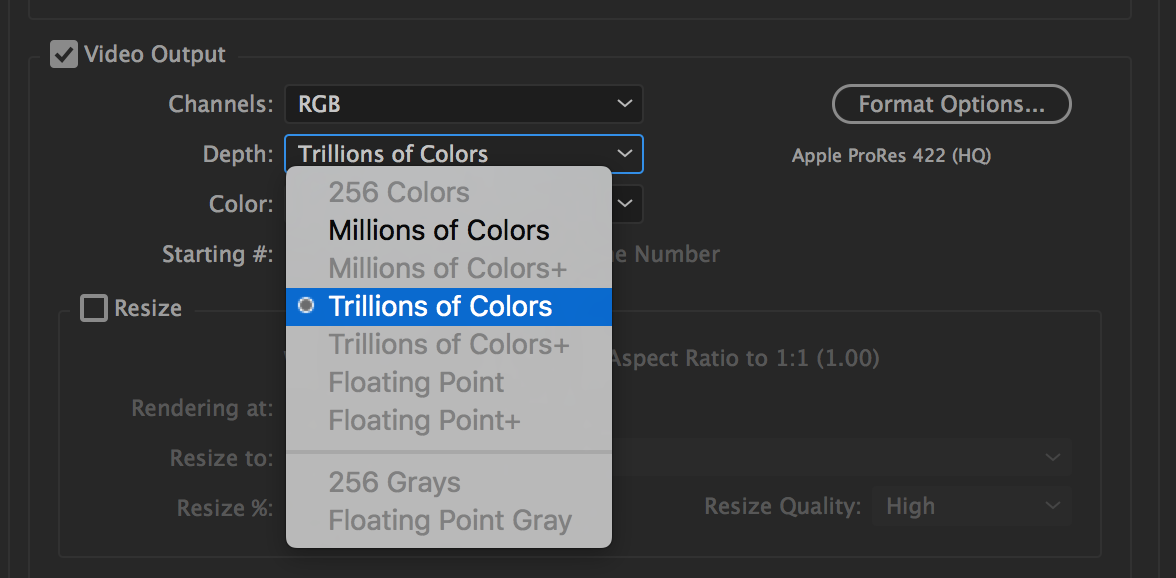
The Animation CODEC is capped at 8 bits per channel (or millions of colors). If you switch to GoPro Cineform 4, Uncompressed YUV 10-bit or Apple ProRes 422, you can get to trillions of colors (16 bits per channel). For floating point (32 bits per channel), I've always understood that you have to switch to a still image format that supports that and render an image sequence. You're on Windows, right? Try GoPro Cineform 4 or 5 (five is the highest setting).
One of the many challenges of working at a very deep color depth is having to wrestle with a what the picture looks like when the color depth inevitably gets reduced.
For what it's worth, "Use maximum render quality" is specifically for when exporting from Premiere Pro and you've scaled source footage below 100% allowing for finer detail in the reduced picture.
If going the Image Sequence route, I'm 99% sure that OpenEXR, Radiance and TIFF are the only three still image formats that will go as high as floating point (32 bits per channel). Targa seems like it might, but when you see "32" for that format, that's 32 bits per pixel which is 8 bits per channel. Of course, none of these are video formats.

Copy link to clipboard
Copied
If you have an 8-bit monitor and you are working in float you'll see banding that is not there because it is coming from the display, not the video.
If any of the original footage was 8-bit, you can also have color banding because it is baked into the footage. Changing the project to 16 or 32-bit won't help.
If you do your final render to an 8 bit MPEG stream like H.264, even though the original may be 32-bit, you'll still get banding and also color compression artifacts. Those are the facts.
The best way to hide banding is to add a little noise or grain. You don't have to add much. If you want to you can get really fancy and only add the noise to the noisy color channel without effecting the luminance channel. There are also ways to hide banding in the luminance channel. All of the techniques involve adding a little noise or blur.
Copy link to clipboard
Copied
Thanks to everyone who chimed in. And to Warren, thanks for the great explanation. The piece is a bumper for a production company, so it has to be able to be projected in a theater. I'm assuming the Cineform and Apple ProRes codecs will work for this? Also why it's imperative that the banding issue be fixed. Once I have the final render in Cineform format, how can I play it back to confirm? I don't think Quicktime or VLC can play back a Cineform file (or am i mistaken)? Yes, I'm on a PC.
To Rick, thank you for the info. The only asset where I'm getting the banding is 32-bpc, and my comp settings are set to 32-bpc. I've tried adding the noise, which worked up to a point. It could be my monitor, but it's 4K and should be at least a 10-bit panel. I think once I render the final out to either of the formats Warren mentioned, I'm going to turn it in and keep my fingers crossed.
Thanks again for all your help!
Copy link to clipboard
Copied
10 bit color in a monitor is quite rare and fairly expensive. They average around $3,500 to start and can easily go above $15K. 10 Bit Color Monitor - bhphotovideo.com and just being 4K does not guarantee that you have 10-bit color. There is no monitor that a regular human can afford that I know of that displays more than 10 bit color.
You need to see Ultra Wide gamut or something like that in the description. LG is advertizing an ultra wide gamut gaming monitor but if you dig into the specs the color bit depth is still 8 bit. Even if your monitor will support ultrawide color your graphics card may not. If a monitor or your GPU says 24 bit that means 16.7 million colors, which is RGB 8 bit. 8 + 8 + 8 = 24 bit color.
Copy link to clipboard
Copied
Understood Rick, thanks for the explanation.

Copy link to clipboard
Copied
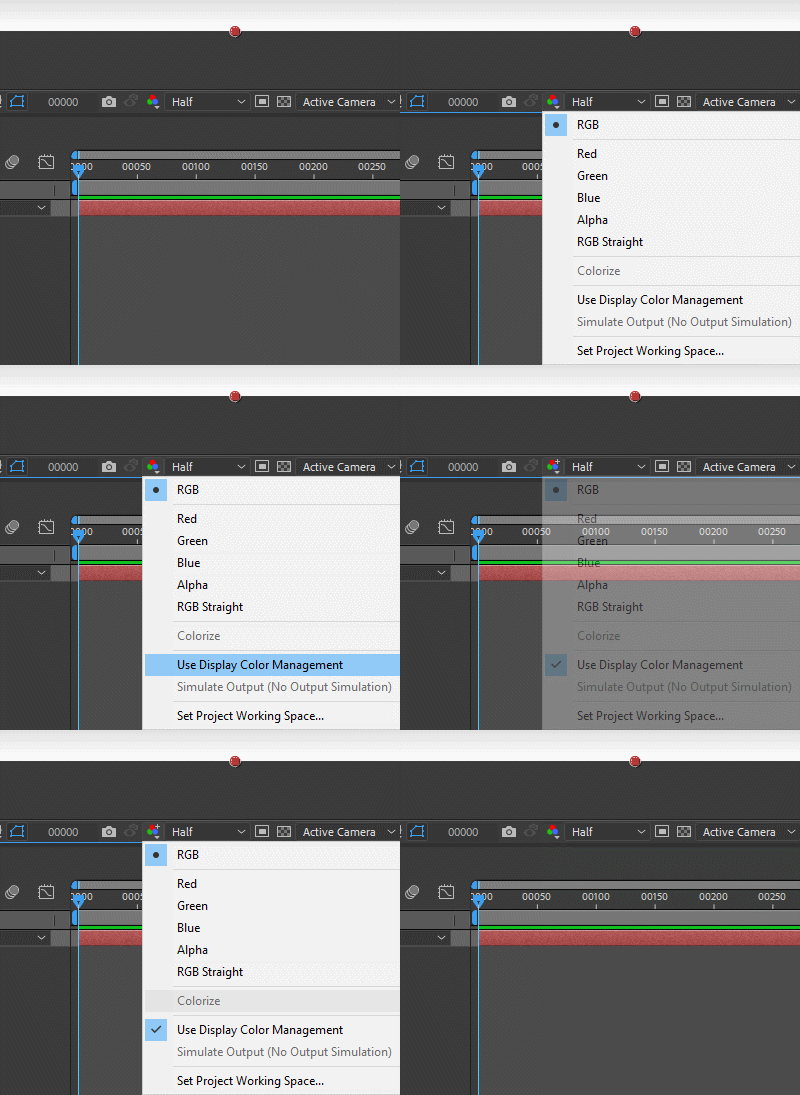
I recently was having major banding issues. This may not be the true answer but it worked for me.
In your comps, try turning off Display Color Management.


 AdChoices