
bartlomiejz12207217
Participant
July 6, 2018
Answered

Blur not appearing in background

  • July 6, 2018
  • 4 replies
  • 585 views

Hello all,

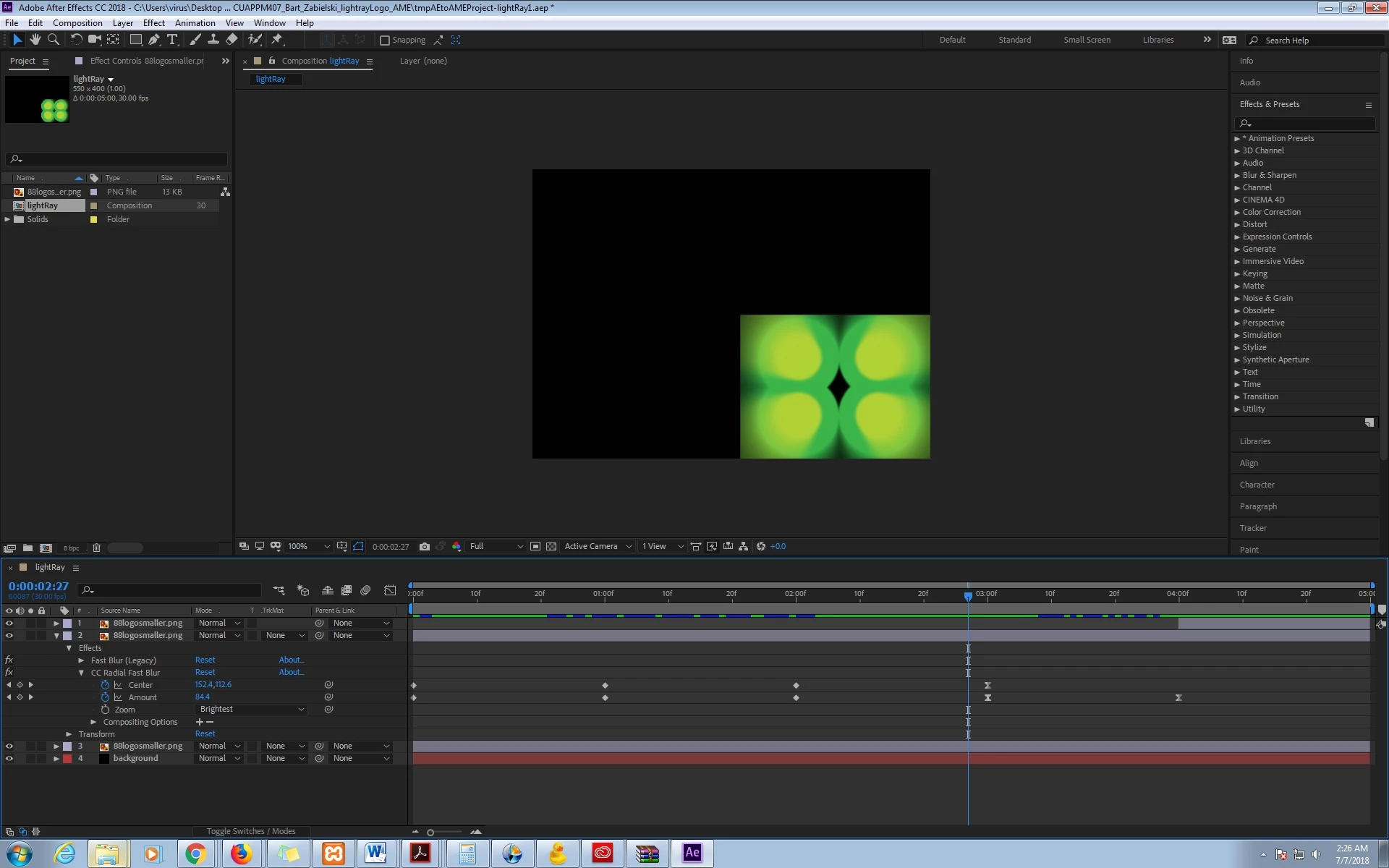
I am a newbie but cant find a solution hoping someone can help. I tried to use cc radial fast blur on my logo however the blur effect does not carry over onto the background layer. Only the logo gets the blur which makes it look weird. I attached photo. Any advice appreciated.
This topic has been closed for replies.
Correct answer Roei Tzoref

Try Adding the Grow bounds effect first, then then CC Radial Fast Blur. Increase the parameter in Grow Bounds Effect until you get rid of the edges.

4 replies

bartlomiejz12207217
Participant
July 6, 2018

you all are wizards thank you!!!

it was on my mind for ages thanks

grow bounds made it work.

Warren Heaton
Community Expert
Community Expert
July 6, 2018

You've applied an Effect that is bounded by the Layer's Spatial Resolution.  (This is, the Effect clips at the frame size of the layer.)

Apple Grow Bounds (Effect > Utility > Grow Bounds) and increase the Pixels amount until you've added enough pixels that the blurs do not clip.

Important: You'll have to drag Grow Bounds up the Effects stack so that it's applied before Fast Blur (Legacy" and CC Radial Fast Blur.

Warren Heaton
Community Expert
Community Expert
July 6, 2018

Too funny... two responses that'll work as I was typing mine.

Roei Tzoref
Legend
July 6, 2018

We need a photo finish Warren

Roei Tzoref
Roei TzorefCorrect answer
Legend
July 6, 2018

Try Adding the Grow bounds effect first, then then CC Radial Fast Blur. Increase the parameter in Grow Bounds Effect until you get rid of the edges.

Dave_LaRonde
Inspiring
July 6, 2018

Remove the blur from the layer.  Use the comp you have as a nested comp in another comp.  Apply the blue to the nested comp.