
Known Participant
May 30, 2018
Answered

Blurry/Poor Quality Video after Rendering (AE CC 2015)

  • May 30, 2018
  • 2 replies
  • 46145 views

Hi guys,

I know this question has been asked a bunch of times on the Adobe forums, but I can't seem to find a solution. I've been having this problem for a while now, but it's beginning to bother me now that I'm using After Effects in a professional capacity. I'm making an explainer video for the company I work for, but when I render it, it turns out quite blurry looking and low quality, despite being crisp in the AE's timeline. The video is made primarily with Illustrator files and text created in AE. I'm rendering it the way my college tutor told me: Quicktime–>h.264–>Spatial Quality 80. This has generally worked fine for me, but the last two videos I produced for work have been rendered in poor quality. I thought it might have something to do with using Illustrator files to animate, and I tried converting them to shapes, but most of my drawings seem to be too complex to be properly converted to shapes. It's definitely not a case of me rendering it at a lower resolution, as both the preview and 'best' settings are set to as high a resolution as possible. I've messed around with some other codecs and settings, but I'm not very knowledgable in this area, and the ones I've tried (namely 'animation') haven't made any difference, except making Quicktime player unable to open the file. I've seen people recommending choosing, 'h.254' as the preset (although this isn't an option for me, even after I scoured my preferences as one comment I saw directed) or using Adobe Media Encoder, which won't run on my computer (which is a Mac OS X). I've attached images as an example, comparing the video as it appears in AE versus how it looks when it's rendered.
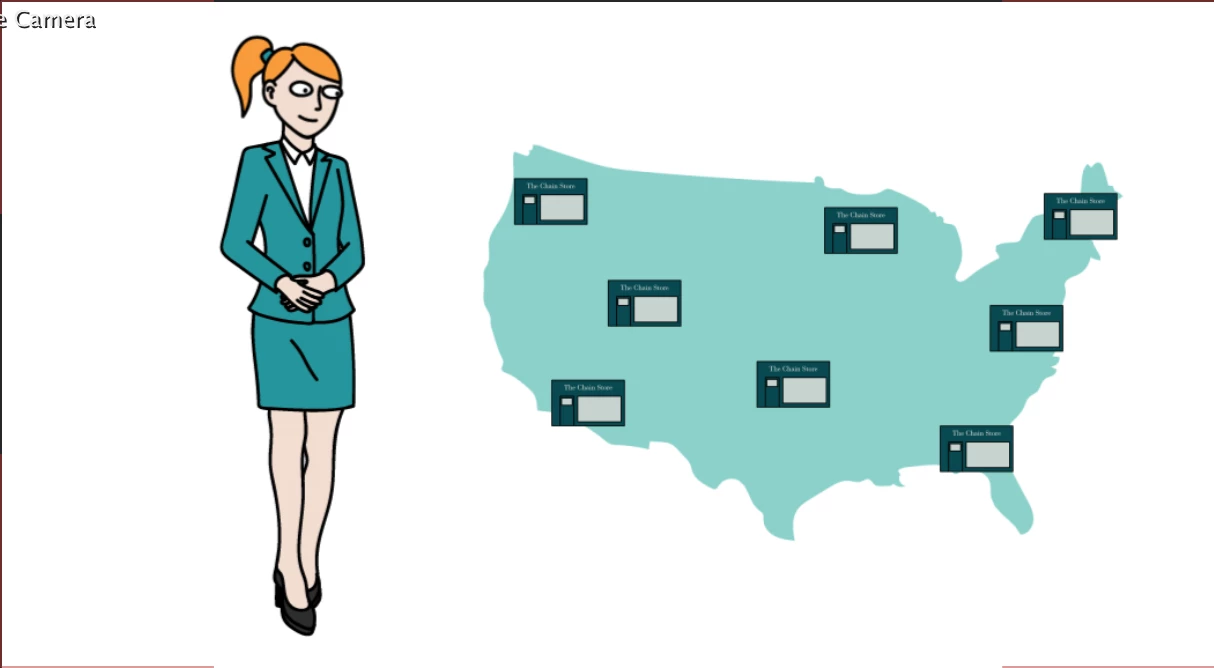
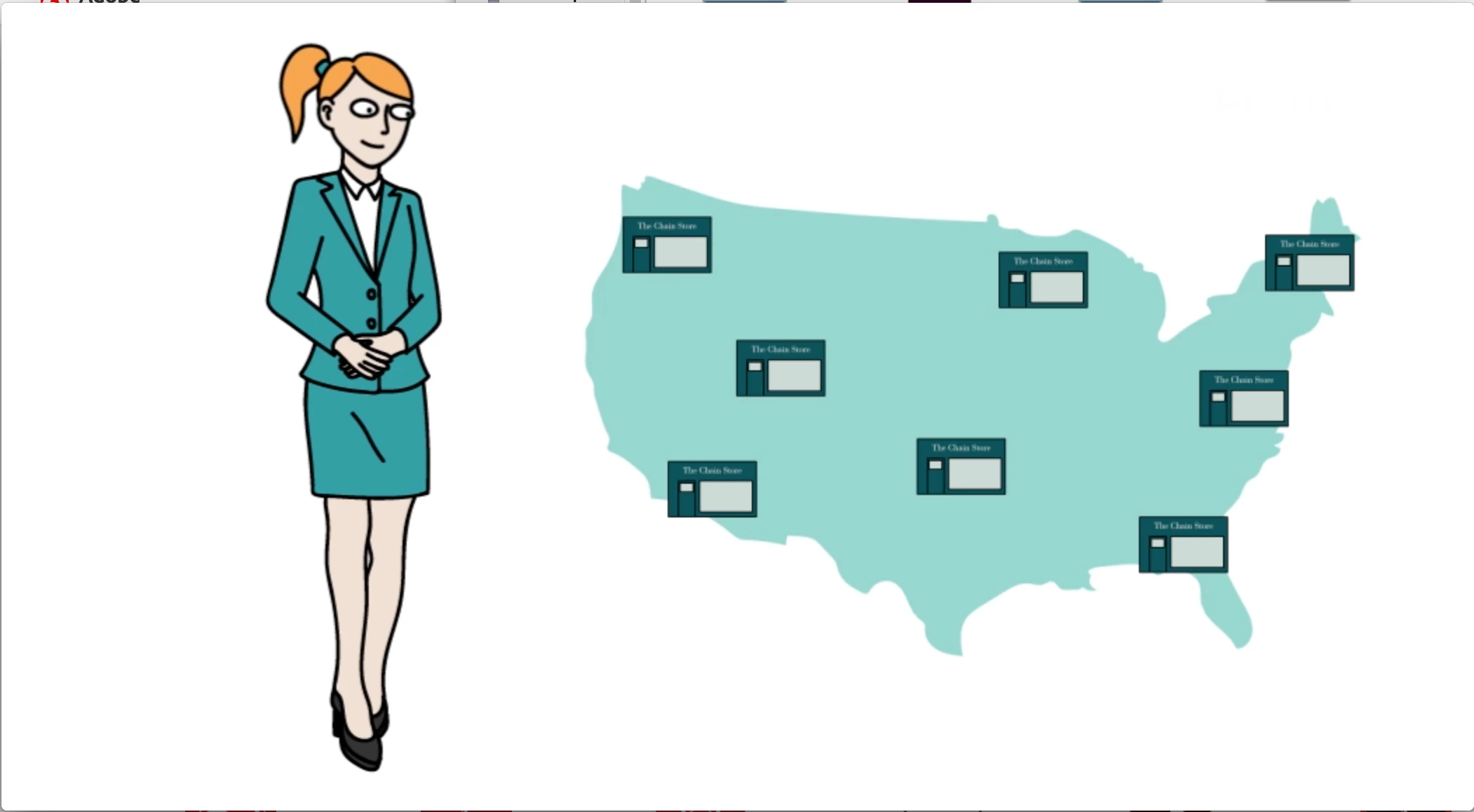
Looking at them side by side, there doesn't seem much difference, so perhaps it's just because AE displays it on a smaller screen in the timeline, so it's not as noticeable that the quality is poor, but there is definitely a significant difference between their quality when I view it before and after it is rendered. I have exhausted all solutions, so if anyone knows how to fix this problem, without using Media Encoder (as it won't run on my laptop) it would be much appreciated!

Thank you!

This topic has been closed for replies.
Correct answer Warren Heaton

Okay, I'll ask my boss about it tomorrow at work. Although the last time I made a video for him, there were no specifications for its dimensions or codec etc., and I was just working with the same specs I used throughout my time at college (QuickTime->h.264, 1050px by 575px–PAL D1/DV Widescreen Square Pixel, 25 frames per second, and the file extension was always .mov). He's not very good at giving me vital information; that's how I wind up on online forums begging strangers to fix my Adobe related problems!


Yikes!  You're using the PAL D1/DV Widescreen Square Pixel preset?


Make a duplicate of your Comp.  Change the Comp preset to HDTV 1080 25.  Adjust layers as needed to fill that 16x9 frame.  Add that Comp to the Adobe Media Encoder Queue.  In AME, set the Format to H264 and the Preset to "Match Source - High Bitrate". 


That file should look good.  If the resulting file size is too large for when you deliver it, start with the same Preset in AME and reduce the  Target Bit Rate and Maximum Bit Rate (instead of 10 and 12, try 6 and 8).

2 replies

Inspiring
May 2, 2020

Hi Warren, I am having a similar problem. I changed the comp preset and adjusted the layers, followed by rendering in AME but my unrendered work in Premiere Pro is clear while the rendered footage is blurry. Can you please advise as I've been stuck on this for a couple of days it would be much appreciated. I had initially uploaded two screenshots to this message of the slightly blurry screenshot and the clear screenshot but when I save the screenshot and view it, the blurry rendered screenshot is crystal clear?? I don't know where I'm going wrong. 

Warren Heaton
Community Expert
Community Expert
May 3, 2020

Hi Fintang:


In your Sequence settings, what are the settings for your Video Previews?  Most likely, the width and height or your previews are lower than your Video Frame Size.


-Warren


Mylenium
Legend
May 30, 2018

You are simply using "bad" colors - large uniformly colored areas, one white and the other a cyanide green. that and yes, of course the legacy QT encoder never was that great to begin with. you are not doing yourself any favors by using it. If you can't use AME, export a file using the Animation CoDec and encode it with Handbrake or another ffmpeg-based tool.

Mylenium

Hugh_JassAuthor
Known Participant
May 30, 2018

I downloaded Handbrake and rendered the video from there, but it still looks exactly the same, quality wise. Is there a specific set of options I should follow to render it at a high quality? As I said earlier, I'm not very knowledgable about codecs and such, so I'm probably not using the optimal settings.

Thank you for replying.

Mylenium
Legend
May 30, 2018

Again, part of the issue is the colors. Heavily compressed formats like MPEG 4 don't like uniformly colored areas and in your case you proably also run into additional problems due to lack of contrast - there is barely any reds in your image, which will make the chroma undersampling more pronounced because essentially one colro channel is completely absent. The real answer is really in changing the design. The usual tricks apply: use gradients, add some noise, tweak saturation and contrast, consider other colors. As far as the compression itself goes, you can always try and fiddle with the quantisation matrices and block sizes. It may just produce an out-of-spec MP4 file that can't be imported in other programs.

Mylenium