
Copy link to clipboard
Copied
Hi There, have spent days on this but can't find an answer so might be using the wrong search terms sorry.
I have text inside an extrude object but have problems with certain letters when using 'Bevel Outside'. It creates intersecting geometry on the insides of letters like B's, M's, N's etc...
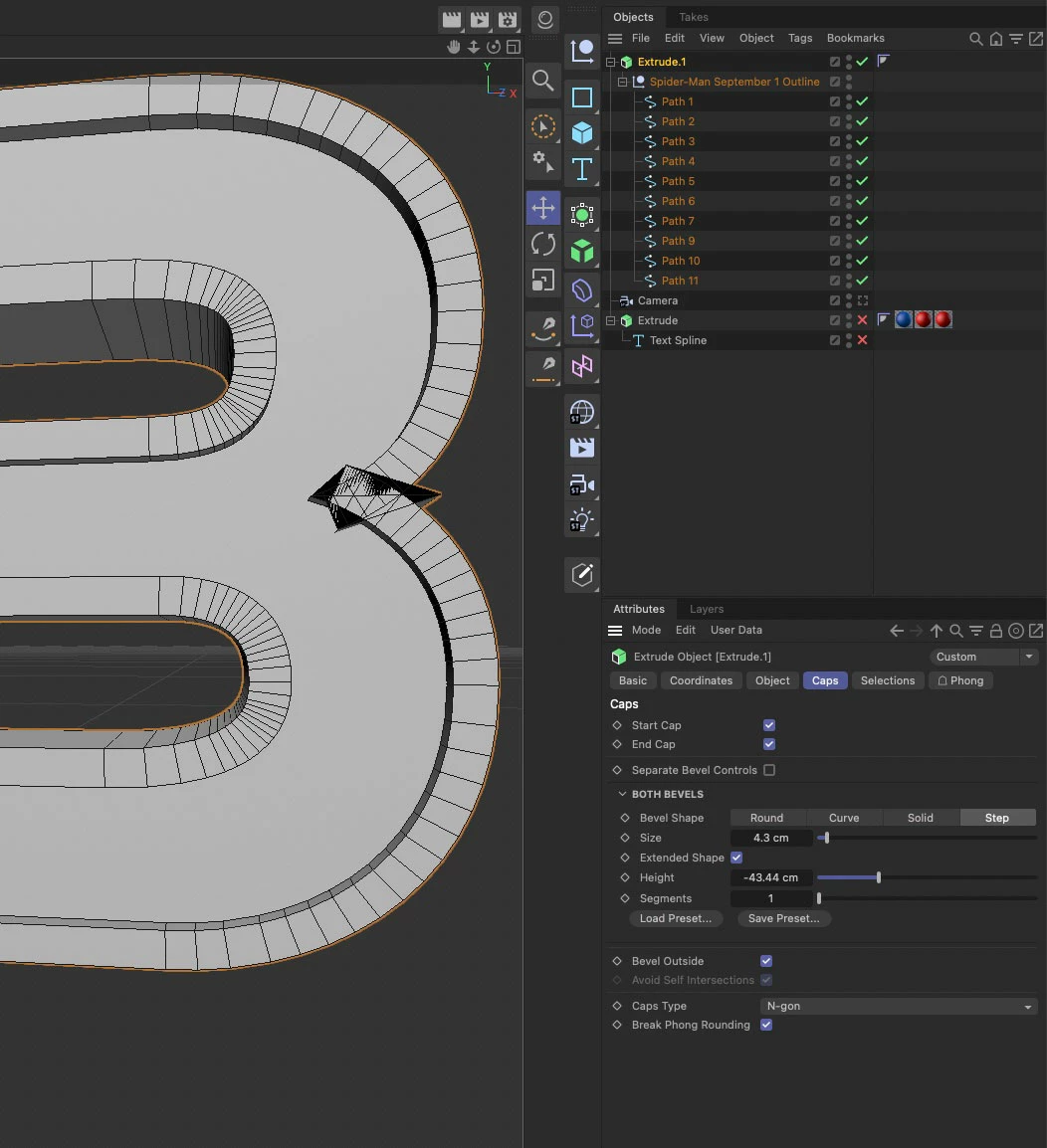
The above was using a preset and here is one using just a standard bevel...
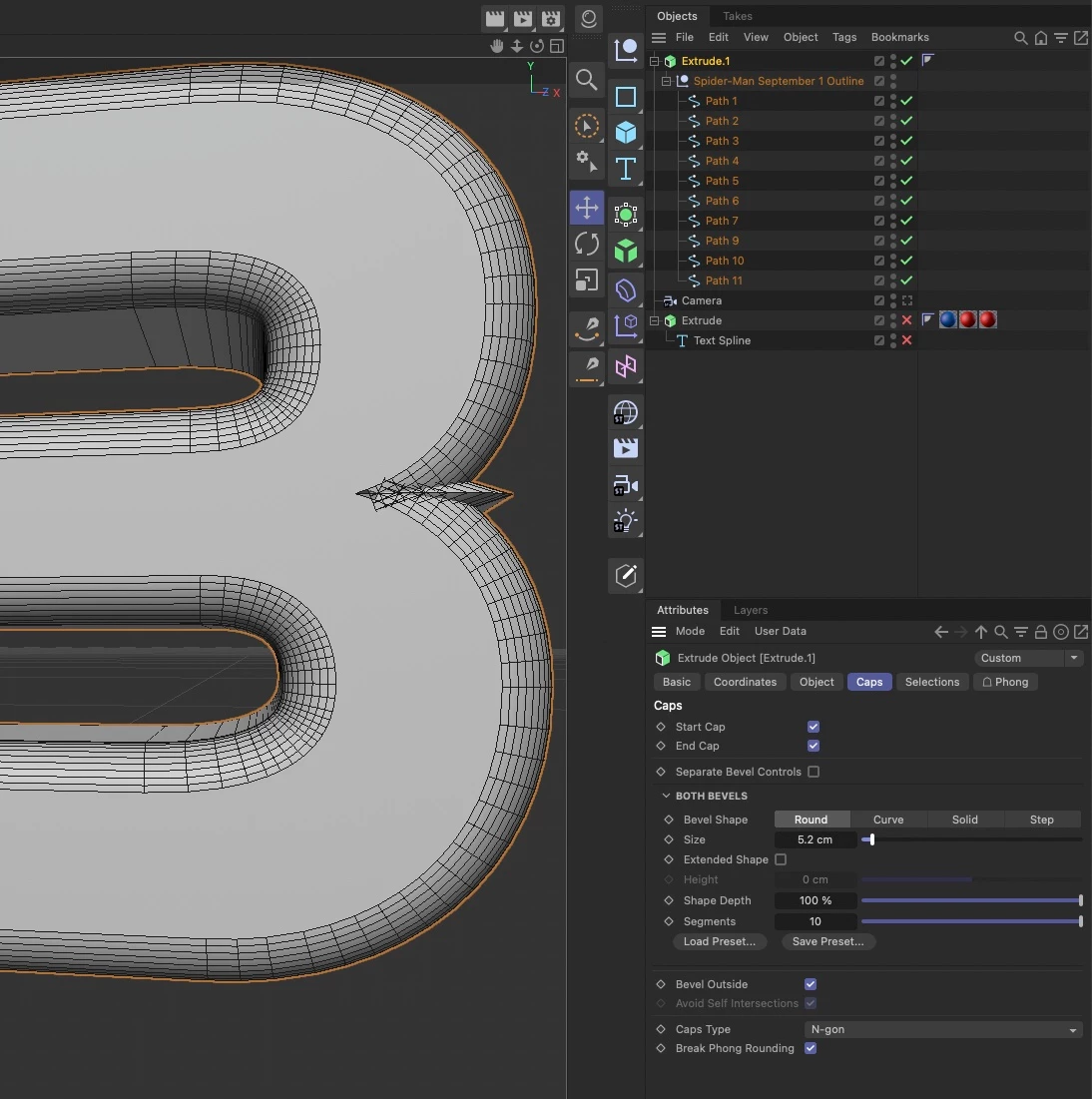
Is there a way to fix this? Or is there an alternaive approach to making text with bevels that offers control over these issues?
I've tried using a font in C4D as well as converting the font to paths in Illustrator and importing (which is what you see in the screenshot). I also wondered if there were multiple points on top of each other in the font/Illustrator but there's only one.
Any suggestions welcome. Cheers, Ben
Thickening text in Illustrator to allow for the outside bevel before importing in C4D works well. But is this what everyone does? Avoid using 'Bevel Outside' on text?
Cheers
You can't defeat the math. It's pretty much that any such angle smaller than 45 degrees will cause such a behavior simply because the normal calculations end up pointing away too far from the vconvergence point and the program can't make heads and tails of it. You have to prepare the paths accordingly so the corners are actually not just a single point, but either an "invisible" short straight line or a convex triangle with less acute angles themselves. that and of course the ussual other points
...Copy link to clipboard
Copied
Thickening text in Illustrator to allow for the outside bevel before importing in C4D works well. But is this what everyone does? Avoid using 'Bevel Outside' on text?
Cheers
Copy link to clipboard
Copied
I think when I've encountered these situations, it's been a case of using internal bevels instead or playing with the settings of thickness etc.. Using the Text tool in C4D is easier than importing from AI, but I appreciated that might also not always be desirable.
Copy link to clipboard
Copied
You can't defeat the math. It's pretty much that any such angle smaller than 45 degrees will cause such a behavior simply because the normal calculations end up pointing away too far from the vconvergence point and the program can't make heads and tails of it. You have to prepare the paths accordingly so the corners are actually not just a single point, but either an "invisible" short straight line or a convex triangle with less acute angles themselves. that and of course the ussual other points: Duplicate overlapping points need to be removed, the artwork cleaned up to providse an even distribution of anchor points. It's been forever this way and you just need to make it part of your standard workflow. Just converting text to outlines or even relying on parametric text objects rarely ever produces a perfect result.
Mylenium
Copy link to clipboard
Copied
Thanks for the replies, much appreciated. Have marked my answer correct because it provides exact steps which solves the problem - unless there's another method? Cheers guys.
Get ready! An upgraded Adobe Community experience is coming in January.
Learn more