insideyourveins
Participant
December 23, 2016
Answered

Can I stretch a 2 frame GIF to work as a jpeg?

  • December 23, 2016
  • 3 replies
  • 761 views

Hi, this is the gif

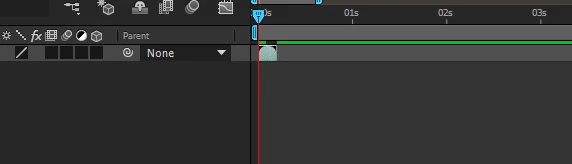
I wanted it to be in a loop so i could work with scale and positions etc

Does anyone know any solution? Thanks

The comp stays like this btw
    This topic has been closed for replies.
    Correct answer David Arbor

    You can enable Time Remapping by Right-clicking>Time>Enable Time Remapping (Opt+Cmd+T)

    Two things will happen:

    1) You'll see two keyframes appear, one for your beginning and one for your end frames

    2) You can now extend your layer as long as you want

    Leave the where they are and extend your layer by however much you want. Then Opt+Click the stopwatch for Time Remap to add an expression and paste this

    loopOut("pingpong")

    This will simply bounce back and forth between those two keyframes for the length of the layer. Now you can scale and position it however you want.

    3 replies

    insideyourveins
    Participant
    December 23, 2016

    Thank you veryyyy much guysss problem solved!!!!!!!

    But theres one more issue, i think its a little more simple.

    The gif mentioned was exported on photoshop with no bg, but in AE it goes white, how could i change it? Thanks

    Roei Tzoref
    Legend
    December 23, 2016

    instead of exporting the file as a GIF, render your video in photoshop: file->export->render video

    using these settings

    Roei Tzoref
    Legend
    December 23, 2016

    use David's method if you want it to loop forward and then in reverse and then forward again (hence "pingpong") but if you want for any video footage to just loop again and again, you can use the interpret footage dialog in the project window. right click on the footage->interpret footage->main and set the loop to whatever you want (most of us use 99 - it does not cost anything). you can also set the desired frame rate here and experiment in the footage window (click on the footage twice) i.e you don't need to have a composition to experiment.

    when you are ready drag the footage to a timeline or create one from the footage itself by right clicking->new comp from selection

    David ArborCorrect answer
    Inspiring
    December 23, 2016

    You can enable Time Remapping by Right-clicking>Time>Enable Time Remapping (Opt+Cmd+T)

    Two things will happen:

    1) You'll see two keyframes appear, one for your beginning and one for your end frames

    2) You can now extend your layer as long as you want

    Leave the where they are and extend your layer by however much you want. Then Opt+Click the stopwatch for Time Remap to add an expression and paste this

    loopOut("pingpong")

    This will simply bounce back and forth between those two keyframes for the length of the layer. Now you can scale and position it however you want.
